
...
Example Post (must be logged into WordPress to view): https://business.wisc.edu/news/example
Featured News
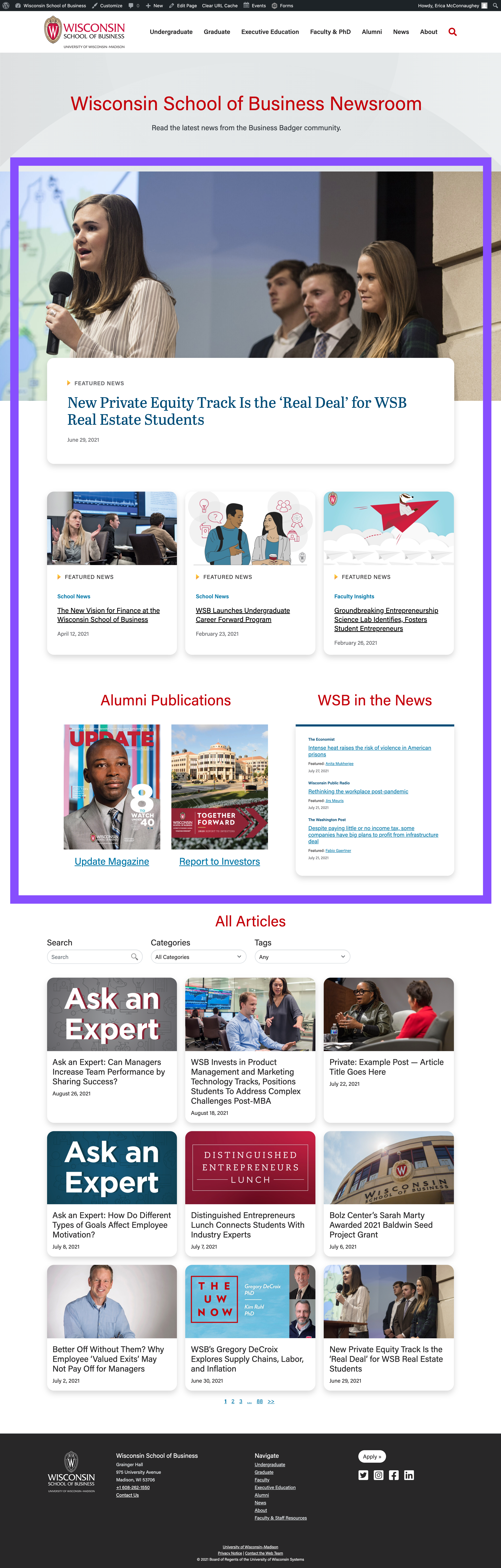
To update the featured newsroom content (shown in the purple box in the screenshot below), submit your content changes to the web team via a web ticket.
Add a New Post
see detailed directions for all blog posts
Categories
- In the right menu, uncheck Uncategorized and pick the one category this article falls under
- Category options: School News, Faculty Insights, Alumni in Action, Student Experience, Dean's Corner, Press Releases
Tags
- In the right menu, add your tags, make sure they are from the tag list and spelled/capitalized exactly as listed
...
Images
- Every image must have alt text. Please add it to existing images that are missing it.
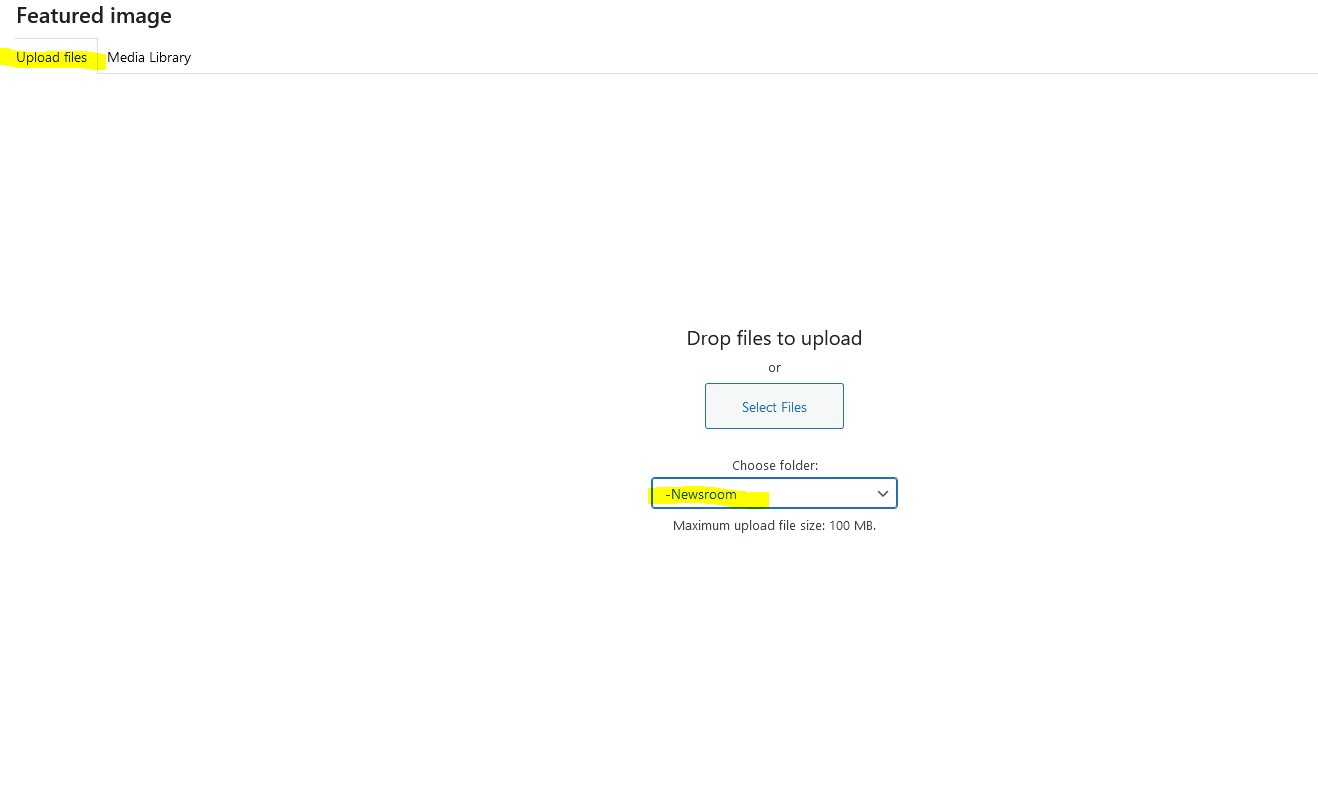
- Be sure to upload new images to the Blogs > Newsroom media library folder in WP.
- We can add more folders inside Newsroom (by year or by category) if want to add more organization.
SEO
- SEO information is populated for you based on the article title and an excerpt from the beginning of the article.
- You can edit SEO information if desired (or if that is the standard set for the newsroom)
- Below your post content in the editor, you can edit SEO details in the Yoast SEO Premium section
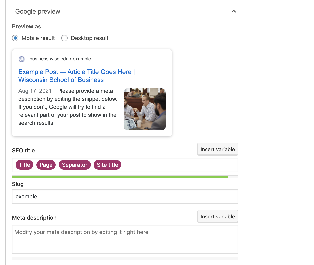
- You can remove the pink "Title" block and replace with a shortened title.
- You can change the URL by editing the Slug – it is best to do this before publishing the post so we don't end up with a broken link for a previously published post.
- Each post's slug must be unique, so be sure the slugs you choose are long enough that it won't result in duplicates.
- You can add a meta description if desired.
- There are two color bars that indicate whether the length of your SEO title and meta description are good, okay, or too long. Avoid the red bar indicating your content is too long here.
Related posts
- You can select which articles display under related content at the bottom of the blog post. If you don't select them, they will be the three most recent posts from your blog with the same category.
- Under "Meta" below your main post content, you will find "Related Posts"
- You can search for the title of the related post on the left side or you can narrow down to a certain tag or category by clicking on "Select taxonomy"
Edit an Existing Blog Post
- Navigate to your blog in the left menu.
- Find the post you want to edit in the list of posts or search for it. Click on the name of the post to edit.
- Make your changes and be sure to click Publish in the top right corner to make those changes live.
For Website Launch
Updating Categories
- The new categories were added to WordPress. I was able to rename some old categories, which re-categorized some posts, but that didn’t capture all of the posts. And I was afraid to do too much because I didn’t want to categorize something improperly, so you need to make sure each post has the correct category. I left some of the old categories in case it’s helpful, but those should get deleted before site launch.
- Go to Posts in the left menu. In the same left menu, you'll see Categories listed under Posts. Click Categories to see all the current category options. To see which articles have that category, click the number,
Updating Tags
- You need to tag all the articles with the new set of tags.
- Suggestion: Go to Posts in the left menu. In the same left menu, you'll see Tags listed under Posts. Click Tags to see all the current tags. Find something that is close to the new tag that has a lot of posts and rename it to the new tag. That whole set is done. For other ones that need that tag, you will have to go into them one by one.
Add New Post
- Navigate to Posts in the left menu.
- Click Add New.
- Add the title of the article in the top field.
- For body copy, you can just start typing or click the plus sign to add a block. Blocks you'll want are paragraph and heading. We are working on the Aside blocks right now.
- Subtitle = leave blank for now because we don't have this set up
- Author override = Author defaults to your name (the person making the post). If you want it to be something else, say Dean Samba, put Dean Samba's name here. Optional.
- Photography credit = if you want to provide a photography credit, put it here. Optional.
- External URL = not sure what this does, probably don't use it
- Hide featured image = Check if you want to hide the featured image
- Related Posts = Defaults to pulling in 3 random posts from same category. Is supposed to let you pick the three posts... not sure this is working.
- Yoast SEO = you only need to add meta description (can change SEO Title from default if desired, however it should end in | Wisconsin School of Business)
- Categories = In the right menu. Uncheck Uncategorized and pick the one category this article falls under
- Category options: School News, Faculty Insights, Alumni in Action, Student Experience, Dean's Corner, Press Releases
- Tags = In the right menu. Add your tags, make sure they are from the tag list and spelled/capitalized exactly as listed (Tag list: https://docs.google.com/spreadsheets/d/1Stgz9AA8U32cdM-GKwOHaLZdaXBOxEWzy-BxlCoM-UY/edit?usp=sharing)
- Set Featured Image in the right menu. Upload images to the Newsroom folder (under blogs). We could add more folders inside Newsroom (by year or by category) if want to add more organization.
Edit Post
- Navigate to Posts in the left menu.
- Find the post you want to edit in the list of posts or search for it.