
Research Seminar pages exist for each Wisconsin School of Business academic department. Links to these pages can be found from each academic department’s department's public facing websitewebpage.
This guide will walk you through how to create and edit Research Seminar pages within the WSB Confluence site.
...
| Info | ||
|---|---|---|
| ||
While anyone can view the Research Seminar pages, you will need editing permission in order to create new pages or update existing ones. You can request editing permission by emailing webteam@wsb.wisc.edu . |
...
| Anchor | ||||
|---|---|---|---|---|
|
To access your Research Seminar pages within Confluence:
...
| Info | ||
|---|---|---|
| ||
You can also visit the main WSB Research Seminars homepage here, then click on your department's name on the left-hand side of the page. You may want to bookmark this page for easy reference. |
...
| Anchor | ||||
|---|---|---|---|---|
|
Now that you are at the correct page, you'll need to login (if you arenhaven't already).
- In the upper right-hand corner of the top red bar, click the "Log In" link
- You will then see the University of Wisconsin-Madison NetID login page. (Note, if you are already logged into to a system that uses NetID, your browser may skip the login page)
- Login with your NetID and password.
- Now your research seminar page will have the option to "Create" on the top red bar, as well as the option to "edit" on the right corner of each page.
...
| Info | ||
|---|---|---|
| ||
If you do not see the "create" or "edit" links as show below, that means your account does not have editing permission for this page. Double check to make sure you are on the right page specific to your department. If you still don't have access, email webteam@wsb.wisc.edu with the link to the page you are trying to edit. |
...
| Anchor | ||||
|---|---|---|---|---|
|
See also: Confluence > Pages and Blogs
...
- Go to the page you want to update.
- Click Edit, which should be in the top right corner.
- If the Edit button does not exist, you do not have permission to edit the page. Contact webteam@wsb.wisc.edu for access if needed.
- After making the changes, in the very bottom left corner, click:
- update to publish changes live
- or close to save a draft of your changes
- You can now view your changes.
...
| Anchor | ||||
|---|---|---|---|---|
|
See also: Confluence > Pages and Blogs
...
- Make sure you are on your academic department's top page.
- Click on the “Create” button at the top red bar.
Note: Clicking the “Create” button will automatically create a subpage below the page you are currently on, so make sure you are on the main department page. Name the page by typing into the “Page title” section, the top line. The page should be named by Semester Year: Department Name. Note: always keep the department name in the heading.
You can now add paragraphs, tables, and links to your new page.
...
| Anchor | ||||
|---|---|---|---|---|
|
See also: Confluence > Tables
...

...
| Anchor | ||||
|---|---|---|---|---|
|
See also: Confluence > Files, File Naming Conventions and Best Practices, Accessibility compliance: PDF files without images
...
- Highlight the text you wish to link
- Click the insert link button on the editing toolbar.
- A box will pop-up with multiple options:
- To link to a file, click "Files" and then "Browse" to browse to the file on your computer that you wish to attach and link to.
- Make sure the file meets the standards for file names and accessiblity (File Naming Conventions and Best Practices and Accessibility compliance: PDF files without images).
- To link to a page within confluence, (for example another year's list of seminars), use the "Recently Viewed" or "Search" option, and find the page.
- To link to an external web page, such as as https://wsbbusiness.wisc.edu, click click "Web Link" and then page the link into the "Address" field.
...
| Info | ||
|---|---|---|
| ||
Files that are linked to become "attached" to the page you edited. You can manage attachments of a page by clicking the "..." on a page's upper right corner (next to "Edit", "Save for Later" "Watch" and "Share". |
...
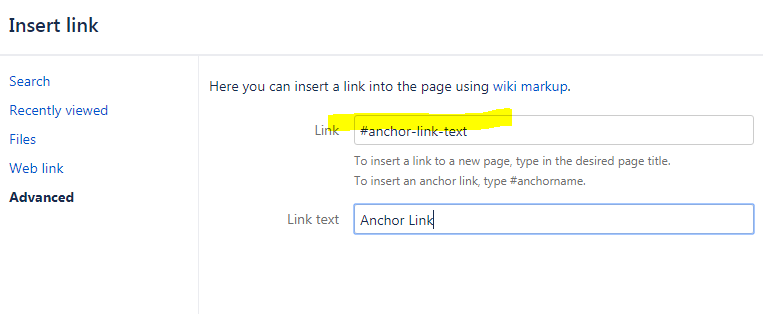
Step Seven: Add Jump Links (Optional)
If you’d like to add a link that jumps down to a section on the same page, follow the steps below. (These types links of links are called "Anchor links" and also sometimes referred to as"Jump Links", or "In-Page" links).
...
...
Step Eight: Add Photos with Text (Optional)
See also: Image Editing – Quick Guide
...
- Re-size your photo before uploading it into confluence (See also: Image Editing – Quick Guide)
- Standard image size for head-shot 150 x 188 pixels
- Click the "Insert files and images" button on the editing toolbar.
- Click "Upload files"
- Find the image you wish to use (Please resize with an image editor before adding to allow your page to load faster).
- Click "insert" and you will now see your image on the page. You can move this image around as needed.
- To align your photo select your photo and use the left, center, and right align options.
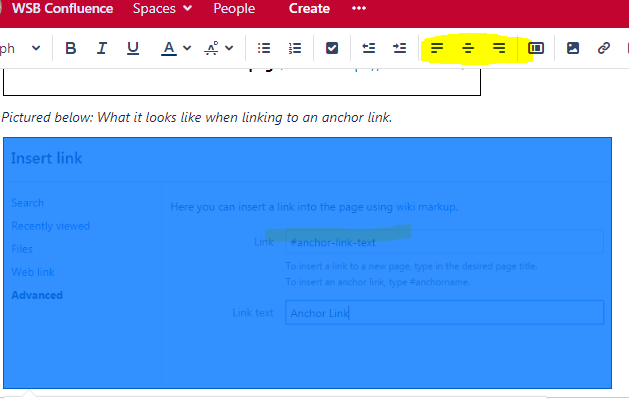
- To align your photo select your photo and use the left, center, and right align options.
- Click on the image to see options to add a border.
- Add alt text to images - after you have your image on the page, click on the image, then click "properties" and add text describing the image (WebAIM > Alternative Text).
...
Adjust Order of Pages on Left-hand List
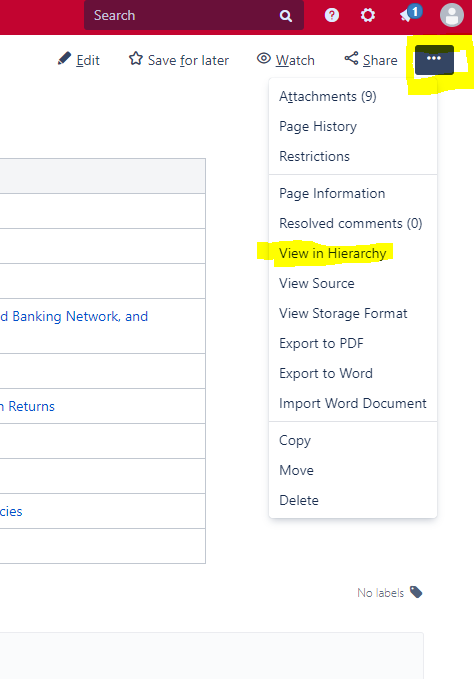
To update the order in which your pages display on the left hand side, complete the following steps:
- Go to the page which you need to move
- Click the "..." menu in the upper left
- Choose "View in Hierarchy"
- A list that matches the left side order will appear.
- You can now drag and drop items in the order that you need them
- As soon as you drag and drop, it auto saves the change.
- If you need any help with ordering or order adjustments, you may also reach out to webteam@wsb.wisc.edu and we can help.
...
Turning "Watching" Notifications/Emails Off or On
By default, any pages you have editing access to turns on "watching" for your account. This means you'll get email alerts any time those pages are edited by anyone.
...
| Info | ||
|---|---|---|
| ||
You can quick toggle watching by pressing the "W" key on any page. |
...
How-to See Recently Worked on Pages
- Click on your Avatar in the top right hand corner
- Go go "Recently Worked on"

...
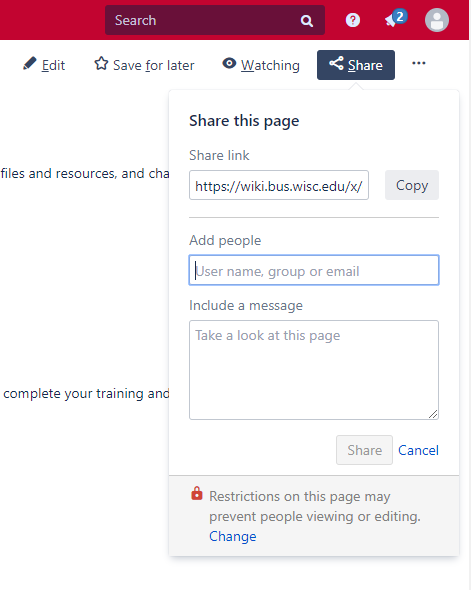
How-to Share Links to Research Seminar Pages
If you want to share a link to a Reasearch Research Seminar page:
- Login to Confluence
- Find the page you want to share
- Click the "Share" icon
- Copy the URL with the unique id
- Use that URL in all your external (outside of confluence) communications and materials
...
Other Helpful Resources and How-to Guides
- Confluence Server Documentation
- File Naming Conventions and Best Practices
- Accessibility compliance: PDF files without images
- Image Editing – Quick Guide
- WebAIM > Alternative Text
Related articles
| Content by Label | ||||||||||||||||||
|---|---|---|---|---|---|---|---|---|---|---|---|---|---|---|---|---|---|---|
|
...