
...
Document naming standards:
wisconsin-unit/department-description
Simple file no specific year or revision associated with the file. Used when a single file is updated yearly.wisconsin-yyyy-mm-dd-unit/department-description or wisconsin-yyyy-semester-unit/department-description
A file that is featured in an archive and has multiple items featured. You can add the level of specificity that works best for your archive.
Example PDF:
Original filename: mkt_237_415_syllabus.pdf
Random original file name is updated to proper naming conventions: wisconsin-syllabus-415-marketing-communications
- Make sure the file meets the standards for accessibility (Accessibility compliance: PDF files without images).
- Highlight the text in Confluence you wish to link.
- Click the insert link button on the editing toolbar.
- A box will pop-up with multiple options:
- To link to a file, click "Files" and then "Browse" to browse to the file on your computer that you wish to attach and link to.
- To link to a page within confluence, (for example another year's list of seminars), use the "Recently Viewed" or "Search" option, and find the page.
- To link to an external web page, such as https://business.wisc.edu click "Web Link" and then paste the link into the "Address" field.
...
Step Eight: Add Photos with Text (Optional)
See also: Image Editing – Quick Guide
If you'd like to add photos and text, such as details of a speaker and their topic, you would do the following:
- Re-size your photo before uploading it into confluence (See also: Image Editing – Quick Guide)
- Standard image size for head-shot 150 x 188 pixels
- Click the "Insert files and images" button on the editing toolbar.
- Click "Upload files"
- Find the image you wish to use (Please resize with an image editor before adding to allow your page to load faster).
- Click "insert" and you will now see your image on the page. You can move this image around as needed.
- To align your photo select your photo and use the left, center, and right align options.
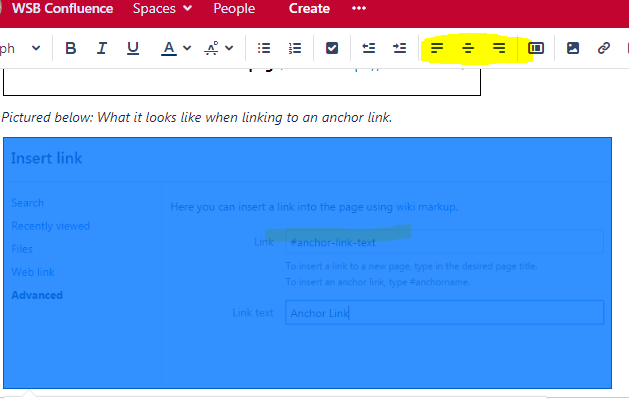
- To align your photo select your photo and use the left, center, and right align options.
- Click on the image to see options to add a border.
- Add alt text to images - after you have your image on the page, click on the image, then click "properties" and add text describing the image (WebAIM > Alternative Text).
...
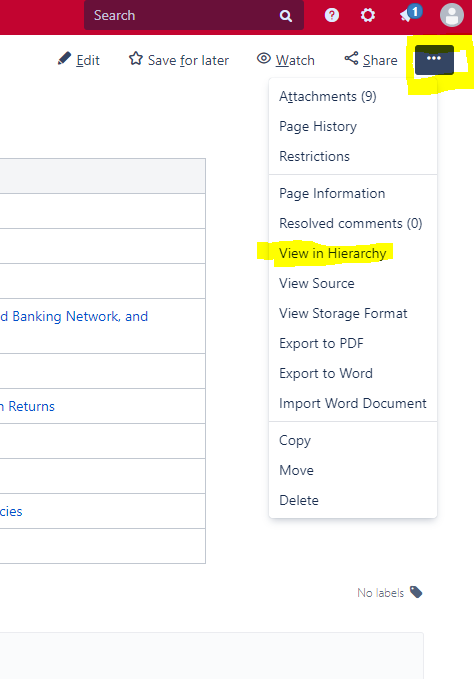
- Go to the page which you need to move
- Click the "..." menu in the upper left
- Choose "View in Hierarchy"
- A list that matches the left side order will appear.
- You can now drag and drop items in the order that you need them
- As soon as you drag and drop, it auto saves the change.
- If you need any help with ordering or order adjustments, you may also reach out to webteam@wsb.wisc.edu and we can help.
...
...
Turn "Watching" Notifications/Emails Off or On
By default, any pages you have editing access to turns on "watching" for your account. This means you'll get email alerts any time those pages are edited by anyone.
...
- Confluence Server DocumentationFile Naming Conventions and Best Practices
- Accessibility compliance: PDF files without images
- Image Editing – Quick Guide
- WebAIM > Alternative Text
...