
...
Since we have thousands of images on the website, and more are added everyday every day for events and blog posts, it is important to place your images in the correct folder.
...
To move an image that you already uploaded:
- Look on the left side in the folder tree and locate the folder you want to move the image to. Don't click on the folder, just make sure it is visible.
- Find your image in the Uncategorized folder. Images here are ordered from most recently uploaded to older uploads, so you should be able to find your image quickly if you uploaded it recently.
- You can also search for the name of the image file in the upper righthand corner.
- Click anywhere on the image data row and drag your mouse to the left side, where the folders are listed. Drop the image in the correct folder.
- To move multiple images, mark the checkbox next to each image you want to move. Then when you click and drag, you will move all selected images to the same folder.
Delete an Image from the Media Library
If you no longer need to use an image on the website (or if a duplicate image was uploaded), you should delete it from the media library. It is best to delete the image immediately, so that it doesn't get used by someone else editing our website, events, or blogs. Be careful here, if an image is in use and it gets deleted from the media library, the page will display a broken image.
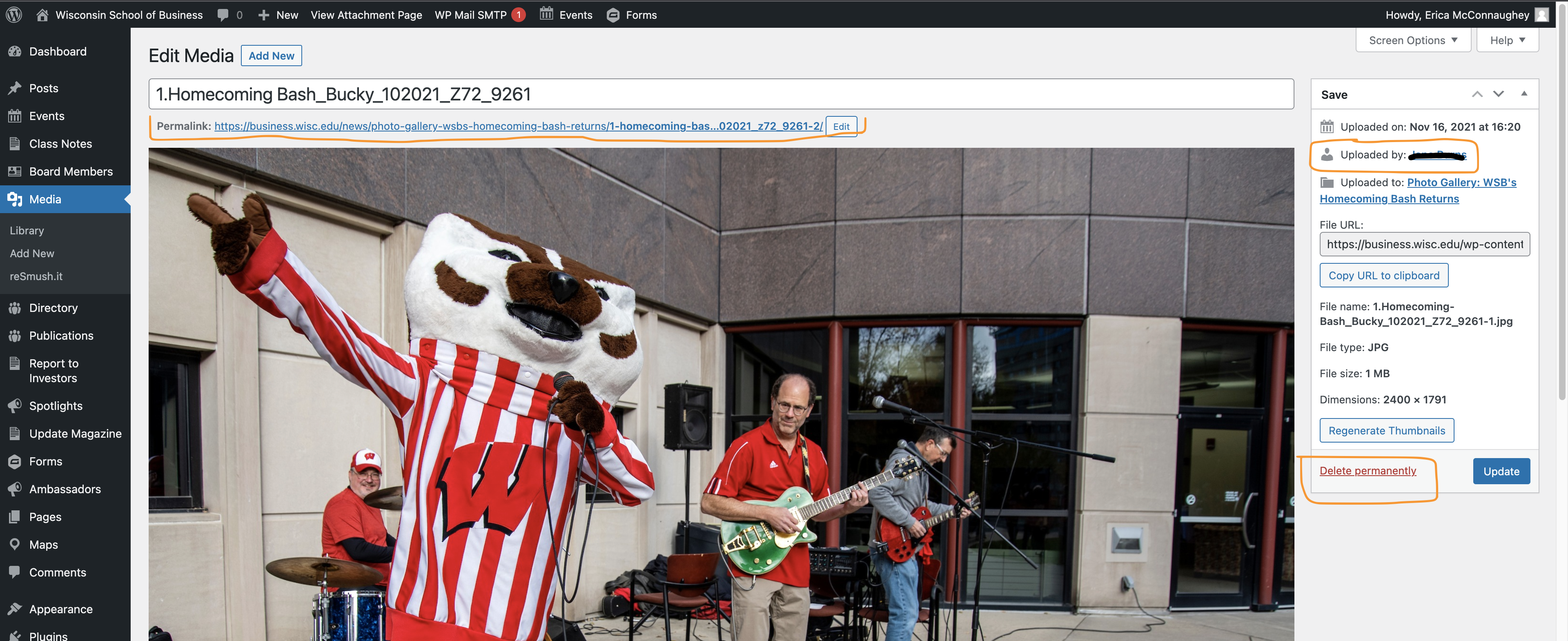
NOTE: You will only be able to delete images that you uploaded yourself. If you need another image removed, please:
- reach out to the team member who uploaded the image and ask them to delete it
- reach out to the web team via web ticket request – be sure you include the file name and the permalink for the image you want deleted
To delete an image you uploaded to the media library:
- Locate the image in the media library (use directions above for locating images) and select it
- Click delete permanently and confirm.
Related articles
| Content by Label | ||||||||||||||||||
|---|---|---|---|---|---|---|---|---|---|---|---|---|---|---|---|---|---|---|
|
...