
...
- The minimum information to display includes member's name, position, and company.
- Biographies and headshots are optional but should be used consistently for members of a single advisory board.
- The web team can activate "Read Profile" links for each board member when bios have been added to their profiles. You will need to communicate this request via a web ticket.
- If very few or no board members have submitted bios, the profile links will can be removed and board members will not have individual profile pages.
- If you would like profile links added or removed, please communicate this request via a web ticket.
The instructions on this page The instructions below are for adding/editing members of on the following advisory boardsboard listing pages:
- WSB boards:
- A.C. Nielsen Center Boards (External and Executive Committee)
- AIS Advisory Board
- Bolz Center Board
- Center for Brand & Product Management Board
- Erdman Center Boards (Executive and Academic)
- Graaskamp Center Board (Patron, Sustaining, Corporate, AREIT, and Emeritus members)
- Grainger Center Advisory Boards (Executive and Alumni)
- Hawk Center Boards (Equity Portfolio, Fixed Income Portfolio, and Placement and Networking)
- Nicholas Center Board (Advisory and Emeritus members)
- Risk Management and Insurance Advisory Board (Emeritus and Advisory Board members)
- Weinert Center Boards (WAVE and Advisory)
...
- First Name (required)
- Last Name (required)
- Position (recommended)
- Organization (recommended)
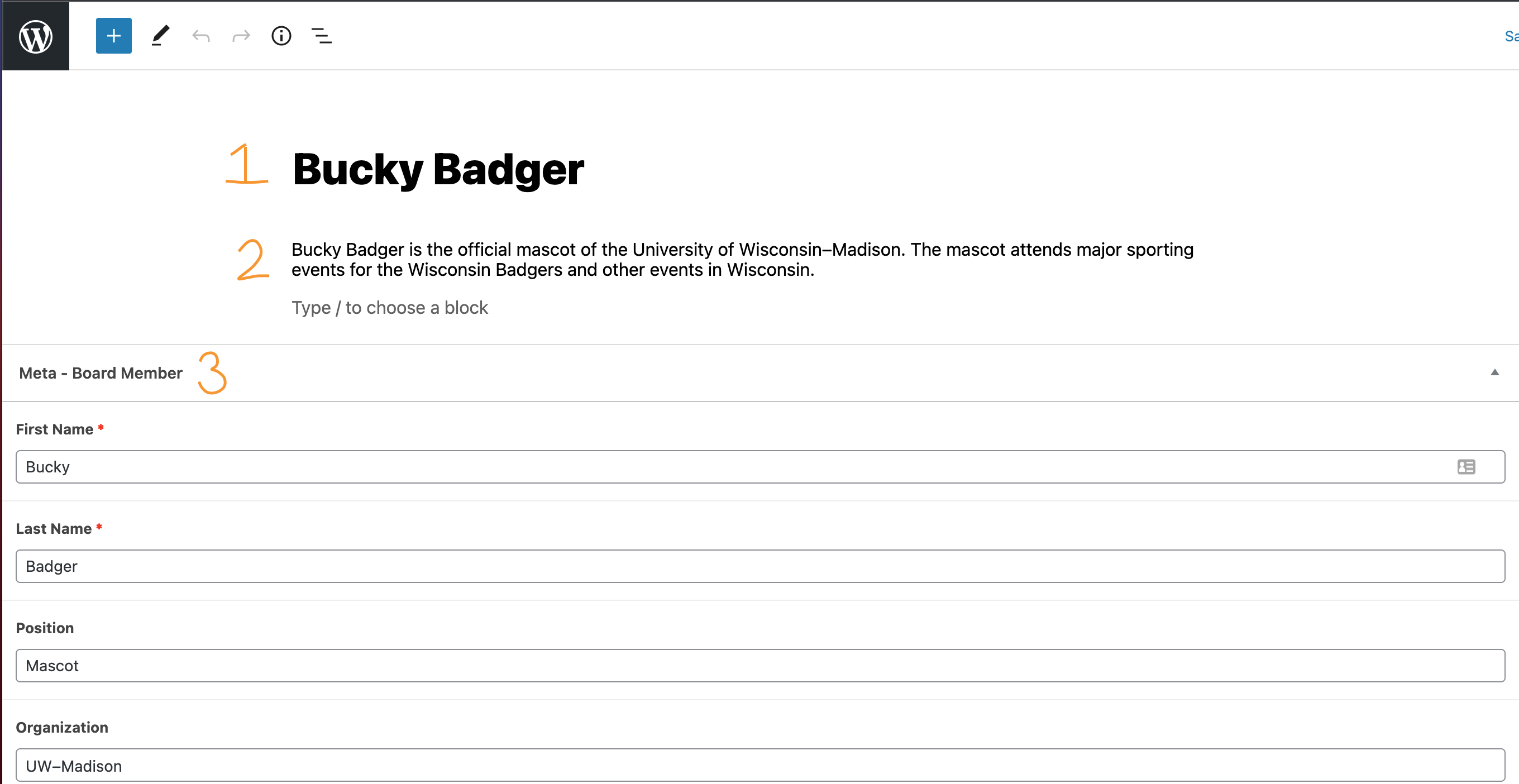
4
...
Once your headshots have been submitted via a web ticket and MSC has determined the images meet our standards, the web team will add the headshots to your advisory board for you.
...
.
...
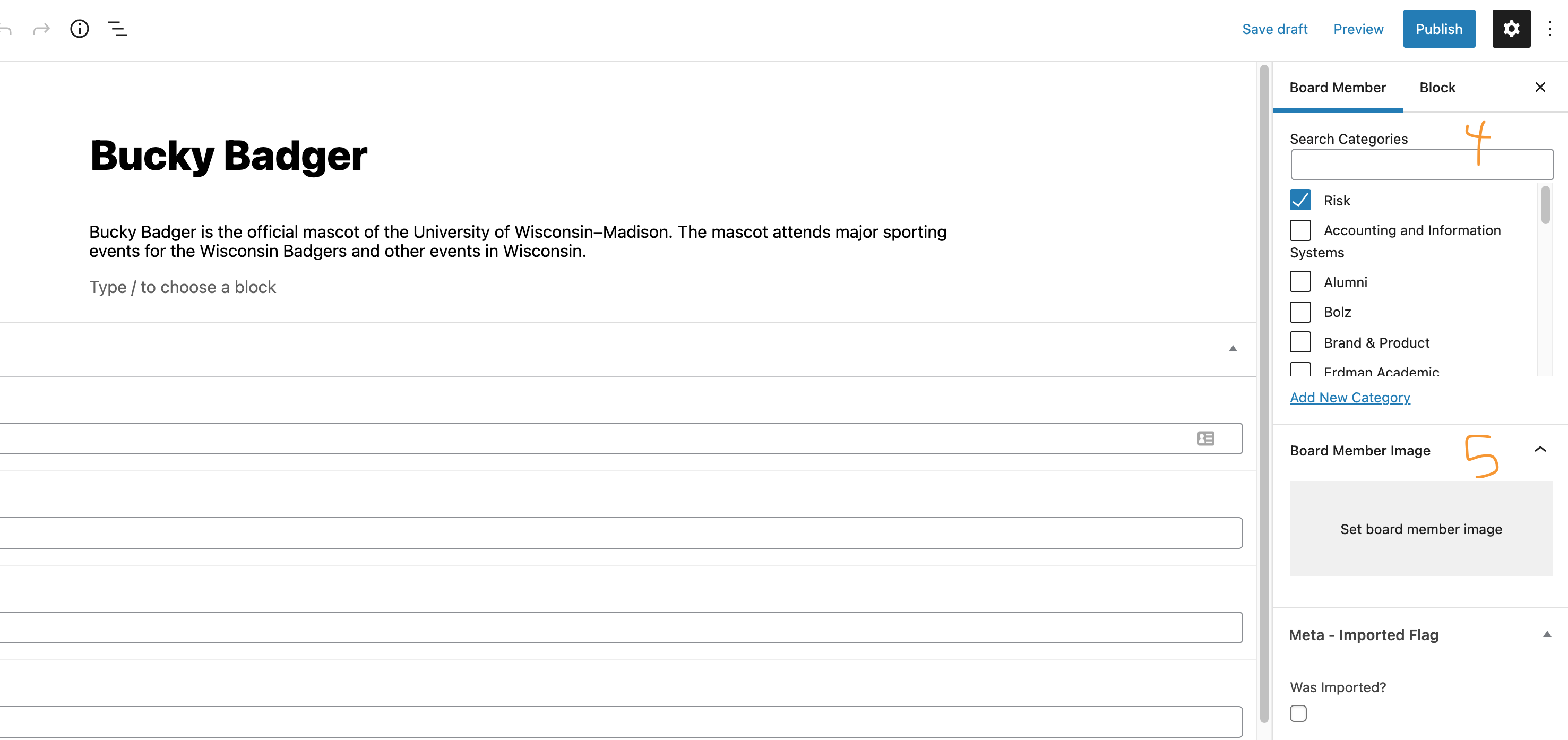
Category (required)
In order for a board member to appear in the correct advisory board(s), you must select the category/categories.
- In the righthand menu, select the "Board Member" tab.
- Scroll down until you see "Categories".
- Be sure Uncategorized is unchecked and pick the correct advisory board(s) from the list.
- Reach out to the web team if you don't see the category you need.
5. Board Member Headshot (optional)
Once your headshots have been submitted via a web ticket and MSC has determined the images meet our standards, the web team will add the headshots to your advisory board for you.
See more information about gathering headshots above.
Saving, Previewing, and Publishing
...
- Navigate to Board Members in the left menu.
- Find the board member you want to edit in the list or search for them on the upper righthand side. Click on the person's name to edit their information.
- Make your changes and be sure to click Update in the top right corner to make your changes appear on the website.
Delete a Board Member
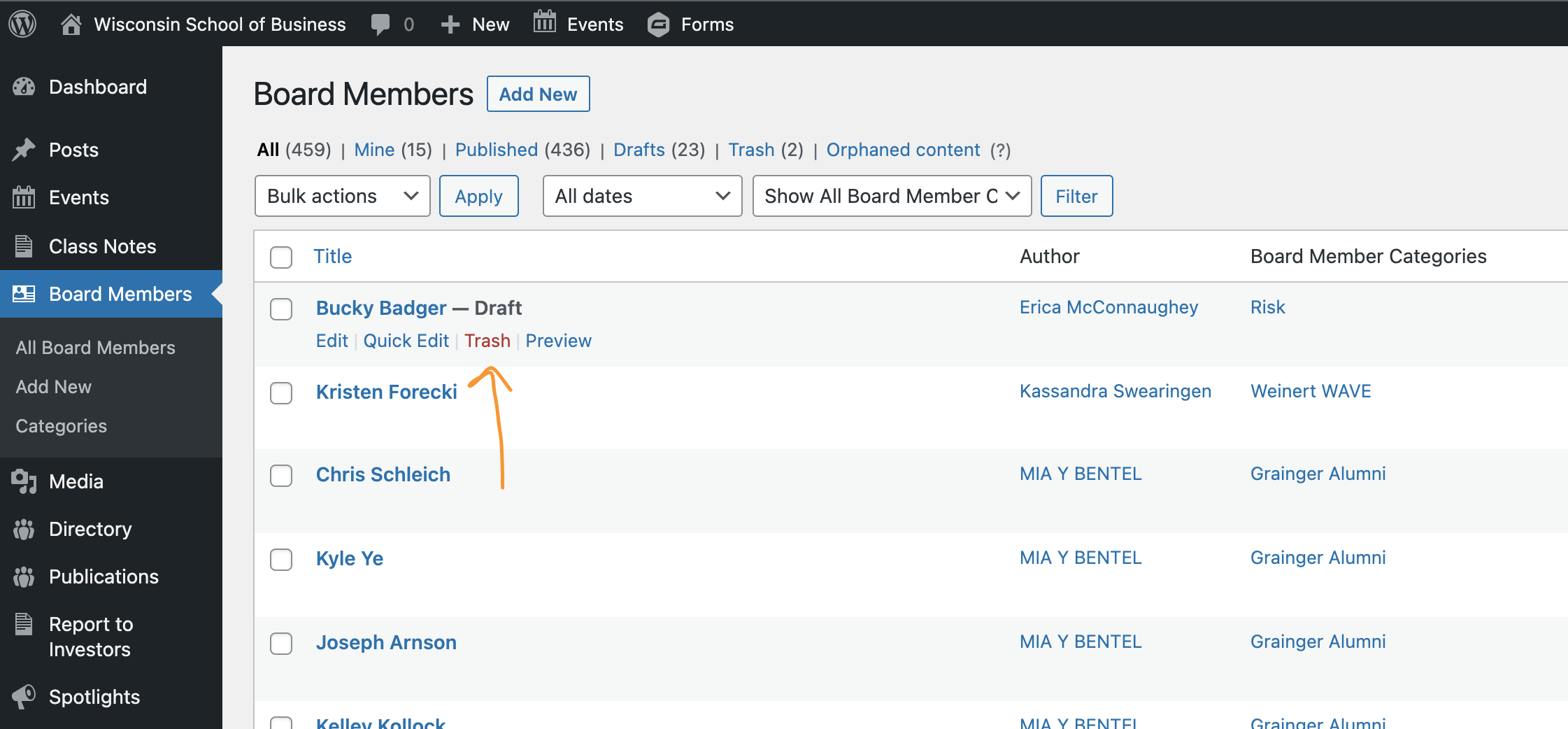
From the Dashboard
- Navigate to Board Members in the left menu .of the dashboard
- Find the board member you want to delete in the list or search for them on the upper righthand side. Hover over the person's name to see options appear. Click Trash to delete.
From a Board Member's Profile
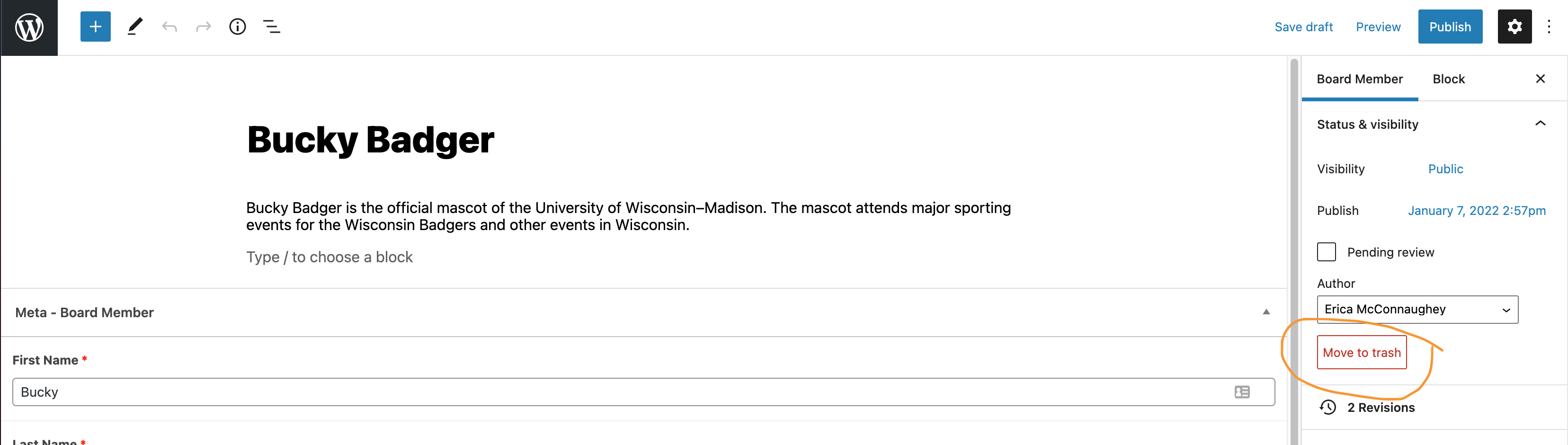
- On the right side of the editor, select the Board Member tab.
- Click To delete from the board member's profile page: on the far right side, click Move to Trash.
| Anchor | ||||
|---|---|---|---|---|
|
...