
...
- Click the button with a plus sign and type "image" to search for the image block and select it. (Or hit the enter key to start a new line and type "/image" and select the option that pops up.)
- Select "Media Library"
- If you or a team member already uploaded the image to the WP media library, search for and select the image.
- Tip: When searching the media library, be sure to select "All Files" on the left side before you search so that WordPress looks through the entire media library. Alternatively, if you know which folder the image is in, you can drill down through the path of image folders to get to your image.
- Make sure the image has alt text describing what is in the photo, including all visible text, to meet accessibility requirements.
- Otherwise, click the Upload Files tab to add your image to the correct media library folder.
- Under Choose Folder, click on "Uncategorized". In the dropdown, look for "blogs" folder and then select your blog's folder below it.
- Tip: before selecting the Upload Files tab, find the folder you need to add images to in the Media Library tab and select it. When you navigate to the Upload Files tab, your folder will be selected for you.
- Drag and drop the image from your computer or click "Select Files" and find your image on your computer.
- Under Choose Folder, click on "Uncategorized". In the dropdown, look for "blogs" folder and then select your blog's folder below it.
- Once the image has loaded, you must add alt text describing what is in the image. This is an accessibility requirement for any image that provides readers important context (especially images that have text in them).
- You can also add a caption if you like.
- Tip: Adding the caption to the image in the media library means it will display under the image every time it is used. If you might use the image multiple times and don't always want the caption displayed, you will need to add it to the image block in the event editor instead.
- If you or a team member already uploaded the image to the WP media library, search for and select the image.
- Select "Media Library"
- Click the button with a plus sign and type "image" to search for the image block and select it. (Or hit the enter key to start a new line and type "/image" and select the option that pops up.)
- Editing an Image
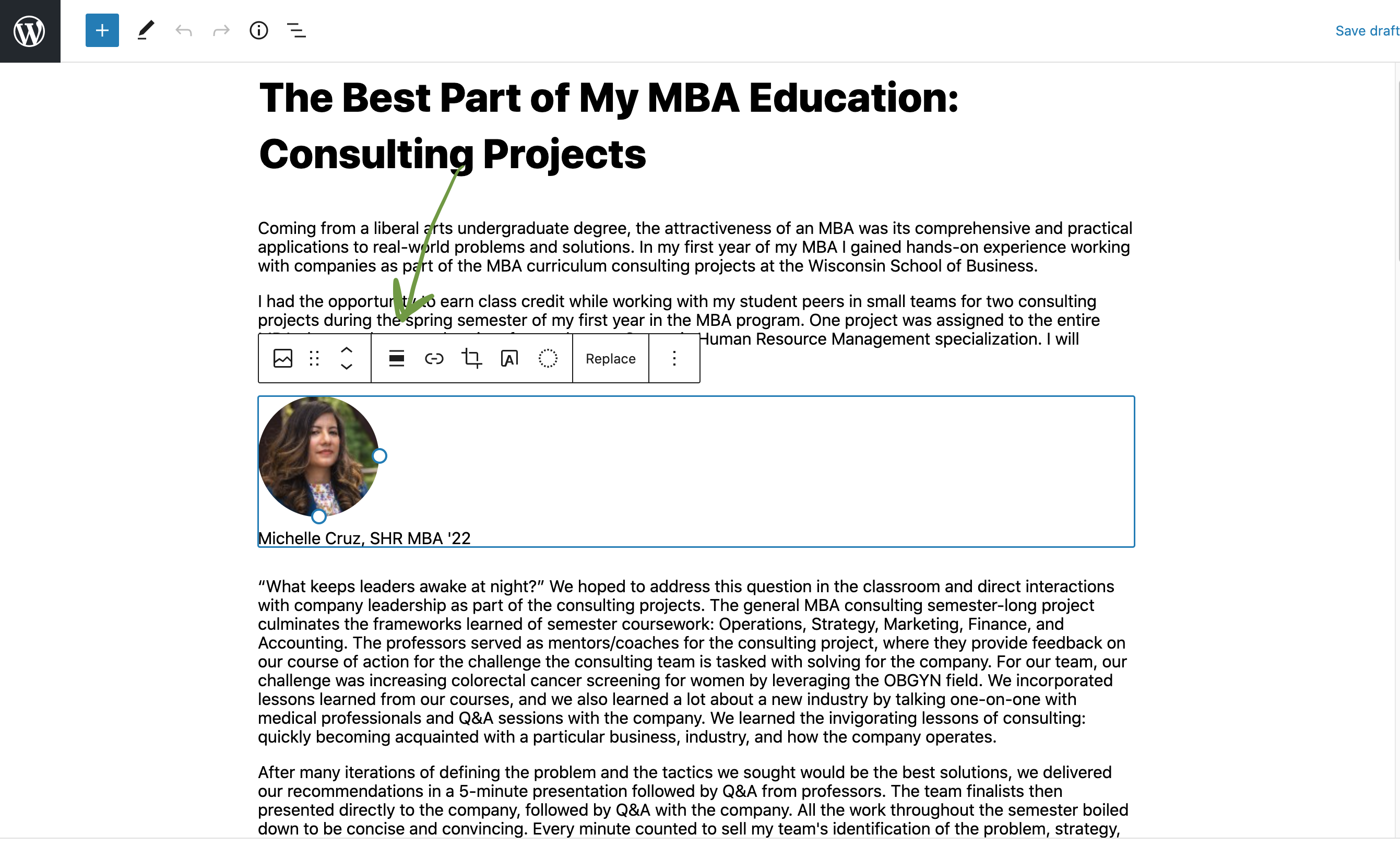
- Click on the image to see editing options.
- Above the image you can:
- choose an alignment option (left, center, right, text wrap) -- click the three horizontal lines (with the middle one being thicker than the others) in the toolbar. This will show you the different image alignment options.
- choose an alignment option (left, center, right, text wrap) -- click the three horizontal lines (with the middle one being thicker than the others) in the toolbar. This will show you the different image alignment options.
- Above the image you can:
- Click on the image to see editing options.
...