
This training documentation is a substitution for a 3-4 hour long training session. Please review it thoroughly prior to creating emails.
- General Eloqua documentation (UW-Madison wide)
- How to Request access
- How to Login
- Building an email in Eloqua
- Common pitfalls/mistakes to watch out for
- Accessibility quick tips
- Presend Checklist
- Sending your first email
- File Organization within Eloqua
- WSB Brand Guidelines for emails
- How to create a non-Eloqua sent email in Eloqua
- Creating engaging email content (UW-Madison IT)
...
- Open up the Firefox browser (you may need to download the most recent version). Eloqua is buggy with other browsers.
- Go to login.eloqua.com
- Ignore the sign in fields and select "Sign in with SSO or another account"
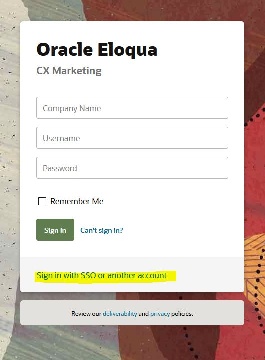
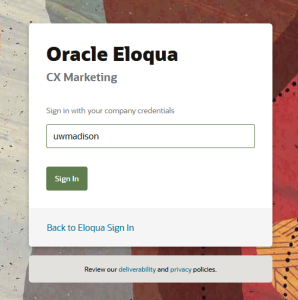
- In the "Company Name" field, type in "uwmadison" (not case sensitive) and click "Sign in"
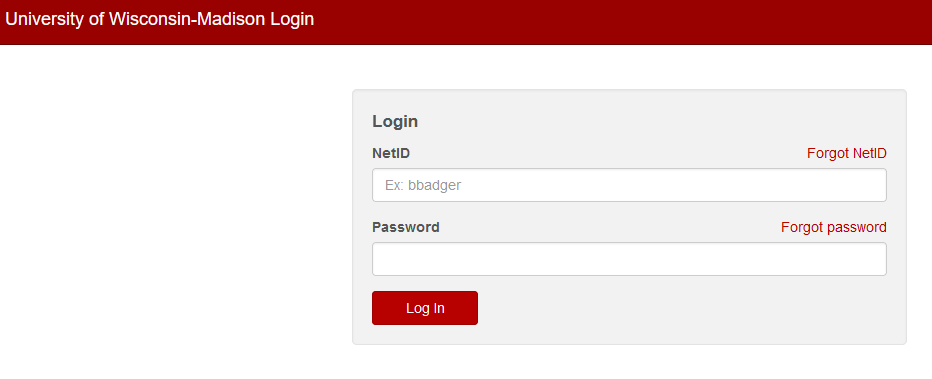
- It will redirect you to your typical wisc.edu login, where you can login as usual.
- If you get an error, you probably need to request Eloqua access
- You may see an Announcement page, you can ignore this and click "Continue"
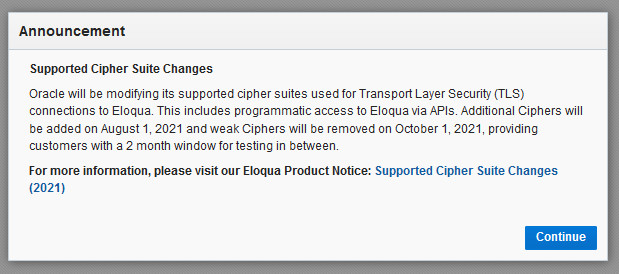
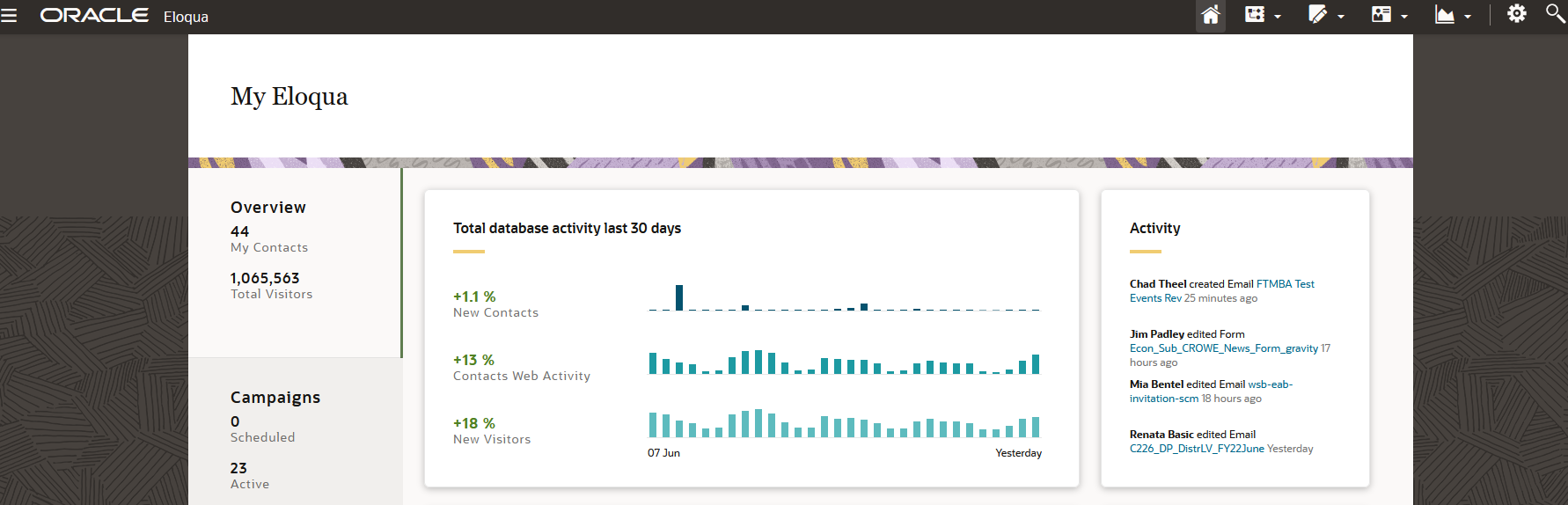
- Otherwise, you will be brought to the main Eloqua page. It will look something like this.
| Anchor | ||||
|---|---|---|---|---|
|
...