
All Alumni, Faculty, Newsroom, MBA, Dean, and Press Release articles live under Posts, which is called the Newsroom on the front-end.
Example Post (you must first be logged into WordPress to view this private post) : https://business.wisc.edu/news/example
...
*More detailed editing instructions, as well as a training video, can be found in the Add/Edit Blog Posts Knowledge Base article. We recommend you start there if you are new to using our WSB WP site.
...
UPDATE 3/2023 - If the main image for the featured story has text, is a collage, or generally doesn't work for the hero block on the News homepage, the web team can upload a different image just for to display in the hero block spot on this page.
- Web team - for the Newsroom hero image: check the "override featured image" field and add/upload the new image
...
- Every image must have alt text. Please add it to existing images that are missing it. Learn more about alt text for images.
- Be sure to upload new images to the Blogs > Newsroom media library folder in WP.
- We can add more folders inside Newsroom (by year or by category) if you want to add more organization.
Meta fields
Find these under the post content, within Meta - post field group
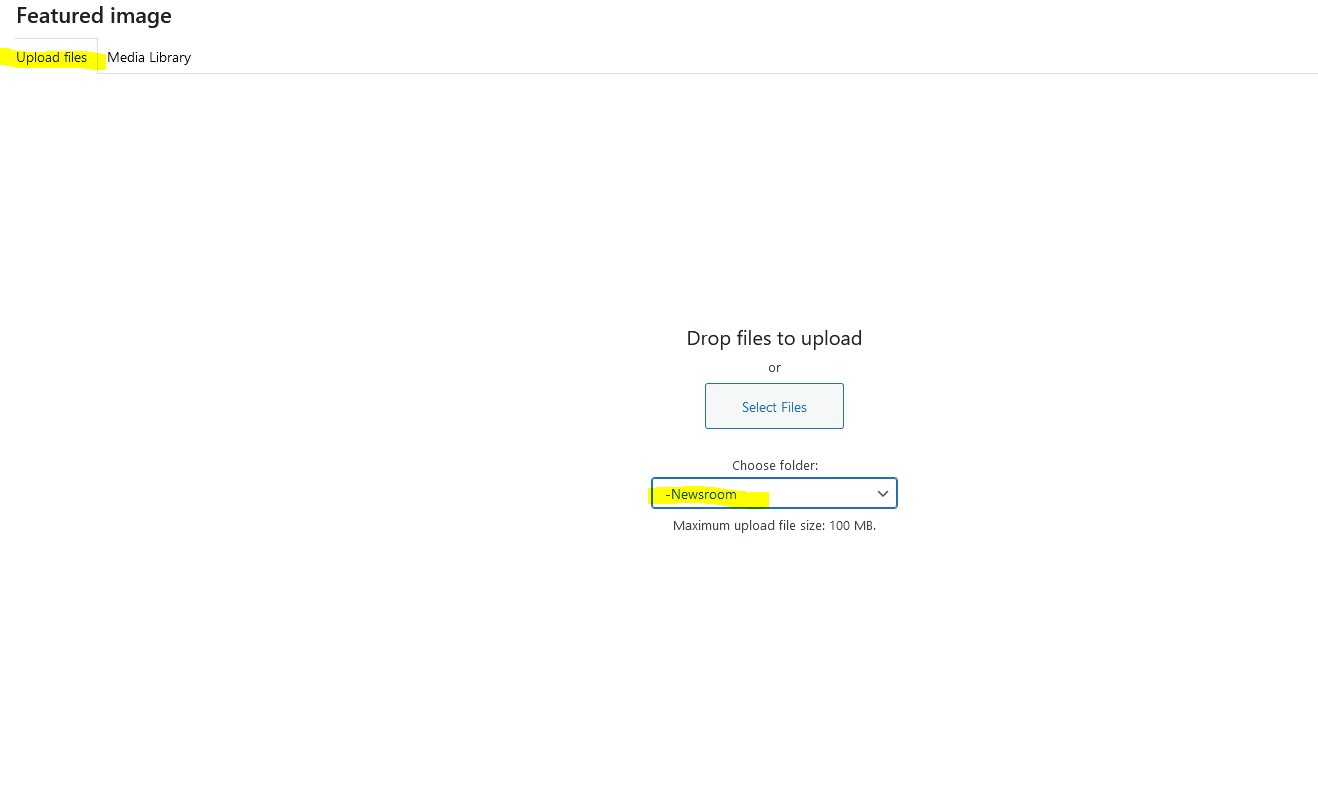
Byline Options
- You can add a Subtitle to the post. It will appear as an H2 on the post, directly below the title (or H1).
- You can add an Author Override if needed. If you do not credit an author under Author Override, your post's byline will credit the selected author in the upper right-hand side of the editor.
- You can credit a photographer(s) under Photography Credit.
Example - Byline options
| Post appearance
|
|---|

Featured Image Options
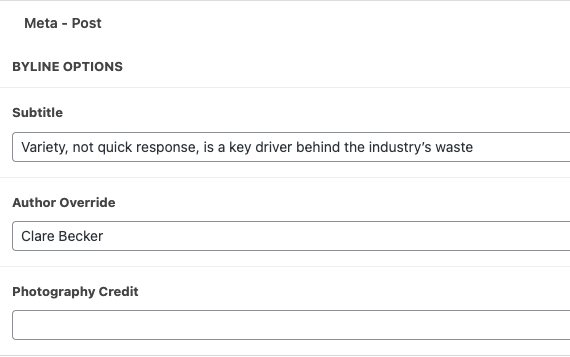
- You can add a Featured Image. This image is pulled with the article title to display on any pages that list news articles (such as the Newsroom landing page).
- While the featured image can be added in the right side menu, the featured image options are found in the meta - post field group.
- Options include:
- Hide featured image - Yes or No (if checked, the next two fields will be hidden)
- Title and Featured image layout - 3 options: Default, 50-50 split, or Full-width image
- Image caption - field will only appear if featured image is not hidden and default layout is selected
- Options include:
- While the featured image can be added in the right side menu, the featured image options are found in the meta - post field group.
- Use Case 1: For some posts, the featured image is the same as the post's main image. In this case, do not check Hide Featured Image.
- You can add a caption to a featured image when Hide Featured Image is unchecked. You should see a Featured Image Caption field beneath Hide Featured Image. Enter the caption, save your edits, and you should see the image with its caption displayed on the post/article.
- Use Case 2: For some posts, the featured image is different from the post's main image. In this case, check Hide Featured Image and add the post's main image with an Image block.
- Use Case 3: For some posts, there is a featured image to display on the card that pulls the post, but the post itself does not have an image. In this case, check Hide Featured Image.
Example - Featured Image Options
| Post appearance
|
|---|
Research Citation Options
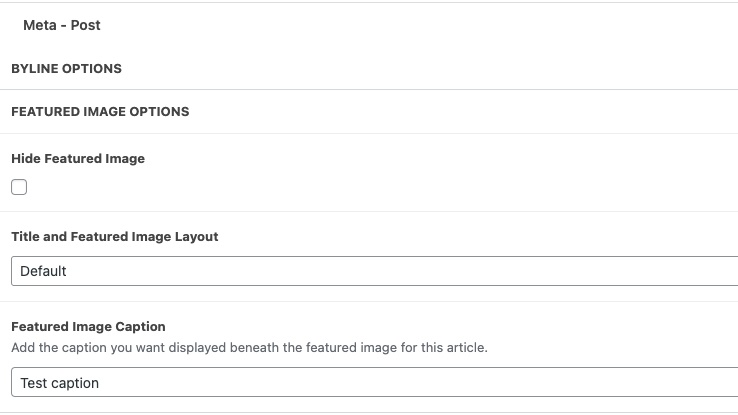
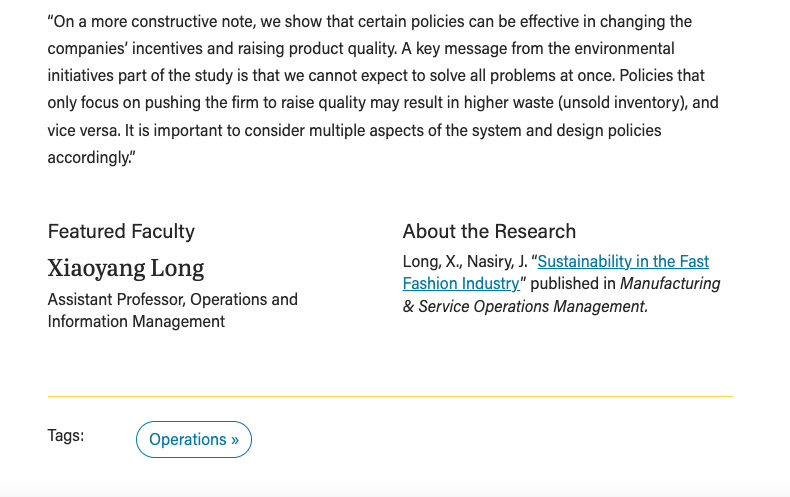
Display featured faculty and their research at the end of your article
- Add the faculty name (first and last)
- Optional: add a link to the faculty profile page (e.g. https://business.wisc.edu/directory/profile/faculty-member-name )
- Add the faculty's position
- Add the citation for the research mentioned in the article
- Tip: link the article name to the original source
Example - Research Citation Options
| Post appearance
|
|---|
Related Stories
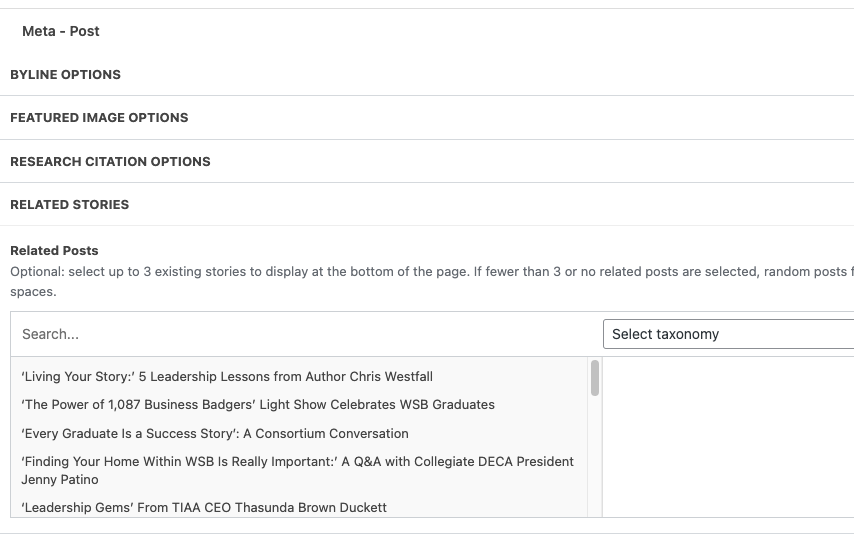
- Under Related Posts, you can search for and manually select three posts to display under Explore More Stories.
- The posts you have selected will appear to the right of the list of posts
- Tip: Select taxonomy drop-down allows you to search for posts with a specific category or tag.
- If you don't select any posts, WP will automatically choose 3 recent posts with similar categories/tags.
SEO
- SEO information is populated for you based on the article title and an excerpt from the beginning of the article.
- You can edit SEO information if desired (or if that is the standard set for the newsroom)
- Below your post content in the editor, you can edit SEO details in the Yoast SEO Premium section
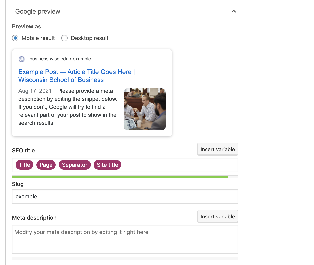
- You can remove the pink "Title" block and replace with a shortened title.
- You can change the URL by editing the Slug – it is best to do this before publishing the post so we don't end up with a broken link for a previously published post.
- Each post's slug must be unique, so be sure the slugs you choose are long enough that it won't result in duplicates.
- You can add a meta description if desired.
- There are two color bars that indicate whether the length of your SEO title and meta description are good, okay, or too long. Avoid the red bar indicating your content is too long here.
Related posts
- You can select which articles display under related content at the bottom of the blog post
- .
- Under "Meta" below your main post content, you will find "Related Posts"
- You can search for the title of the related post on the left side or you can narrow down to a certain tag or category by clicking on "Select taxonomy"
Edit an Existing Blog Post
...