
...
- Every image must have alt text. Please add it to existing images that are missing it. Learn more about alt text for images.
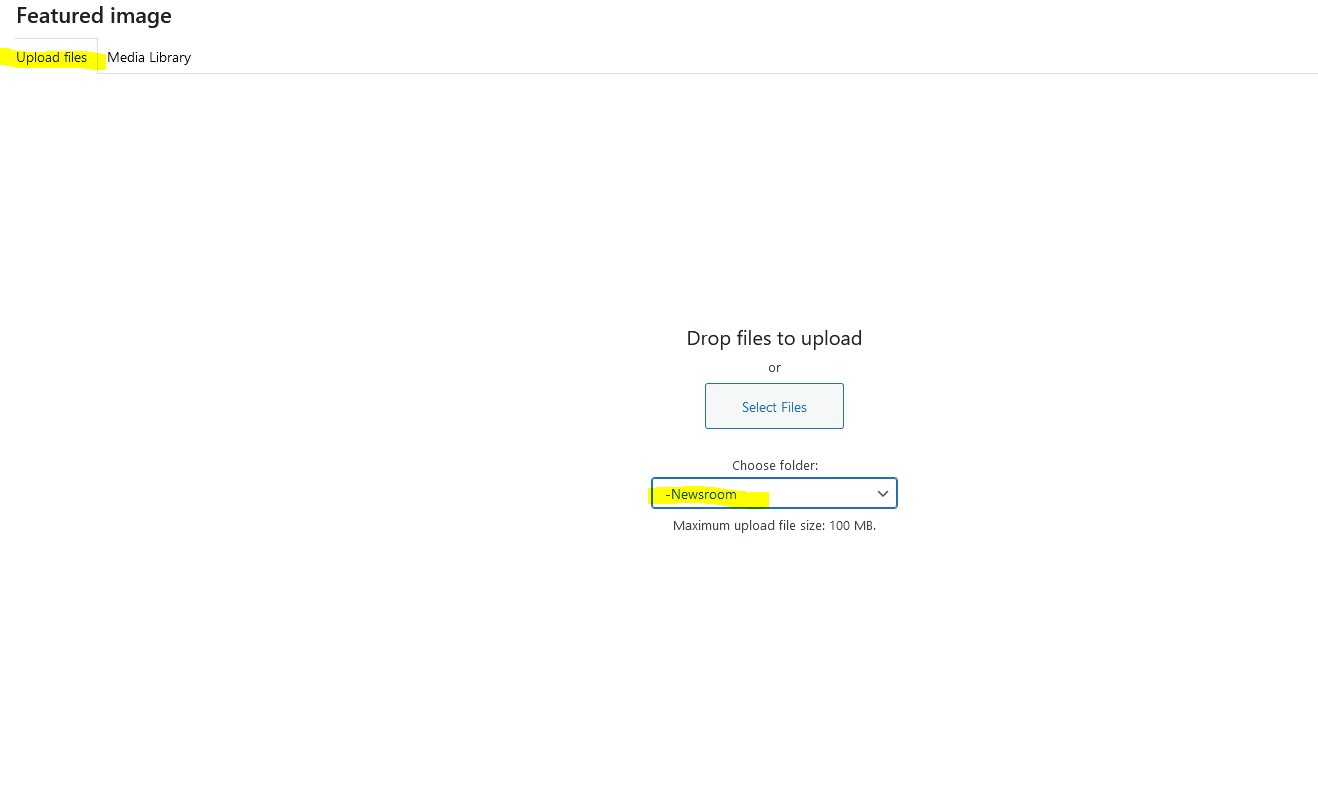
- Be sure to upload new images to the Blogs > Newsroom media library folder in WP.
- We can add more folders inside Newsroom (by year or by category) if you want to add more organization.
Adding Blocks (optional)
| Info | ||
|---|---|---|
| ||
Click the + sign in your post, then use the keyword "newsroom" to view most of the best blocks for News posts. Where is the + sign? Hover your cursor between paragraphs or to the right side, below the last content in your post, to make this button appear. |
...
- Guidelines:
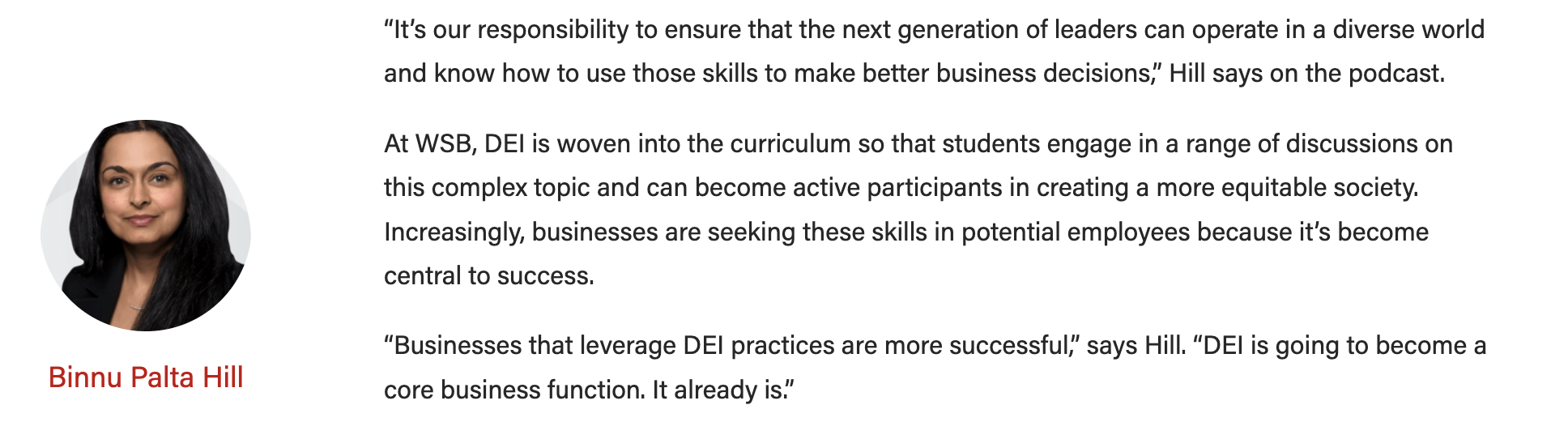
- Use to display a small amount of copy and an optional, small image (a headshot or icon) next to the post content.
- Use the top-most text fields
- Top level text goes in the "headline" field, even if it isn't a heading (e.g. person's name can go here)
- If you have 2 levels of content, use the top two fields (headline and subtitle). Only use the 3rd field if you have already filled in the first two levels.
- Aside blocks are meant to be used with a very small amount of copy, ~100 characters or fewer.
- Asides should be used sparingly in a single article – use 3 asides max.
- If using more than one aside, they should be separated by at least one paragraph.
- The aside block cannot be the last item in your post (this will push it down to overlap the footer content and mess up formatting on the page)
- Move it above some of the copy to fix this issue
- Be sure to preview your article to make sure there are no formatting issues
- How to edit/use asides in your article
...
- Guidelines:
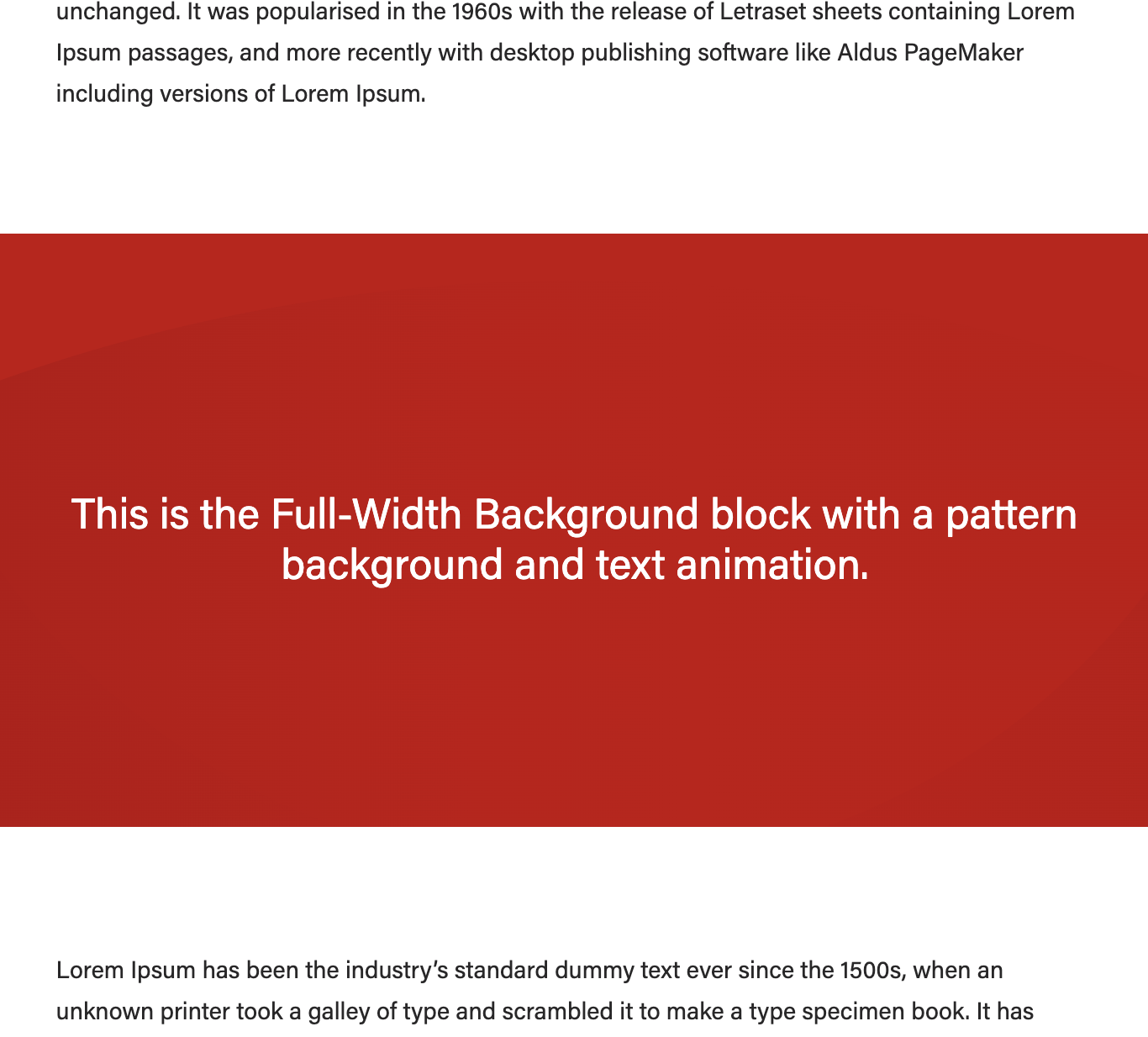
- Use a single callout box at the end of an article to display sidebar/endbar content
- Content should not exceed 125 words.
- Options:
- Background style - light gray, light blue, or gray pattern
- Image (optional)
- Alignment - default is left aligned or you can choose to center the image
- Crop
- background color
- image + alignment
- crop the image to a circle? Yes/No (Note: only use this with a square image!)
- Heading (recommended)
- Heading size - most of the time this should be an H2 or an H3
- heading + alignment
- Alignment - default is left aligned or you can choose to center the heading
- Text - add your content and format it (e.g. add a hyperlink, paragraph breaks, or bullet points)
- Text should remain left aligned in most cases
- Button (optional)
- Alignment - default is left aligned or you can choose to center the button
|
|---|

...
- Please reach out to a designer or web developer for assistance implementing this block.
- A designer can help with appropriate image choices
- A web developer can help ensure the content you have works with this block and that web accessibility standards are met (e.g. text color contrasts with the background and is readable)
- Guidelines:
- Use this block sparingly (i.e. don't use it in most articles you write and don't use it more than once per article)
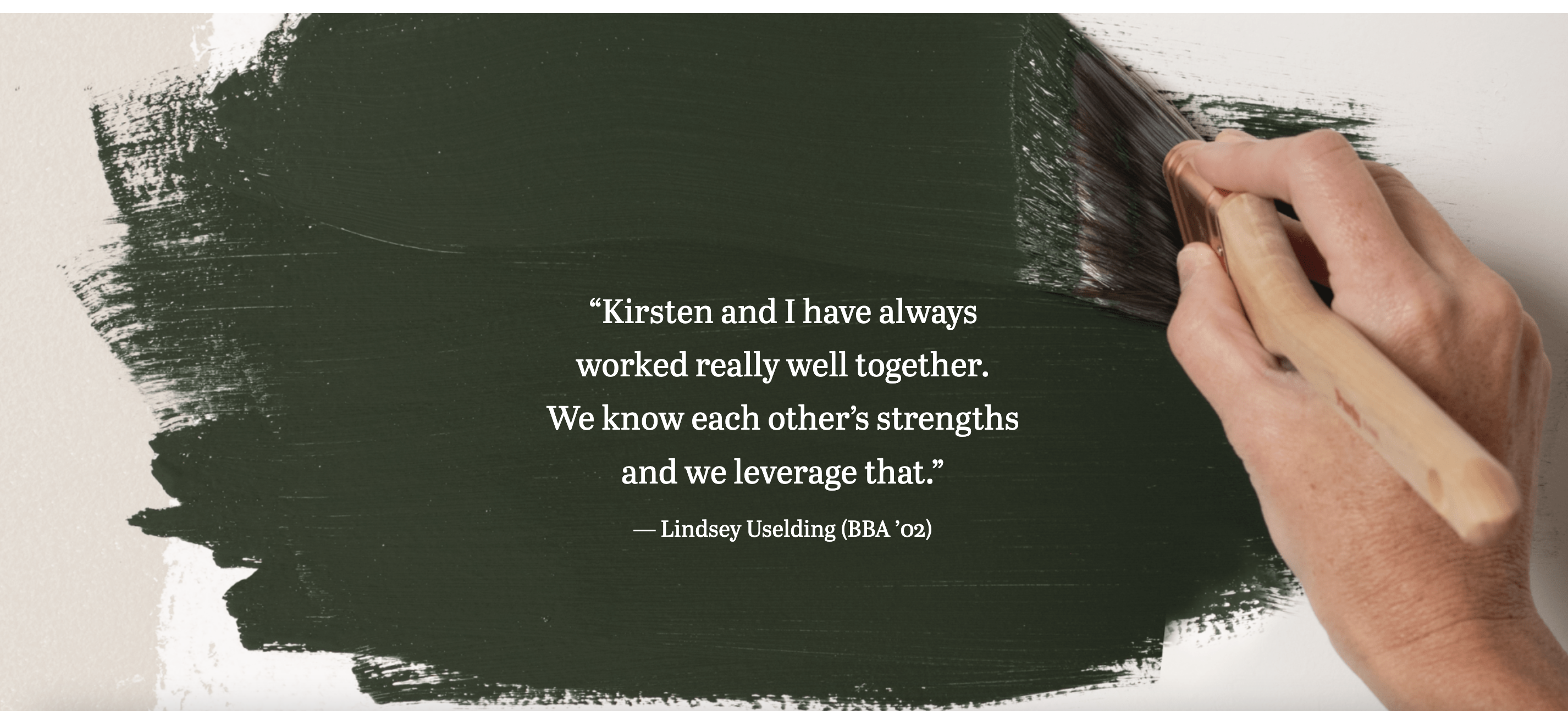
- This block doesn't work with all images; it works best with large images with a subtle focus or subject (see example below).
- Limit the amount of copy in this block – think pull quote length, rather than a full paragraph or more.
- Options:
- background Background – can be a color pattern or an imagea photo
source: : https://business.wisc.edu/news/example/ (This is a private post; you must login to WordPress in order to view it.) |
|---|
Horizontal Image Text
- Guidelines:
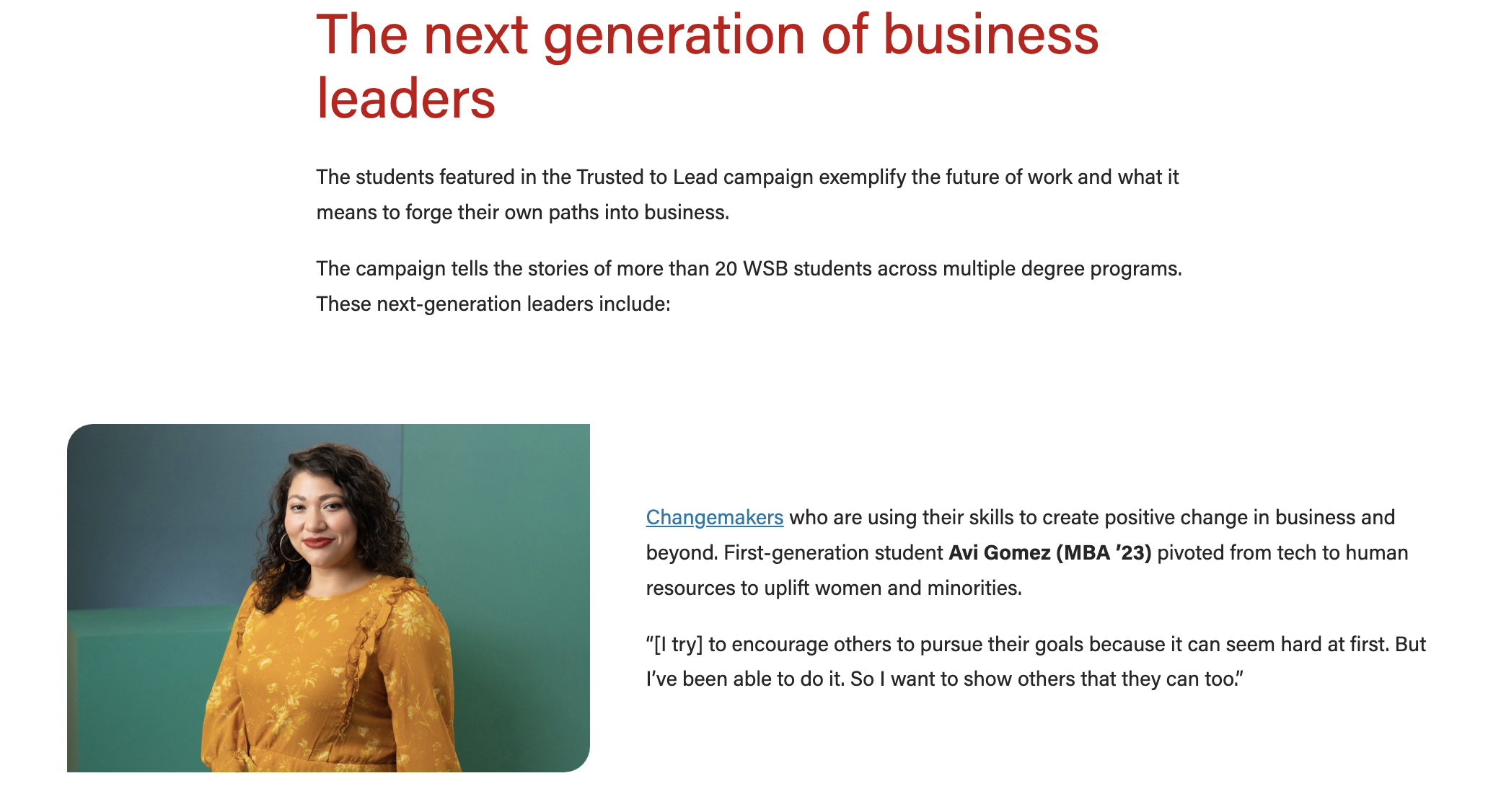
- Use this to display an image next to text.
- Works best with a vertical image (an image with a height greater than its width)
- Make sure to preview your article when using this block; you may need to change how much copy you place next to the image or choose a different size for the image to make the content heights as even with each other as possible
- e.g. it doesn't look good to use a tall image with only a sentence of copy and you wouldn't want to put three paragraphs next to an image that doesn't take up a lot of space
- Options:
...
|
|---|
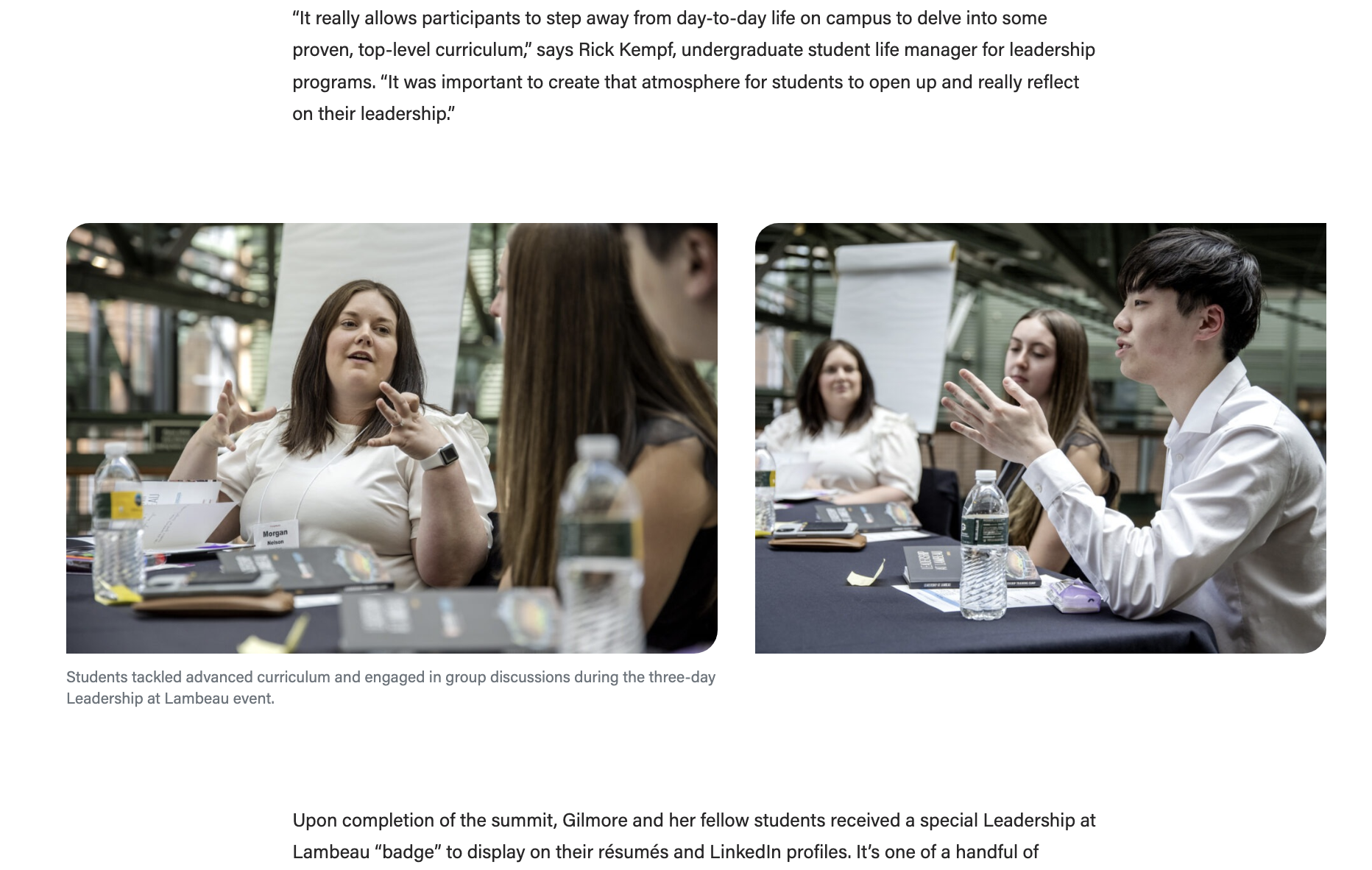
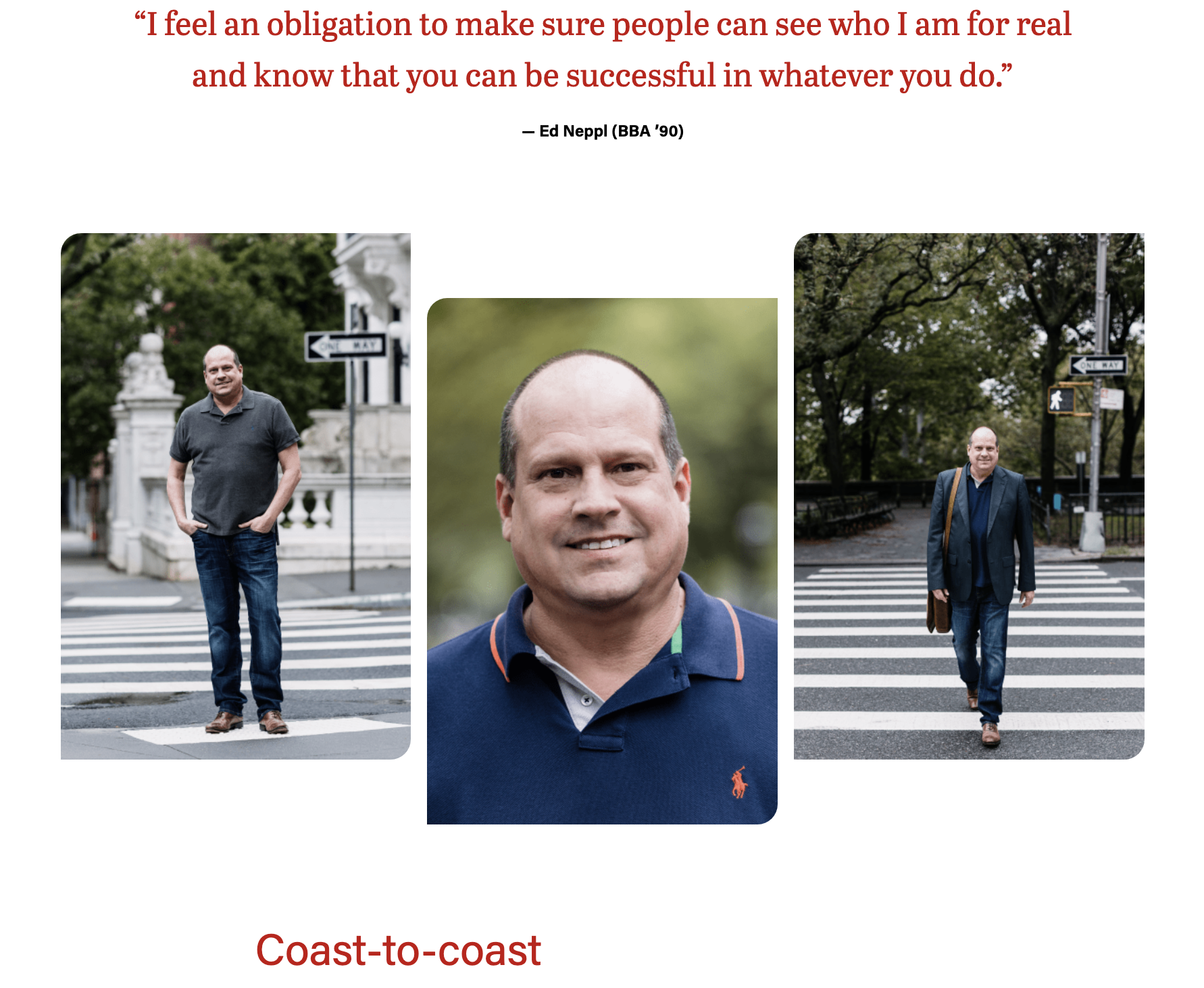
Image block
- Guidelines:
- Use to display 1 image in your post
- How to add an image block

...
- Guidelines:
- Use this block anytime you want to embed a Youtube video in your post.
- Do not use the "Youtube" block – that block displays videos at a much smaller size and they take longer to load on the page, which could create problems for the user.
- Use this block anytime you want to embed a Youtube video in your post.
- How to embed YouTube videos in your article
...
- Guidelines:
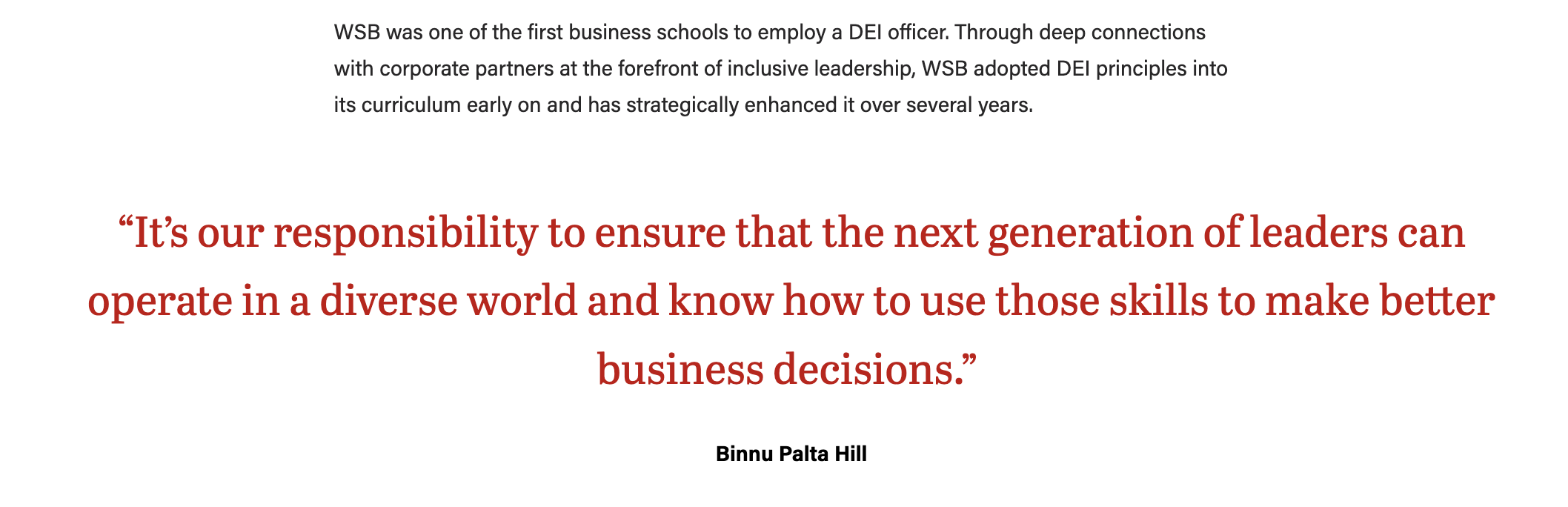
- Use this block to display a quote.
- The quote text will be large and red – do not change the formatting or color of the text.
- Quote will be centered and it will be wider than the post content above and below it (unless it is a short quote).
...
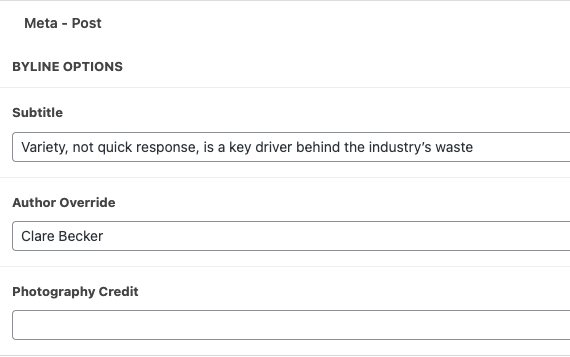
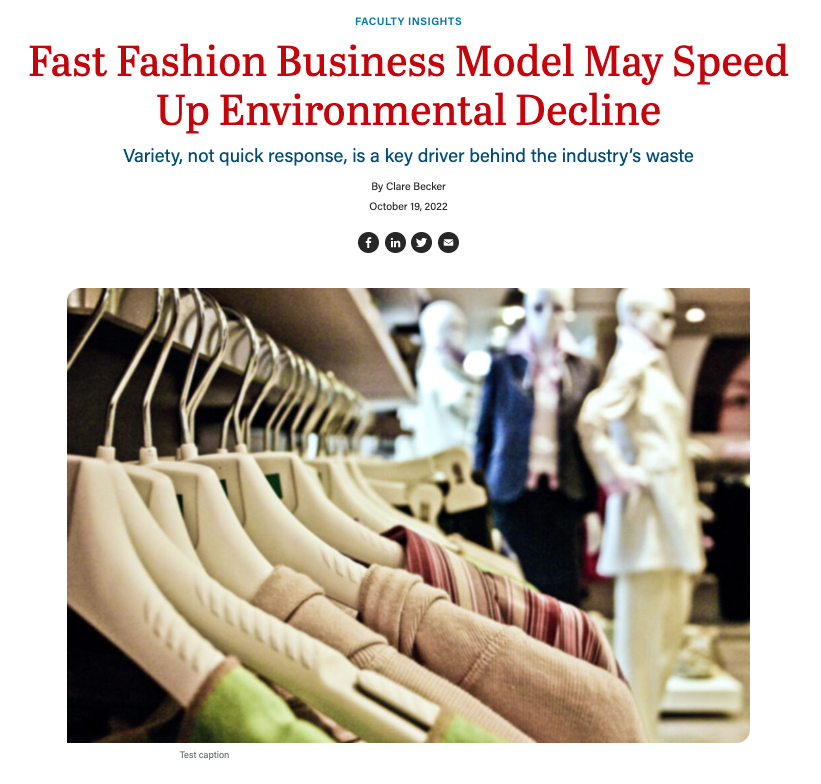
Example - Byline options
| Post appearance
|
|---|
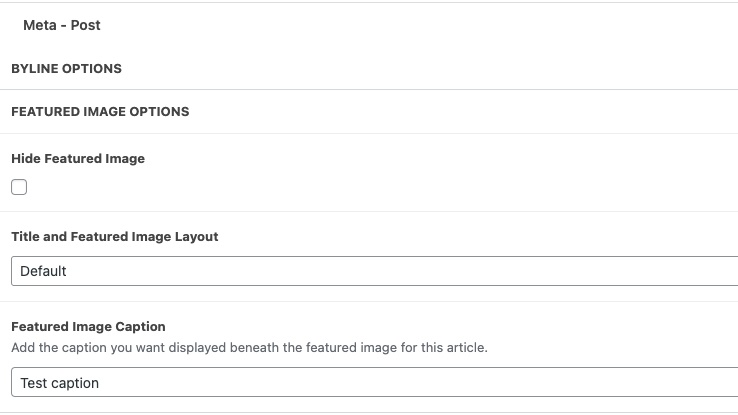
Featured Image Options
...
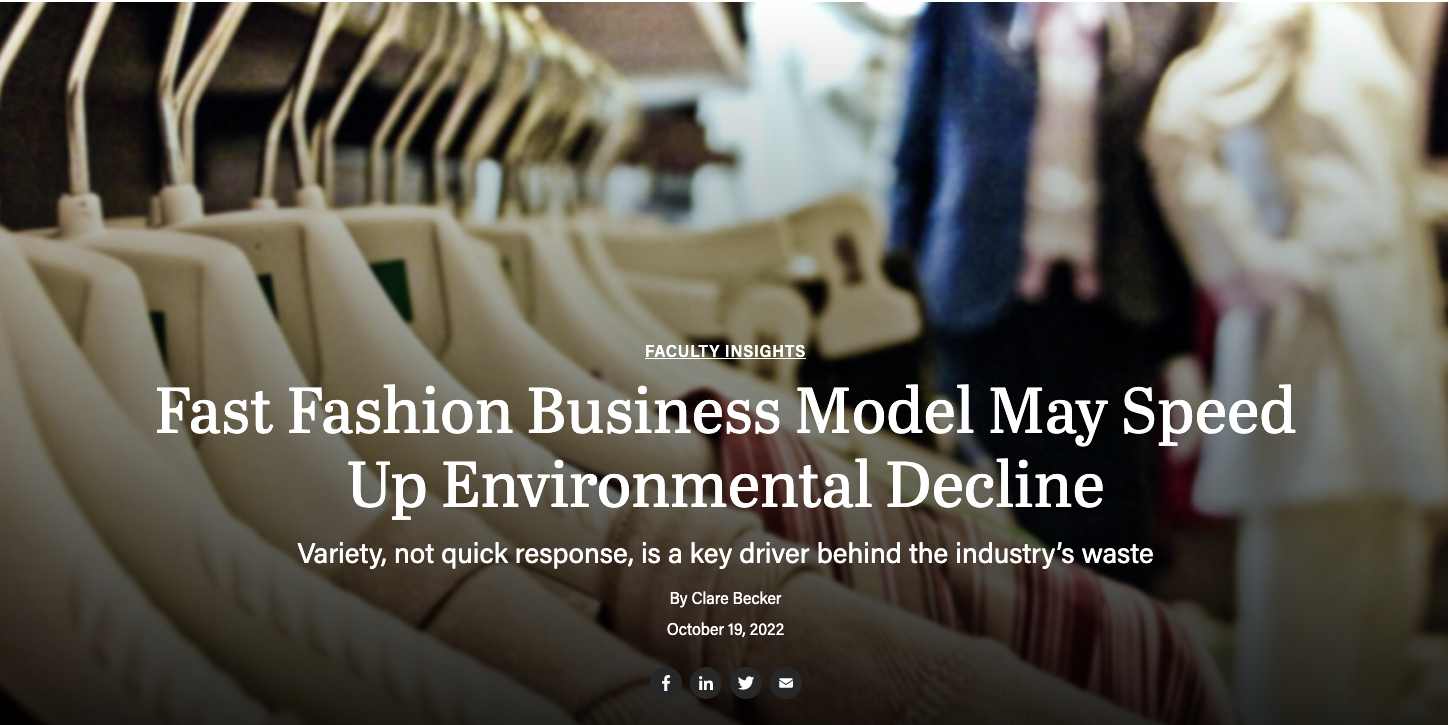
Examples - Featured Image Options
| Post appearance - Default
|
|---|---|
Post appearance - Full-width image
| Post appearance - 50-50 split
|

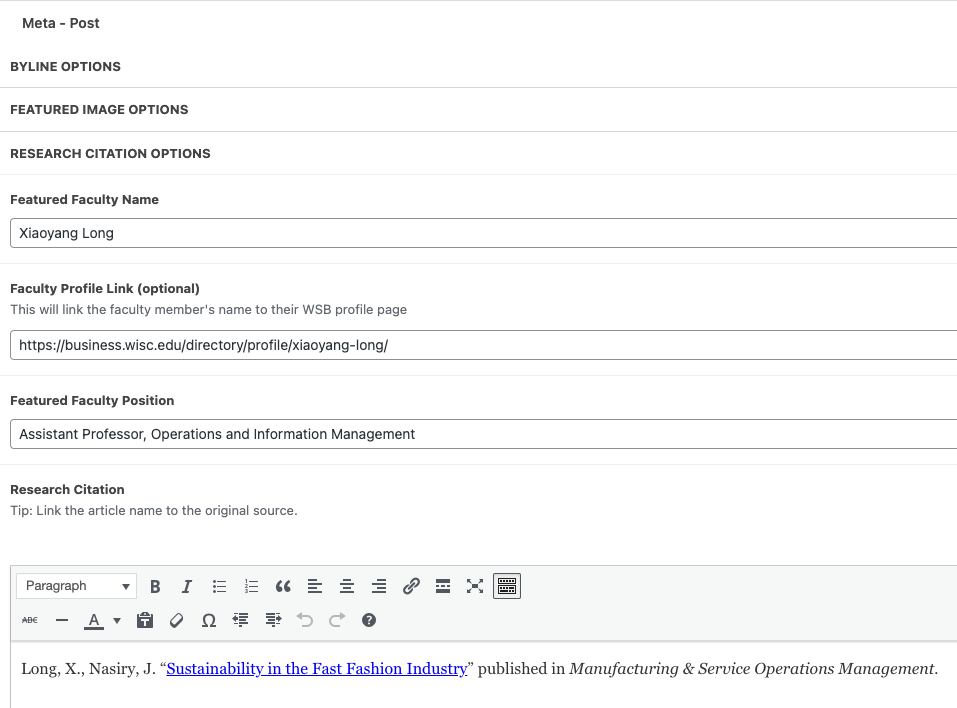
Research Citation Options
...
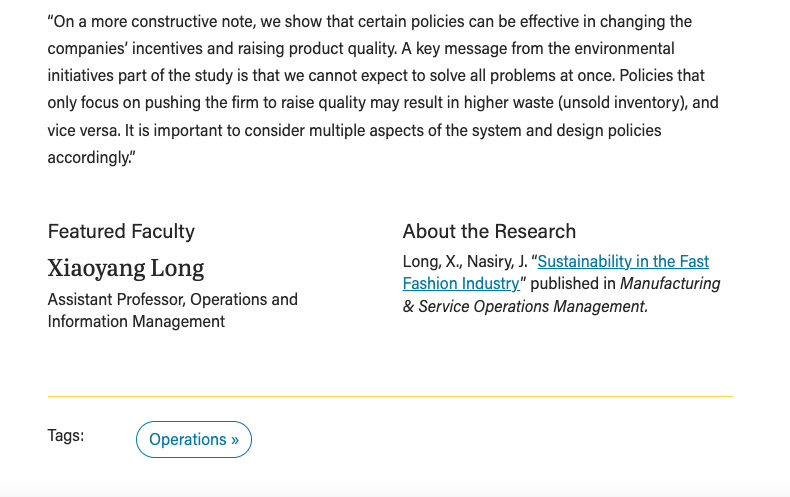
Example - Research Citation Options
| Post appearance
|
|---|
Related Stories
...
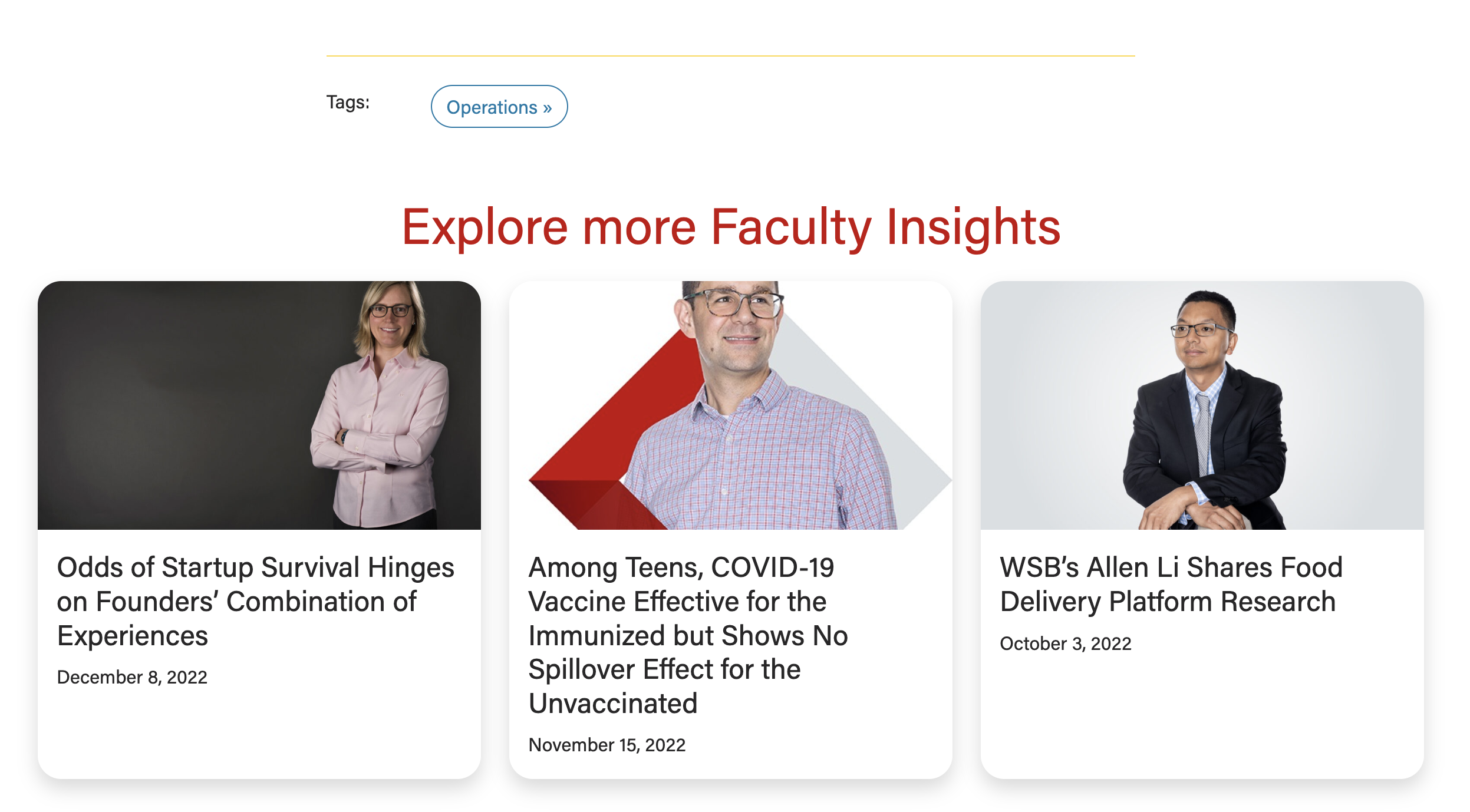
Example - Related Stories
| Post appearance
|
|---|

SEO
SEO stands for Search Engine Optimization
- SEO information is populated for you based on the article title and an excerpt from the beginning of the article.
- You can edit SEO information if desired (or if that is the standard set for the newsroom)
- Below your post content in the editor, you can edit SEO details in the Yoast SEO Premium section
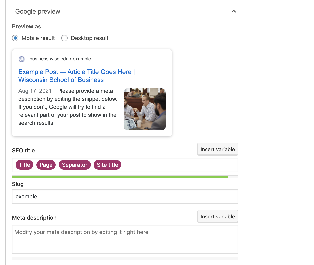
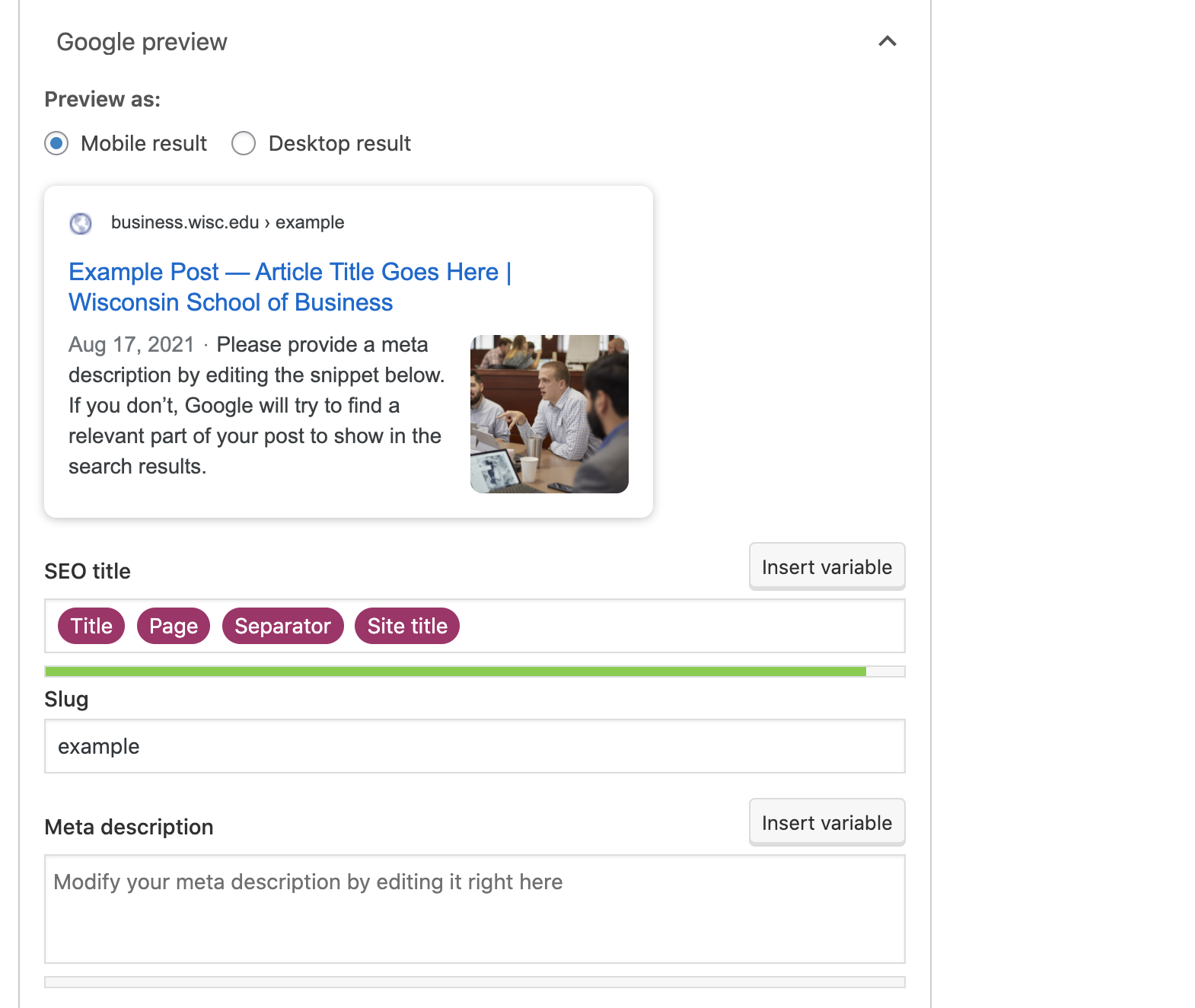
- You can remove the pink "Title" block and replace with a shortened title.
- You can change the URL by editing the Slug – it is best to do this before publishing the post so we don't end up with a broken link for a previously published post.
- Each post's slug must be unique, so be sure the slugs you choose are long enough that it won't result in duplicates.
- You can add a meta description if desired.
- There are two color bars that indicate whether the length of your SEO title and meta description are good, okay, or too long. Avoid the red bar indicating your content is too long here.
...