
...
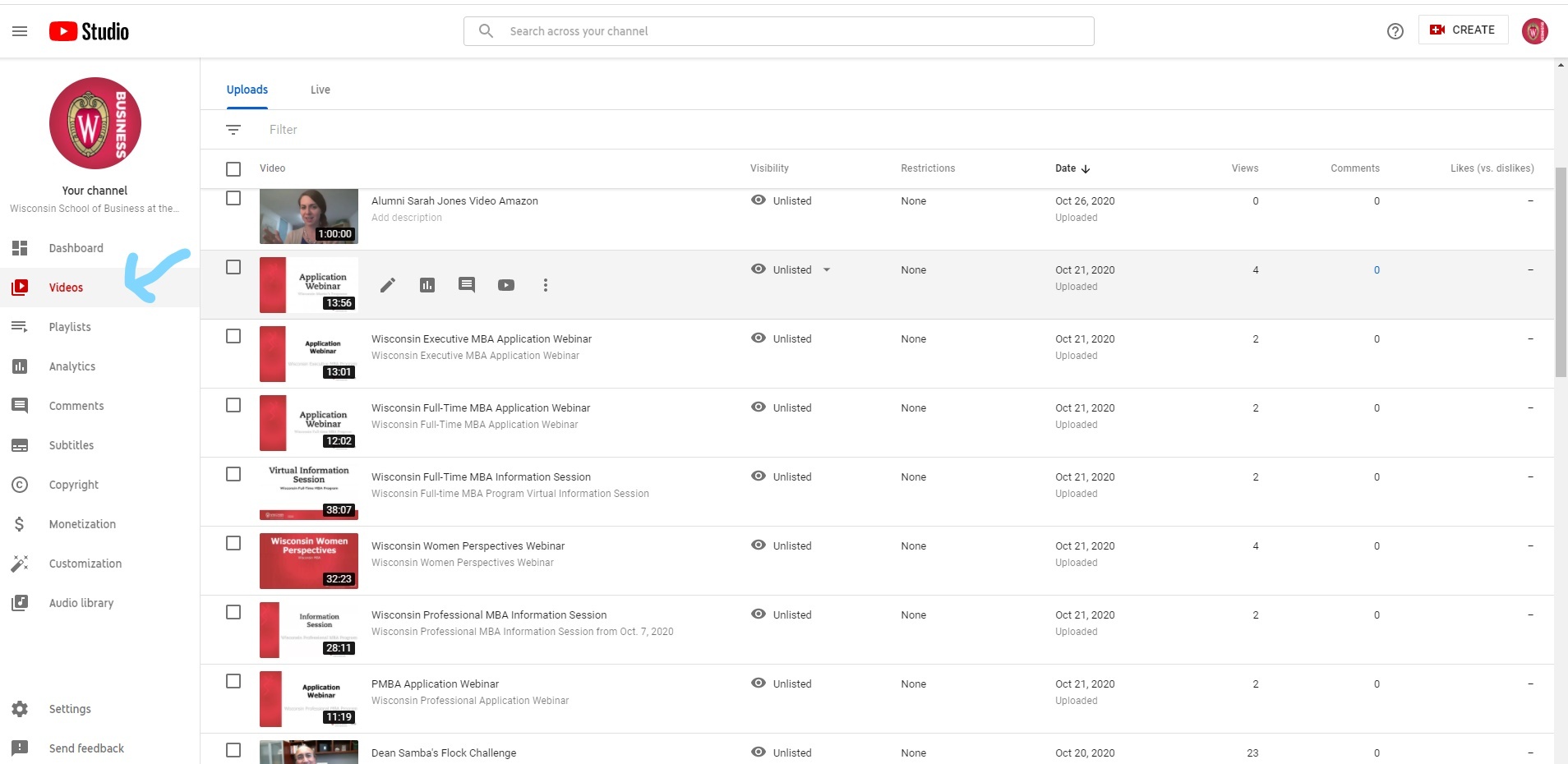
- Find the video in the Video section you want to edit and click on the video
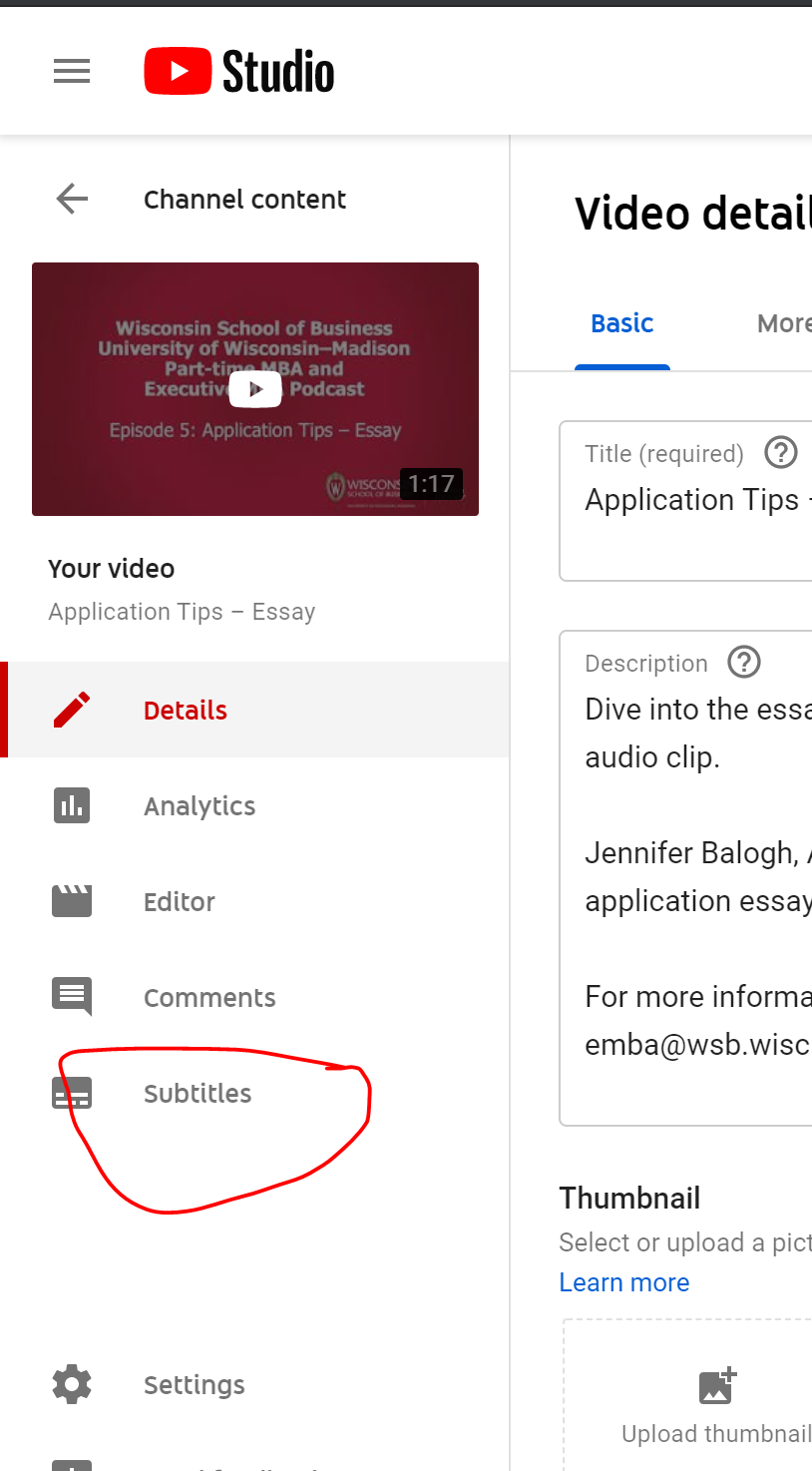
- Then select "Subtitles" from the left sidebar
- Select Duplicate and Edit
s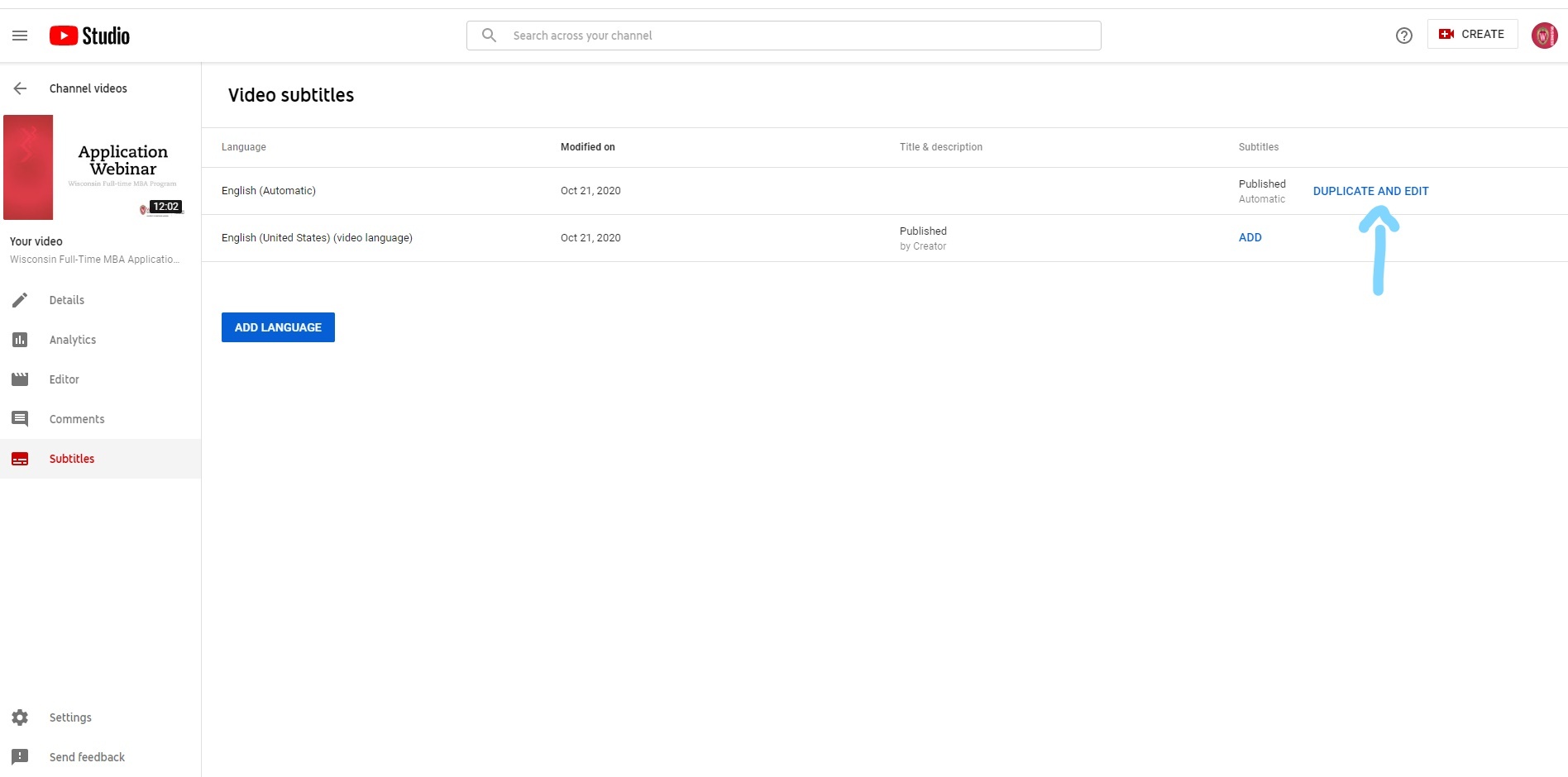
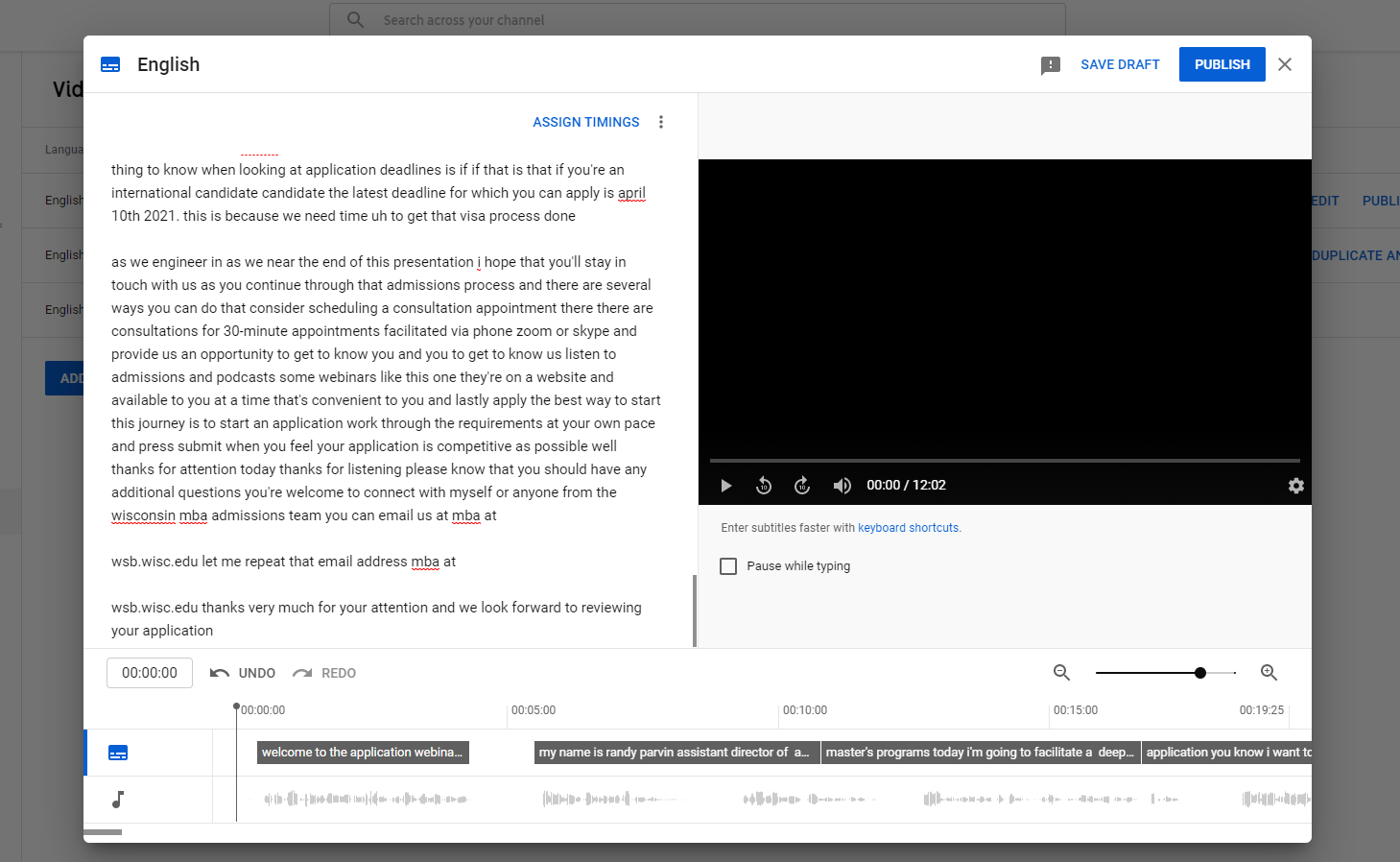
- From here you will be able to make any changes to the captions. Click Publish when you're done and changes will be published!
Add
...
Videos to Relevant
...
Playlists
For the best user experience, always add your videos to relevant YouTube playlists on our channel. Be sure to share the playlist link when sharing the video, so the user can see other relevant WSB videos to the right of the video (, rather than recommendations from other channels).
- Navigate to studio.youtube.com
- Choose Content in the left menu
- Find the video(s) you want to add to a playlist and select them (the search function is very helpful for this!)
- Choose Add to Playlist and find the playlist(s) you want. Then Save your changes
Sharing/Linking to Videos
- Be sure to share the playlist link when sharing a video, so the user can see other relevant WSB videos to the right of the video, rather than recommendations from other channels.
- For example, this link https://www.youtube.com/watch?v=jD6hT3bc0ik&list=PLXuX4rqL8Z3Y7jVOGLrhsmQh_g_7vK6SU&index=2 shows that nice playlist on the side with more WSB videos. As opposed to https://www.youtube.com/watch?v=IykFsyM787I which doesn’t include the playlist.
- Tip: Look for "&index=__" in the URL; that indicates it links to a video within a playlist.
- Remove "&t=__" from the end of the URL. This indicates a time stamp and will cause the video to start playing at that timestamp, rather than the beginning of the video.
Related articles
| Content by Label | ||||||||||||||||||
|---|---|---|---|---|---|---|---|---|---|---|---|---|---|---|---|---|---|---|
|
...