
If you're really particular about the design of an Eloqua email, you may notice small inconsistencies between the design of your email and how it actually shows up in your inbox in test and live emails.
Particularly when receiving emails in Outlook, an email client that is known for being out of date compared to others, these inconsistencies can become a major problem, especially when you want your emails to look polished.
Below are a few issues we've found, and the solutions for them. Please email the web team if you notice other problems, and we will try to find a fix.
Mobile vs Desktop Views
Over half of all emails are opened on mobile (smartphone) instead of desktop. It's important to design your email to look good both in mobile and desktop.
Eloqua does it's best to account for this, making elements "responsive" so that textboxes and images shrink to fit the screen, and multiple columns stack on top of each other at mobile sizes (on <480px wide screens).
Unfortunately, this isn't always enough, and sometimes your design for desktop will be at odds with your design for mobile.
Eloqua does have a useful feature to address this, a "Hide in Desktop" and "Hide in Mobile" toggle that can be applied to any element in your email.
The toggle can be found in the left sidebar when you select an element. Note that "Hide in Desktop" option is only visible when you are on the Mobile view in the email editor.
| Expand | ||
|---|---|---|
| ||
|
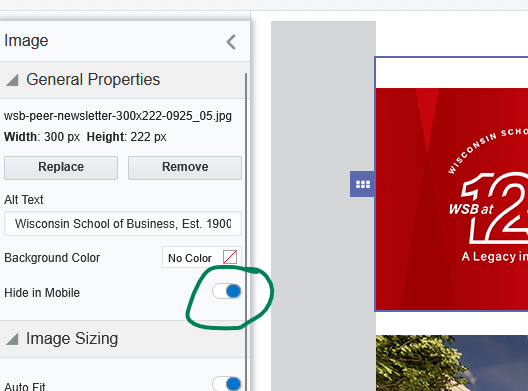
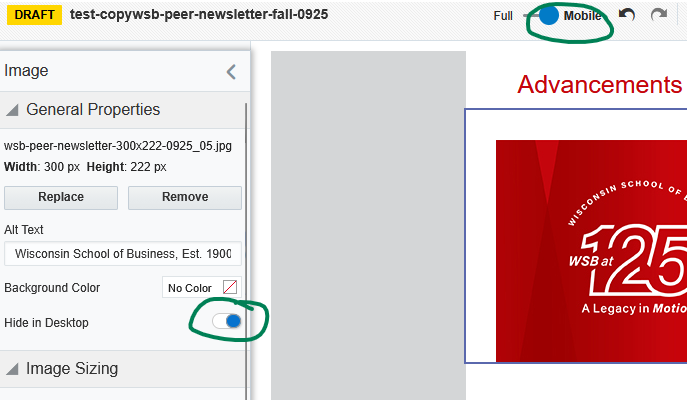
This toggle is particularly useful if you want to style the same image in two different ways- you can just duplicate the image, and have one that is hidden in desktop, and one hidden in mobile.
Note: the screen size at which it swaps between mobile/desktop is 645px wide screen. This is different from the breakpoint for when columns stack, which is 480px.
But wait... shouldn't "hide in desktop/mobile" be in sync with columns stacking?
If you'd like the mobile version of your element to appear at screens that are sized 480px and less (when all the columns stack on top of each other), instead of 645px and less, here's the fix:
- Go to the paintbrush icon in the left sidebar, and under "Advanced Styles" click the "Edit" button.
- Inside the additional CSS, paste in the following code, then click "Apply"
| Code Block | ||||||
|---|---|---|---|---|---|---|
| ||||||
@media (min-width: 480.2px) {
  .hide-in-desktop {
    display: none !important;
  }

  .hide-in-mobile {
    display: block !important;
    max-height: none !important;
    max-width: none !important;
    font-size: inherit !important;
    min-height: auto !important;
  }
}
|
| Expand | ||
|---|---|---|
| ||
|
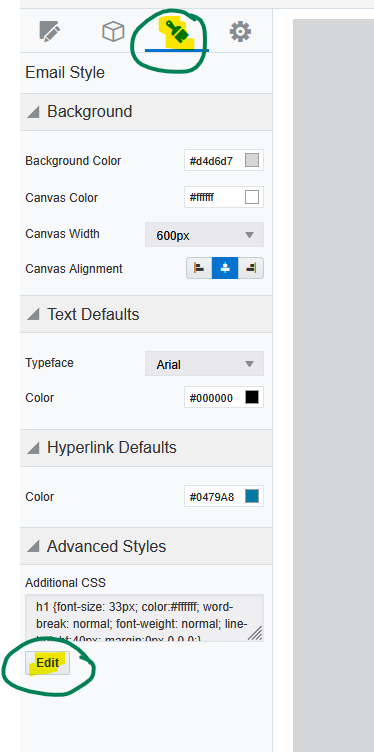
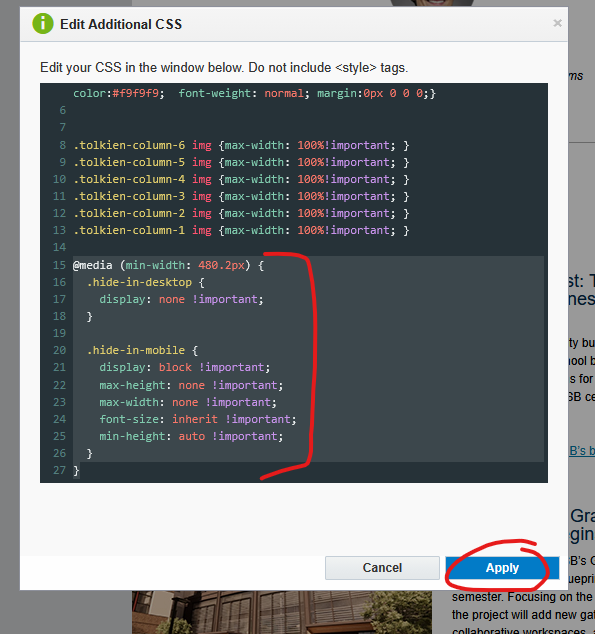
Image Columns Overlap on Tablet Issue (Outlook)
On "tablet' screen sizes, which are often perfectly halfway between "desktop" and "mobile" screen sizes, design can get...weird.
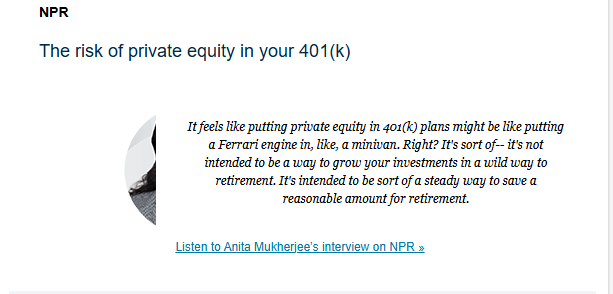
In the Outlook email client, when you have an image inside of a 2 column layout, there's this weird overlap between the image and the text beside it.
Screenshots of examples:


Fix
The web team is working on implementing this fix on all templates starting in Dec 2025, but if your email doesn't have this built in, you can easily add a manual fix.
- Go to the paintbrush icon in the left sidebar, and under "Advanced Styles" click the "Edit" button.
- Inside the additional CSS, paste in the following code, then click "Apply"
| Code Block | ||||||
|---|---|---|---|---|---|---|
| ||||||
.tolkien-column-6 img {max-width: 100%!important; }
.tolkien-column-5 img {max-width: 100%!important; }
.tolkien-column-4 img {max-width: 100%!important; }
.tolkien-column-3 img {max-width: 100%!important; }
.tolkien-column-2 img {max-width: 100%!important; }
.tolkien-column-1 img {max-width: 100%!important; }
|
| Expand | ||
|---|---|---|
| ||
|
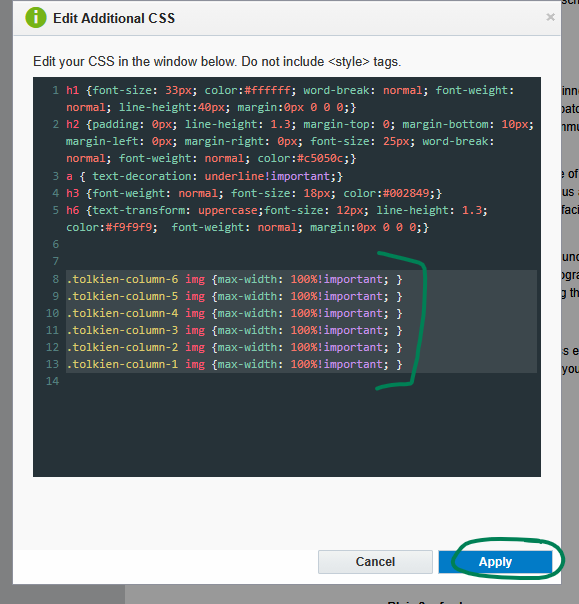
The only drawback with this fix is that any image in a column that uses the image scale to adjust the size, gets changed to take up the full width of the column instead of whatever size you scaled it to. So make sure to use "autofit" for your images inside columns half-width or less.