...
| Expand |
|---|
| title | View detailed instructions on finding templates (with screenshots) |
|---|
|
- Go to Assets > Emails, and click the "Create" button in the top right corner.
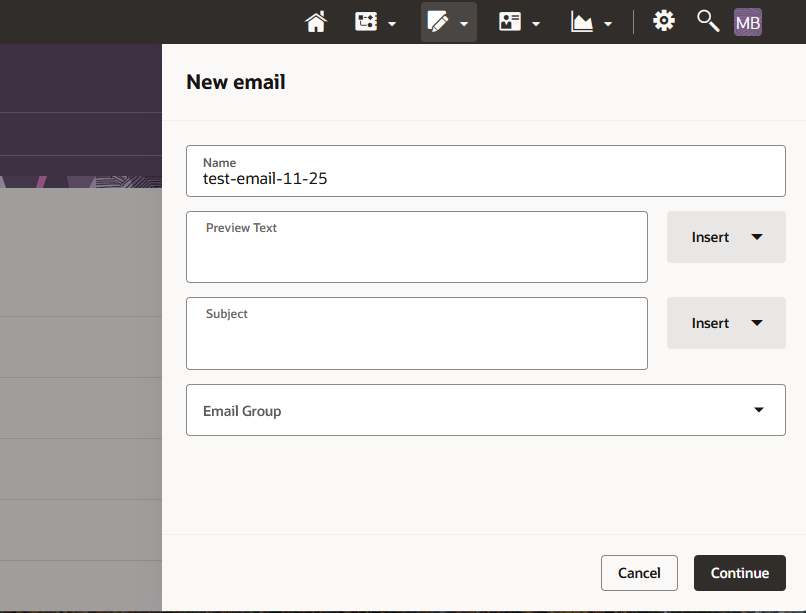
- A sidebar will appear on the right side of your screen, where you can name your email and fill out other details (feel free to skip preview text/subject for now). Click Continue.
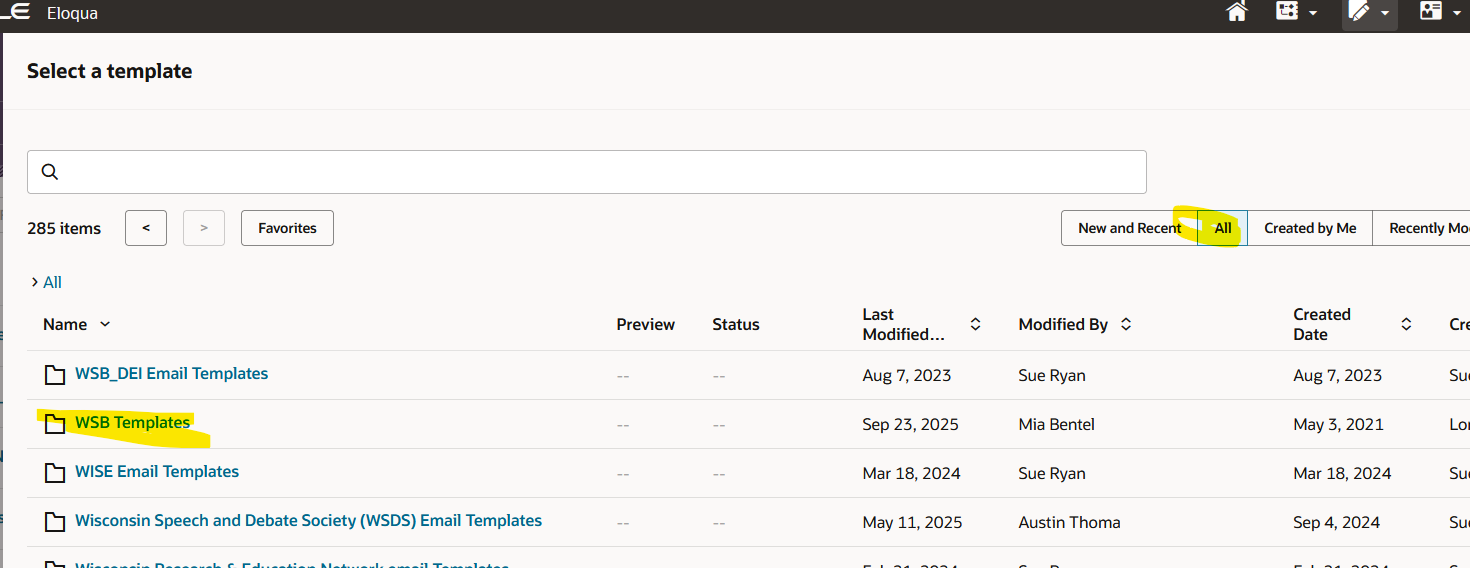
 - A bunch of template options will appear. Go to the "All" tab, then open the WSB Templates folder (sorting alphabetically by Name can help you find it).
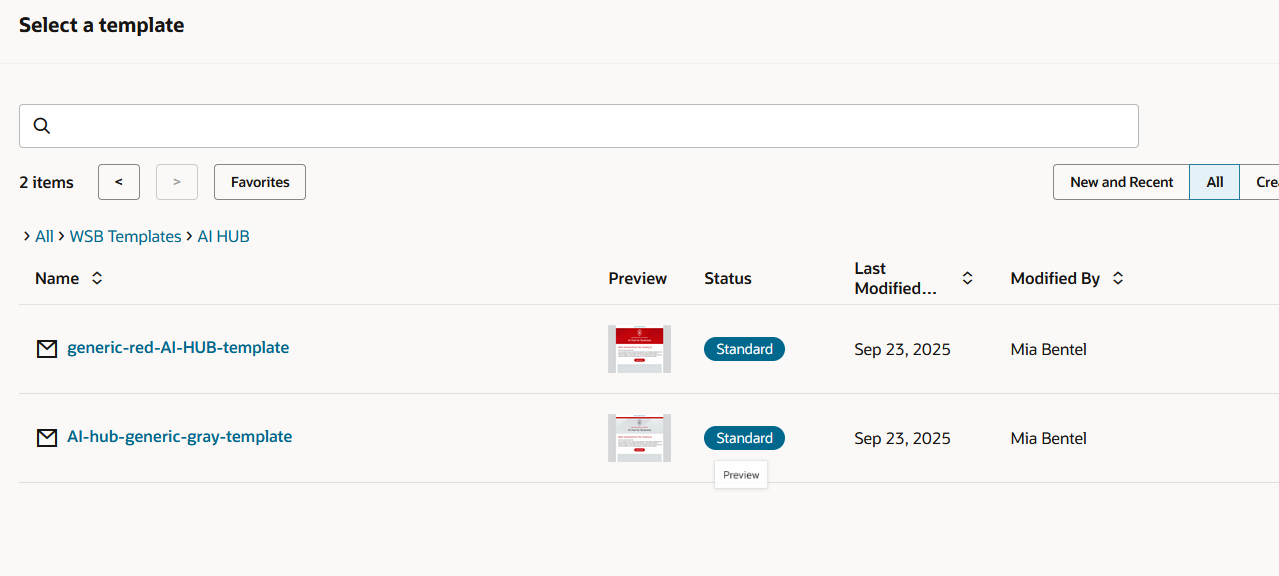
 - Next you'll see a bunch of folders of the departments within WSB. Select your department, and from within you should be able to pick the appropriate template.
- Most departments have at least a "generic gray" and "generic red" template. You may also have templates for specific emails, such as a newsletter template, an event invite template, etc.
- If you do not have a template, please reach out to webteam@wsb.wisc.edu with your template needs and we will make one for you!
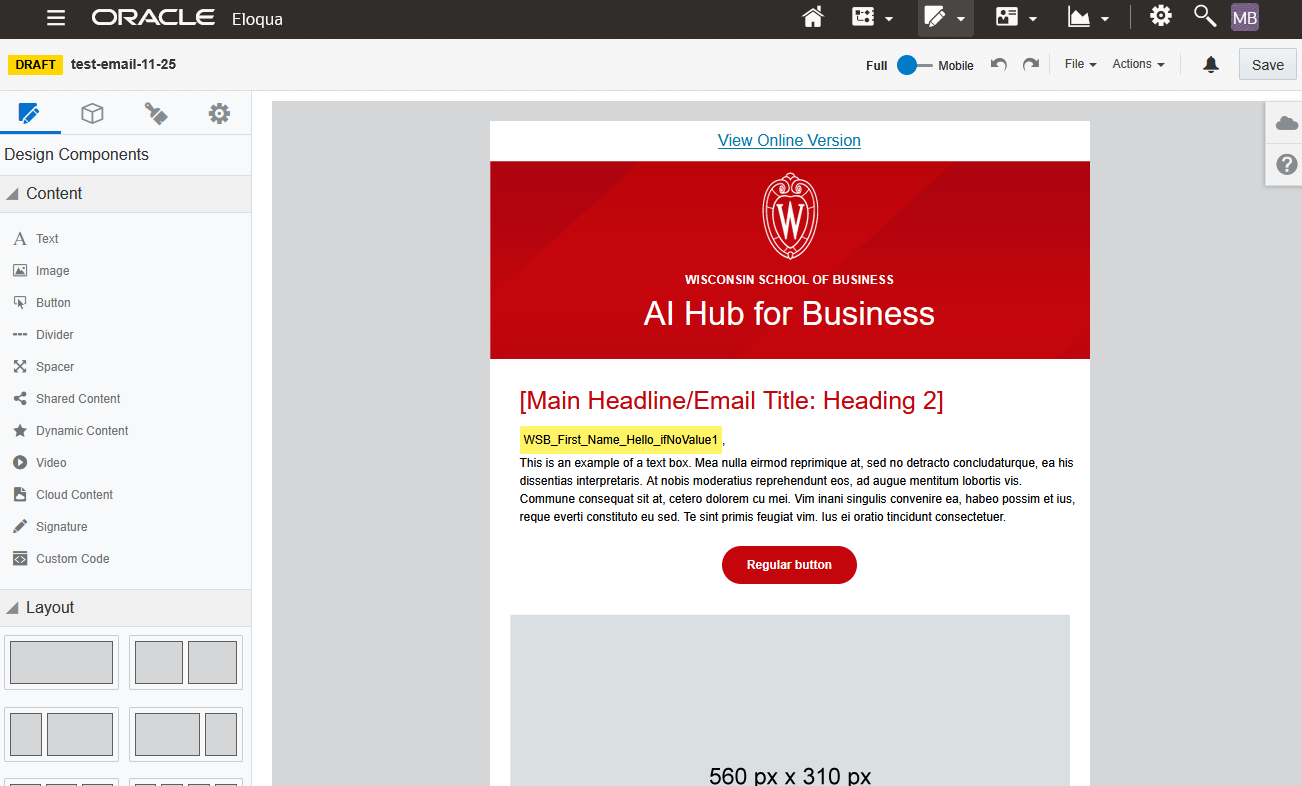
- Once you select your template, you're ready to start editing!
|
Editing Your Email
...
After you've opened the email editor, you can start making edits. If you have a simple email design in mind, the options in the base template are probably sufficient. But if you have a lot of content, such as for a newsletter, you may need some more components.
You can go to the Blocks tab in the left sidebar, type in "WSB" and click and drag WSB blocks. View the video below for a quick overview of our custom blocks:
| Expand |
|---|
|
| View file |
|---|
| name | Eloqua-blocks-demo.mp4 |
|---|
| height | 250 |
|---|
|
|
Do not delete or edit the headers and footers of your email! These are all branded elements.
...
