
...
- Click the "Insert files and images" button on the editing toolbar.
- Click "Upload files"
- Find the image you wish to use (Please resize with an image editor before adding to allow your page to load faster).
- Click "insert" and you will now see your image on the page. You can move this image around as needed.
- Click on the image to see options to add a border.
- Add alt text to images - after you have your image on the page, click on the image, then click "properties" and add text describing the image.
...
Adjust Order of Pages on Left hand Page List
To update the order in which your pages display on the left hand side, complete the following steps:
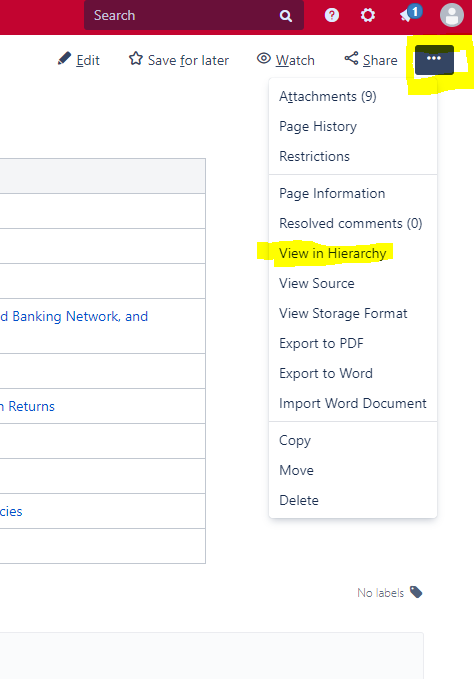
- Go to the page which you need to move
- Click the "..." menu in the upper left
- Choose "View in Hierarchy"
- A list that matches the left side order will appear.
- You can now drag and drop items in the order that you need them
- As soon as you drag and drop, it auto saves the change.
- If you need any help with ordering or order adjustments, you may also reach out to webteam@wsb.wisc.edu and we can help.
...
Turning "Watching" Notifications/Emails Off or On
...