
| Info | ||
|---|---|---|
| ||
As of December 2025, basic Eloqua training will be done through UW-Madison's Eloqua Canvas course. All new users will automatically gain access to the course. If you are an existing user and would like access to the Canvas course training, please fill out the Redwood Canvas Access Form. The training document below will outline WSB-specific Eloqua training. It is currently in progress, so apologies for any confusion. |
Quick Links
- General Eloqua documentation 🡥 (UW-Madison wide)
- How to Request access »
- Presend Checklist for WSB (UW Presend Checklist 🡥)
- File Organization within Eloqua
Documentation for basic Eloqua how-tos can be found here: https://kb.wisc.edu/eloqua/
WSB specific documentation is hosted on wiki.wsb.wisc.edu.
How to Login to Eloqua:
- WSB Brand Guidelines for emails
- How to create a non-Eloqua sent email in Eloqua
- Creating engaging email content 🡥 (UW-Madison IT)
Table of Contents ▼
| Table of Contents |
|---|
UW-Madison vs School of Business Documentation
Most Eloqua documentation is available on the UW-Madison wide Eloqua Marketing Automation Knowledge Base. Use this to reference basics like navigating Eloqua, uploading contacts, and setting up email campaigns. The Marketing Automation team, which serves all of UW-Madison, can be reached at marketingautomation@wisc.edu, and usually responds to emails within a couple business days. They can answer most questions on how to use Eloqua, but may not be able to answer questions on WSB Templates or other design recommendations.
The documentation below, as well as the subpages of this page on the wiki, are for WSB specific needs, such as using our custom templates, as well as some of our team's guidelines. The WSB Web Team can be reached at webteam@wsb.wisc.edu. We aim to complete Eloqua related requests within one week of receiving your email.
Eloqua Canvas Course
Basic Eloqua training is done through the UW-Madison's Eloqua Canvas course (created by the Marketing Automation team). All new users will automatically gain access to the course. How to Request access to Eloqua.
If you are an existing user and would like access to the Canvas course training, please fill out the Redwood Canvas Access Form.
The canvas course was created for all UW-Madison users, and we do a few things a little differently at WSB. Please refer to the documentation below for WSB specific information.
A few WSB specific notes on the course:
- References to your “Department” and “Team” refers to all of WSB. We are the biggest Eloqua user group in UW-Madison! Everything WSB users create is visible to all other WSB users.
- Please review our guidelines for file organization.
- We have custom WSB templates for you to use. Outside of the canvas course, you will not be making your own email Templates, nor will you need to use the built-in Eloqua templates.
- If you need a new custom template created, please contact the WSB web team!
- You can skim over the sections on Templates and Advanced Styling, as these are managed by the Web Team.
- When uploading contacts, your “Contact Label” should always be “WSB”
Your “email group” is usually just your department within WSB.
- Review our documentation for WSB specific rules and guidelines on email settings.
| Anchor | ||||
|---|---|---|---|---|
|
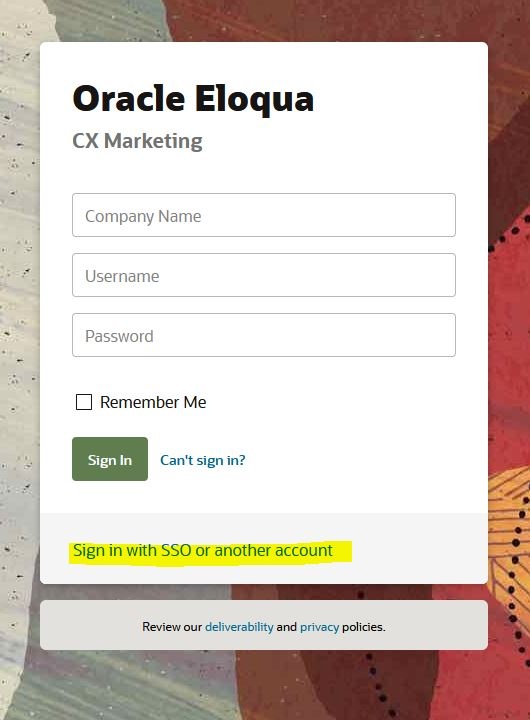
- Open up the Firefox browser (you may need to download the most recent version). Eloqua is buggy with other browsers.
- Go to login.eloqua.com
- Ignore the sign in fields and select "Sign in with SSO or another account"
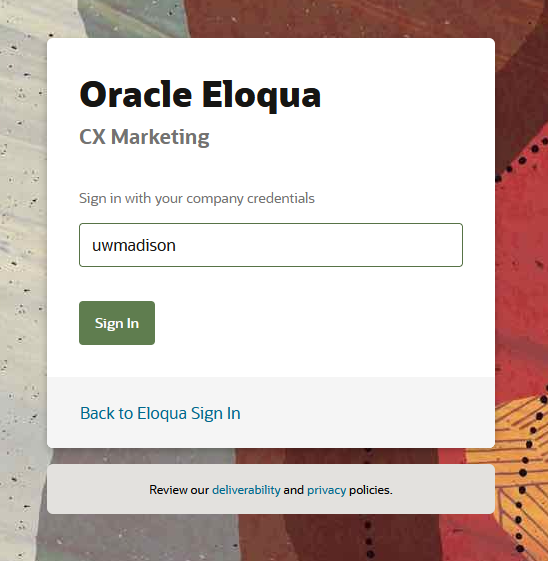
- In the "Company Name" field, type in "uwmadison" (one word, not case sensitive) and click "Sign in"
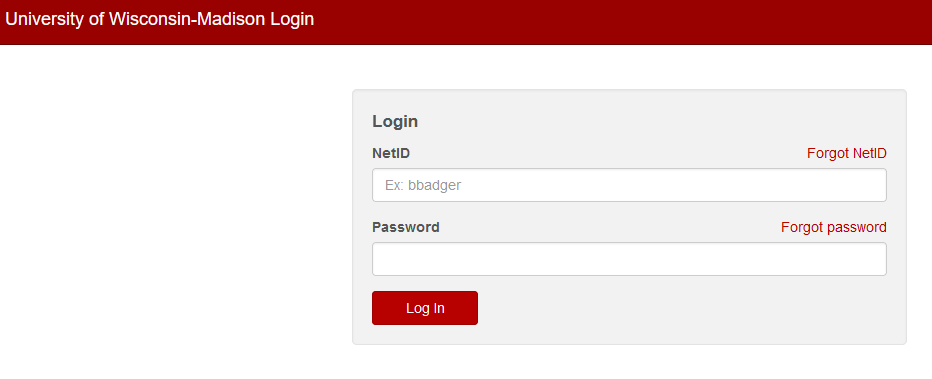
- It will redirect you to your typical wisc.edu login, where you can login as usual.
| Expand | ||
|---|---|---|
| ||
|
...
|
...
|
...
|
...
|
...
Building an Email in Eloqua
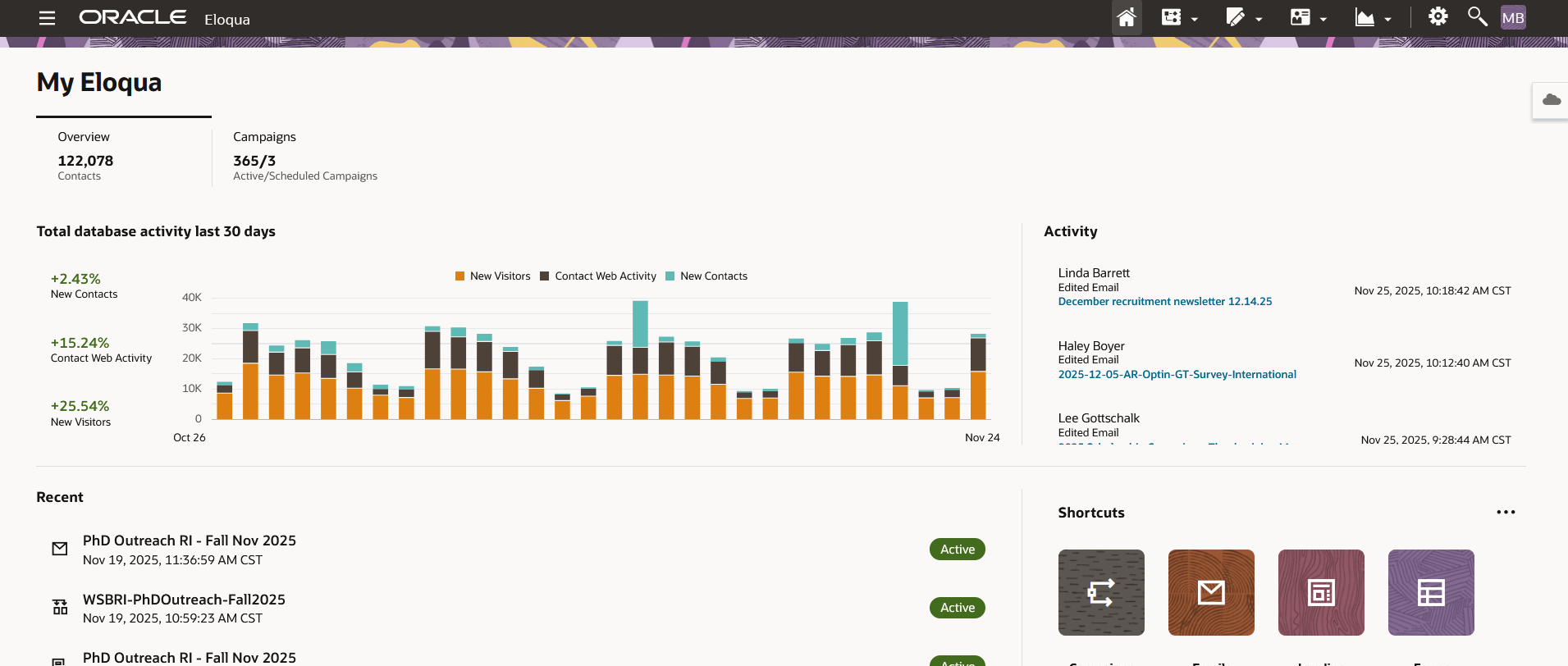
After you've logged in, you can start building emails!
Here is a recording of the training session for Eloqua Emails: Part 1
...
| Anchor | ||||
|---|---|---|---|---|
|
Please wait to reference this section until after you've completed the Eloqua Canvas Training.
Finding WSB Email Templates
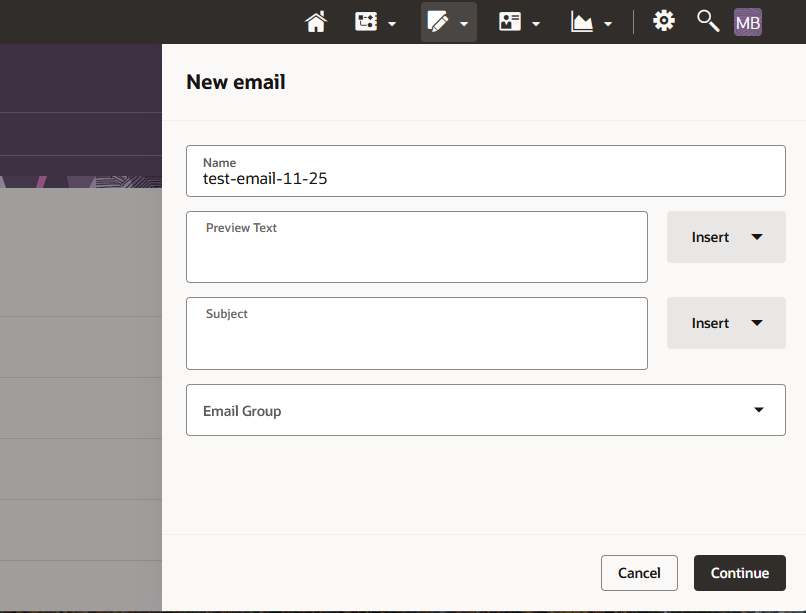
- Go to Assets > Emails, and click the "Create" button in the top right corner.
- A sidebar will appear on the right side of your screen, where you can name your email and fill out other details (feel free to skip preview text/subject for now). Click Continue.
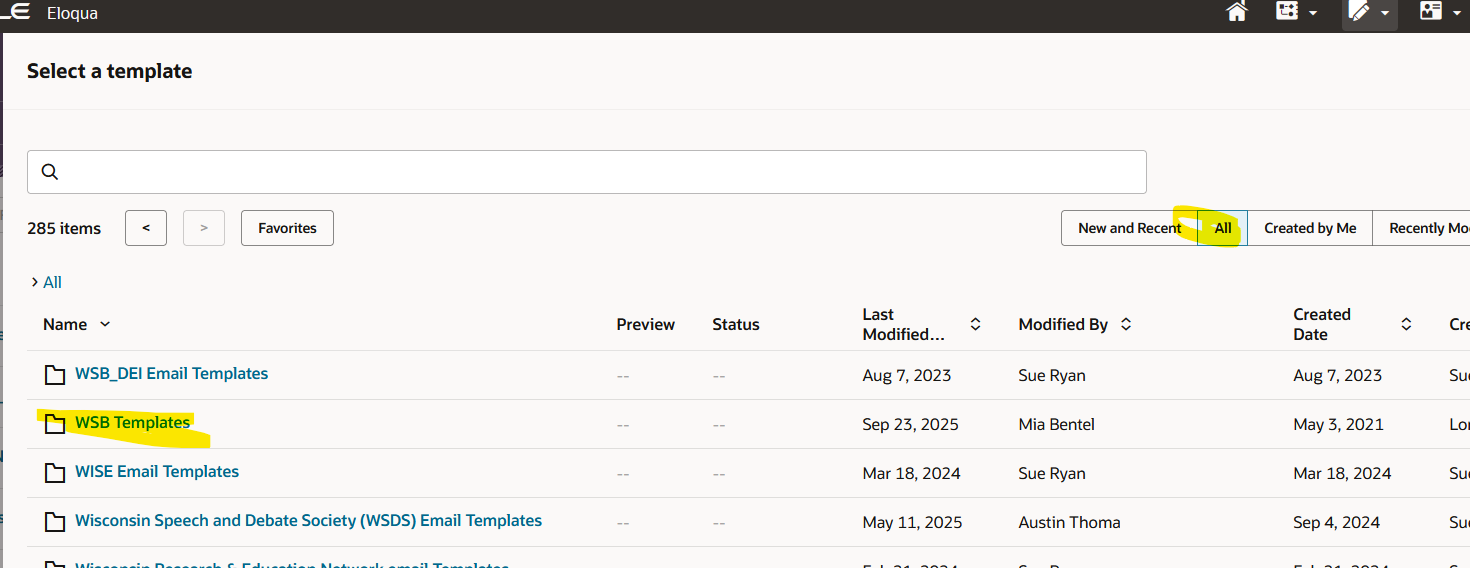
- A bunch of template options will appear. Go to the "All" tab, then open the WSB Templates folder (sorting alphabetically by Name can help you find it).
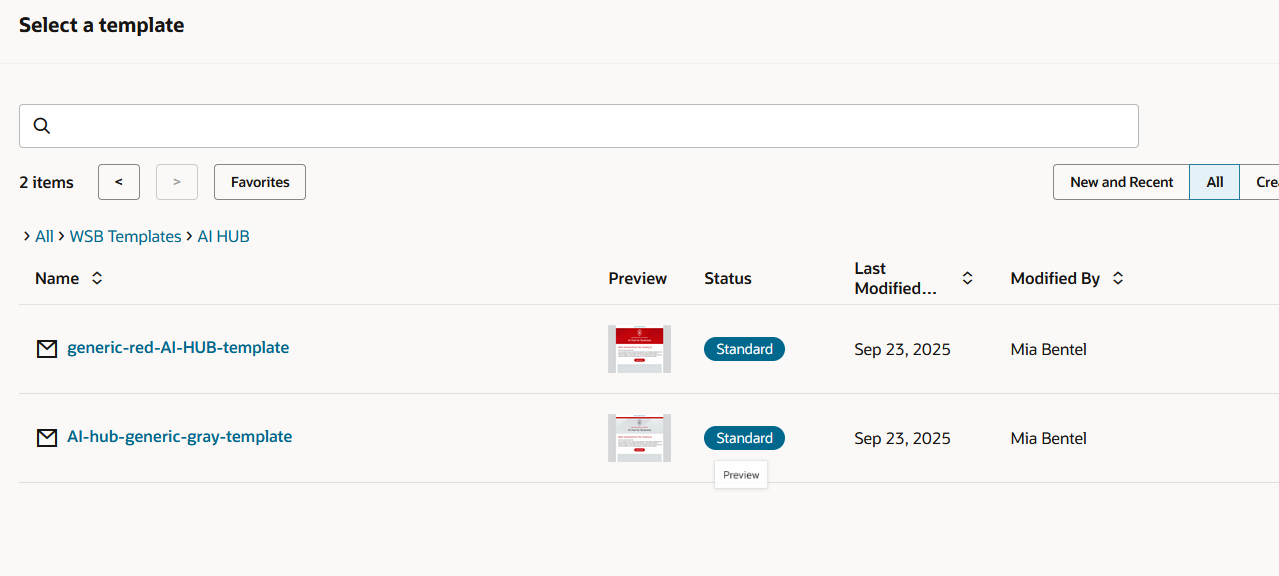
- Next you'll see a bunch of folders of the departments within WSB. Select your department, and from within you should be able to pick the appropriate template.
- Once you select your template, you're ready to start editing!
| Expand | ||
|---|---|---|
| ||
|
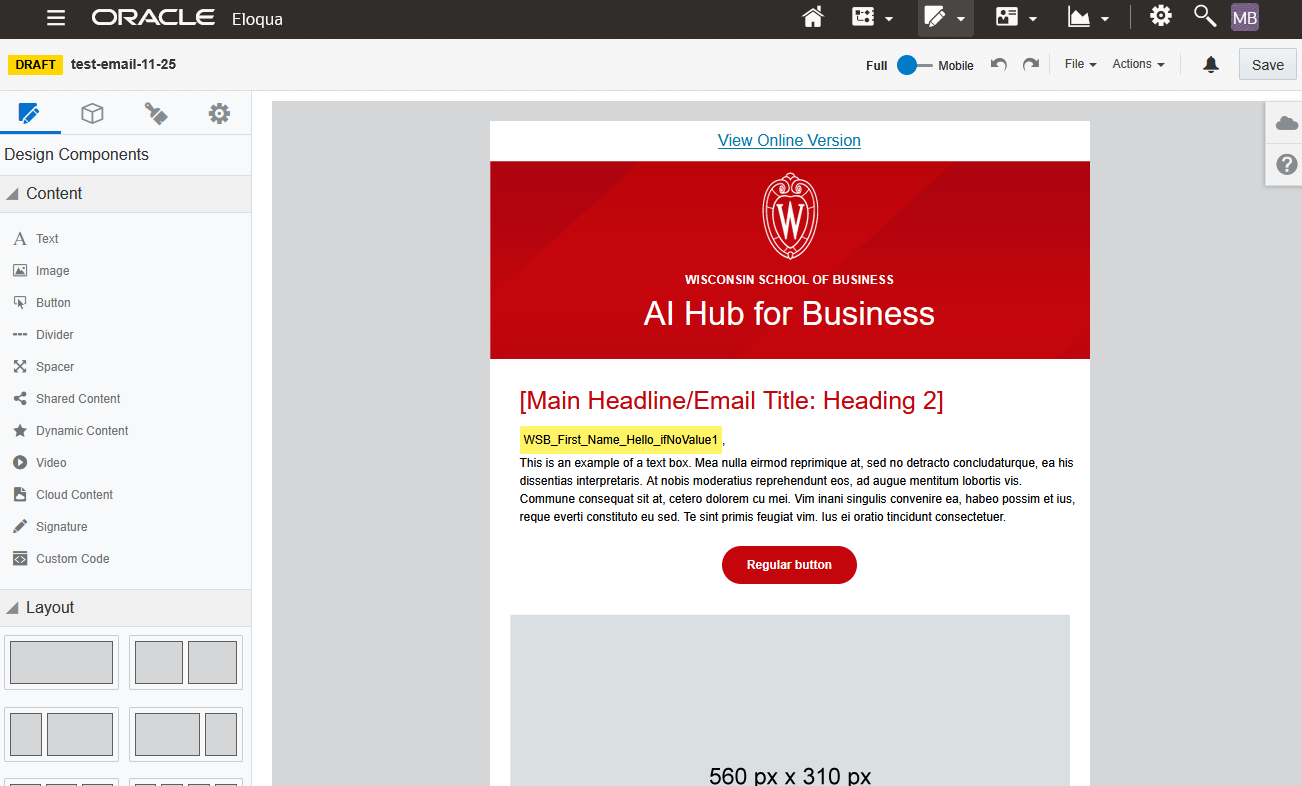
Editing Your Email
WSB email templates are designed to include everything you need- and a lot of what you don't. You will probably be deleting most sections of your email, keeping only the parts you need for that particular email send.
Do not delete or edit the headers and footers of your email! These are all branded elements.
Review the Email Template Breakdown to learn about each part of the WSB custom template.
| Anchor | ||||
|---|---|---|---|---|
|
- When sending a test email, do not use the default "Email Checker" option. It checks emails by clicking on all the links, which includes the unsubscribe button. Always select "HTML email" instead.
- Fill out your sender properties according to the guidelines. The sender email must always end in "@explore.wisc.edu". Any others will cause the email to bounce from all wisc.edu email addresses, and all those addresses will be marked as invalid. (If you accidentally do this, please follow these instructions)
- Even if it's just a test email send, this will still affect anyone you sent the test email to.
- Make sure to select a folder whenever you upload/create anything (photos, emails, etc). If you add something to the root folder, please move it to the appropriate department folder afterwards.
- Don't just edit an old email. Eloqua will prevent you from sending the same email to the same person twice, even if you completely change the contents of the email.
- You can go to an old email and click File > Save As to make a copy, but keep in mind that it's better to create a new email from a template instead, to get the most up to date version of the template. If you're current templates aren't good enough, request a custom one from the web team.
- Prior to activating an email, go over the Presend Checklist
- Preview text is "optional", but it's important!
| Anchor | ||||
|---|---|---|---|---|
|
Your emails are required to be accessible.
Not just for legal/compliance reasons, but because accessible emails benefit everyone by making emails easier to read and interact with. The more accessible your email is, the more likely your audience will actually read it!
The following tips are just the basics, and it's recommended you take your own time to research accessibility strategies. Review campus's email accessibility guide for details beyond these tips.
- Write it short and to the point. The longer the text in your email is, the less likely anyone is to read it, and the harder it is to understand. Write using Plain Language practices whenever possible.
- Add alternate text to all images. Alt text is a requirement when you use images in your email.
- Keep your images between 300-1200px wide. Excessively large images can slow down your email and consume a lot of data, which is especially problematic for people with limited internet access. It also increases the odds of your email being blocked by a spam filter.
- Only use all caps for acronyms. Screen readers read anything in all caps letter by letter, not as a word. If you wish to emphasize text, use bold.
- Do not use underlines unless it's for a link! Users expect underlines to be links, and it will be confusing if they are not.
- Use descriptive link text, and do not use phrases like "click here". Do not include the entire URL.
- Pay attention to header hierarchy. In the case of our email templates, the Header 1 is used exclusively for the department name, and after that the main headers of the email are Header 2s. Header 3s should be used as subheaders of Header 2s.
- Design note: Please don't bold headers. They are already styled to be large.
- Use sentence case for links, buttons, and headings.
Contact Uploads
When uploading contacts, your “Contact Label” should always be “WSB”. Please review the contact upload documentation for step by step instructions.
Excel template for contact lists: wsb-contact-upload-example.xlsx
Personalized greetings
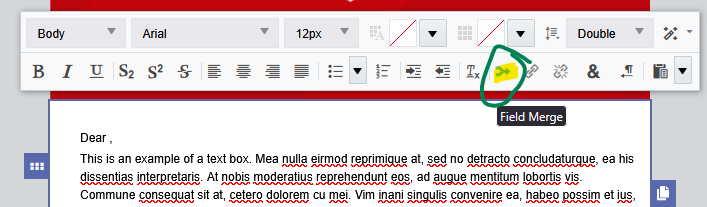
If you want to have a personalized greeting in your email, such as "Dear First Name", you can use a Field Merge to pull in that name from your Contact list.
| Expand | ||
|---|---|---|
| ||
Just include a column in your contact list spreadsheet with the info for each contact- add a column for "First Name" and a column for "Last Name" (if you're including that) before you upload your contact list.
Then, in a text box in your email, click the Field Merge icon.
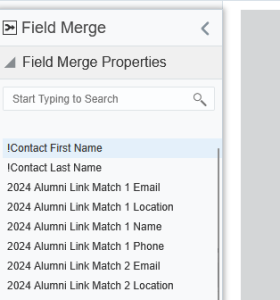
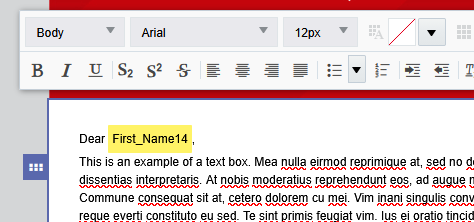
Double click "!Contact First Name" from the left sidebar. It will insert a bright, highlighted chunk of text. You can test to see if it works by previewing your email as different members of your contact list.
Keep in mind that updates to the person's contact happen across all of UW-Madison, so another school or department might override what you uploaded. This is usually fine, but they may not know your contact's preferred name, or they may upload the name in all caps, with a typo, etc. If you would need to upload your own data that is private and specific to WSB for customization or segmentation, you may want to use a custom data object or CDO. To find out more about CDOs, please contact us for assistance. Here's the CDO example template: custom-data-object-example |

| Anchor | ||||
|---|---|---|---|---|
|
Once you've completed the Canvas course and reviewed the documentation above, you can start creating your first email campaign. Because you're likely to need extra assistance on your first attempt, make sure to give yourself extra time to ask for help as well as for the review process after creation. (Ideally, 1-2 weeks)
If you're having trouble setting up your first email, you can contact the UW Marketing Automation team at marketingautomation@wisc.edu, or for WSB-specific Eloqua questions, the WSB Web Team at webteam@wsb.wisc.edu. In addition to answering questions over email, we are also happy to set up meetings with you to walk through the process of creating your email step by step.
Once you think you've gotten everything ready on your email campaign, you will need the web team to review and activate it. Follow the steps on asking the web team to activate your emails. Most likely, you will have a few mistakes on your first email, so be ready to implement any feedback we give you(if you need additional assistance, we can set up a meeting). Once everything is set up correctly, we will activate (send) your email campaign.
Tip: If your email is partially done but is still waiting on some content, please reach out to us with what you have so far so we have enough time to give you feedback.