
If you'd like to create an email using the Eloqua email builder but send it using another program (such as LRM), follow the instructions for building a normal Eloqua email then make the following changes:
LRM specific email templates have been created for MBA and MS emails. When creating these emails, select a template that starts with "LRM" in the name, and don't select your email group before you click design. A custom html footer for LRM unsubscribes has been added, and while it may look unusual in the editor, will appear correctly in the html.
Note: You don't need to change much from the default settings, the only thing that will change the html is the Preview text. Sender info, email groups, etc, will not affect the code of an email.
1. Remove the Header, and Replace the footer with a blank footer
The default header contains a "View it on the Web" link that only works for Eloqua-sent emails
...
- Select the footer (bottom row of the email)
- Click "Replace" in the left sidebar
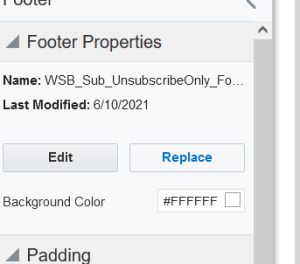
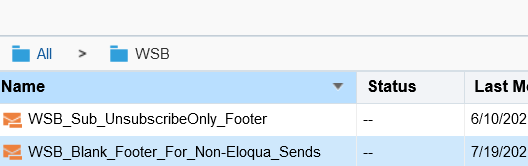
- Navigate to the WSB folder and select the footer labeled: "WSB_Blank_Footer_For_Non-Eloqua_Sends"
- Remove all padding from the footer (set the padding values to 0 on all sides of the footer)
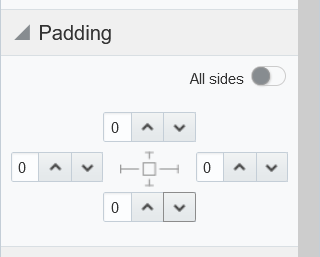
- Your footer should look like this:

2. Remove Eloqua tracking
This step is optional. If you want Eloqua tracking codes to be removed from your links, do the following:
- Select Action > Manage Links
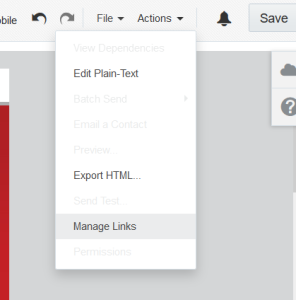
- Uncheck all checkboxes.
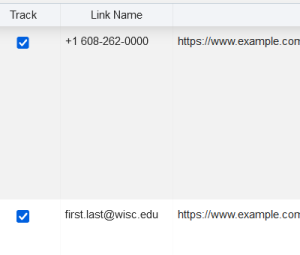
- Click "Done"
3. Download the HTML
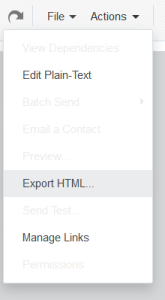
- Once your email is ready, go to Actions> Export HTML
- Untoggle "Include Eloqua Elements"
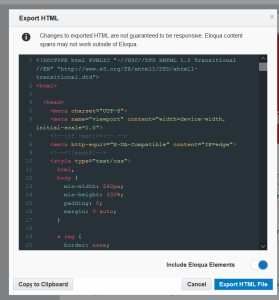
- Click "Export HTML File" to save the file to your computer, or "Copy to Clipboard" if you just need to paste it somewhere
4. Add a new unsubscribe footer (LRM only)
Some email sending programs, like iContact and Constant Contact, automatically add an unsubscribe footer. However, some, like LRM, don't, and you'll need to manually add a footer so you can comply with CAN-SPAM regulations.
...
Select this entire section and replace it with the html for your footer. If you're using LRM, paste the following code:
(this code has been added to email templates that begin with "LRM")
LRM footer
|
|