
...
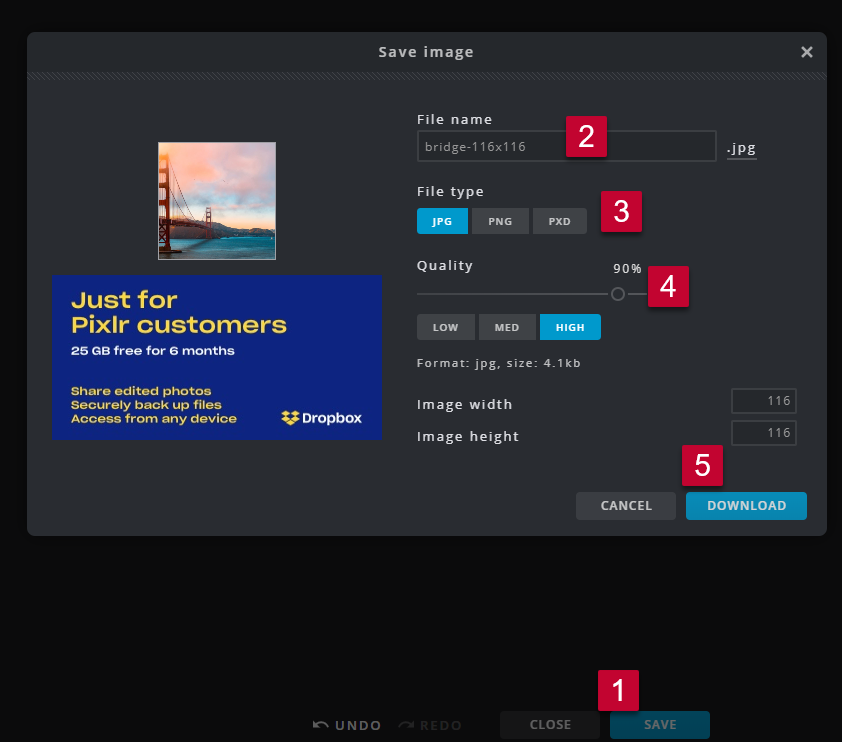
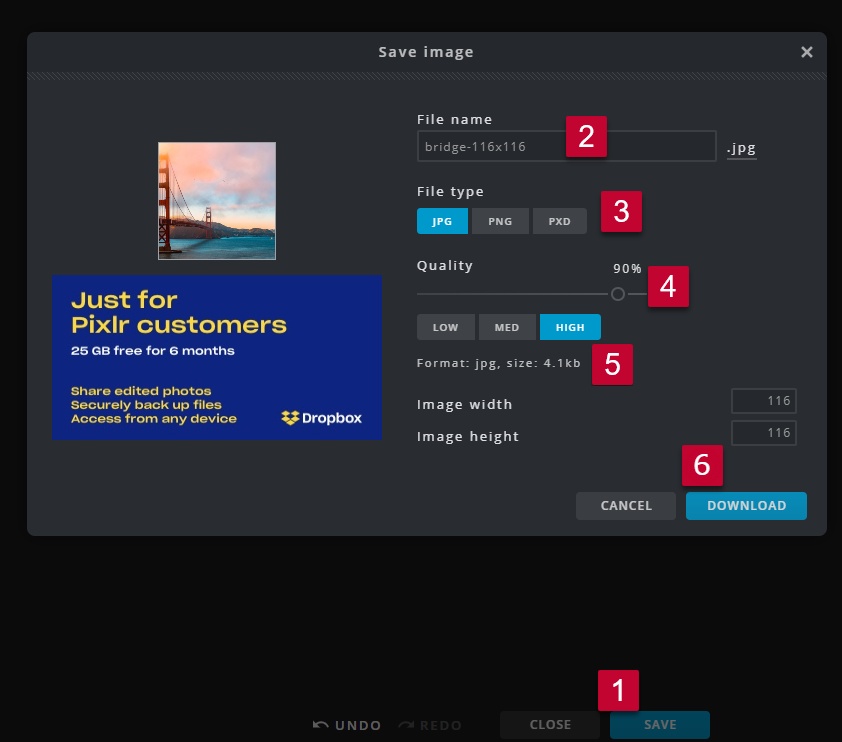
- Click "Save" .
- Update the file name to meet the File Naming Conventions and Best Practices (e.g. name-widthxheight).
- Select the File Type JPG, unless there is a transparent background, in which case you should choose PNG.
- Leave the Quality at 90% and High.
- Check that the image is less than 5MB (5000KB) in size.
- If it's not, decrease the image quality percentage until it is. Decreasing the image
- If the photo's dimensions (width and height will also decrease the file ) are larger than necessary, decrease them to the appropriate size.
- Click "Download".
- If you are uploading the photo to an email, we recommend running the photo through tinypng.com to optimize the photo. This is not necessary if uploading to the Wordpress Media Library.
- Upload the photo into the media library and add it to your blog post or email. (Media Library: How to Upload an Image or File).
- If WordPress gives you an error saying your image size is too big, running it through tinypng.com before uploading may help.
- If WordPress gives you an error saying your image size is too big, running it through tinypng.com before uploading may help.
...
How-to Save as sRGB
If the quality of the image changes once uploaded to the site, it could be that the image wasn't saved as sRGB. The easiest way to save as sRGB is through Photoshop.
...