
...
| Expand | ||
|---|---|---|
| ||
|


On This Page:
Table of Contents
...
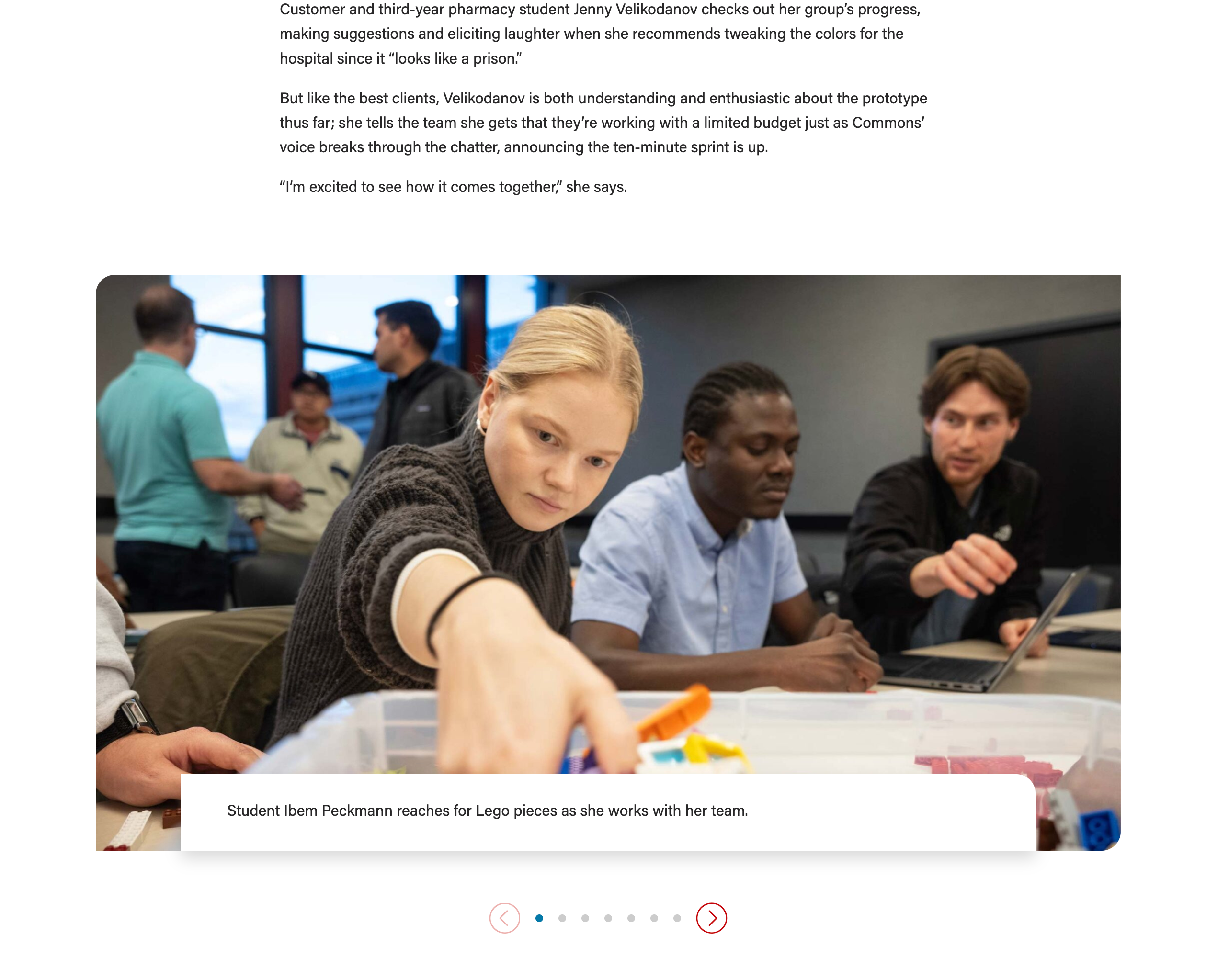
Use this block to showcase 1-10 photos, with or without a caption. If multiple images are added, they will be in a slideshow.
- The max number of images you can use is 10; beyond this number, the block will not work properly on mobile screens.
- Keep the caption/paragraph copy to 250 characters or fewer and use a similar amount of copy for each photo in a single slideshow
- Photo size: we recommend using our website's standard image size - 2400x1600px
- Image width must always be 2400px
- Image heights can vary, but all images in the same slideshow should have the same heights
- Other image heights that work well: 1050px, 1350px
- Set the image ratio field to best display your images.
- Recommended: 21x9 or 16x9
- Play around with the options or find the ratio below that matches your image dimensions:
- Image dimensions: 2400x1050px –> Choose image ratio: 21x9
- Image dimensions: 2400x1350px –> Image ratio: 16x9
- Image dimensions: 2400x1600px –> First try 16x9 ratio; if the images are cropped too much, try 4x3 ratio
- The photo caption overlaps the bottom of the photo, so be sure to crop the image in a way that the main details are not at the very bottom. A designer may be able to assist you with adding padding to the bottom of an image if needed.
- Put the caption in the "Copy" field, under Add/Edit Cards
- Photo size: recommended 2400x1350px
- Image width must always be 2400px
- Image heights can vary, but all images in a slideshow should have the same heights
- Other image heights that work well: 1050px, 1350px, 1600px
- Tip: You can start by uploading an image with our standard dimensions – 2400x1600px – and crop the height to 1350px inside the WP media library
- To crop an image, add it to the Jumbotron block and hover over the image - then click the pencil icon to edit it.
- Note: cropping an image in WP will affect all uses of that image; only crop images that you uploaded to WP to be safe
- Set the image ratio field (under Configuration) to best display your images.
- Recommended: 16x9 or 21x9
- Play around with the options or find the ratio below that matches your image dimensions:
- Image dimensions: 2400x1050px –> Choose image ratio: 21x9
- Image dimensions: 2400x1350px –> Image ratio: 16x9
- Image dimensions: 2400x1600px –> Try 16x9 ratio; if the images are cropped too much, try a different crop of the photos or reach out to a designer or web developer for assistance.
- Because this is a multipurpose block that we use in news stories and across the website, there are many fields you can ignore:
- Add/Edit cards – ignore title, subtitle, and link
- Introduction – ignore all fields
- Footer – ignore all fields
- Configuration – ignore all fields except "image ratio"
- Appearance
Lazy Load Youtube Video
- Guidelines:
- Use this block anytime you want to embed a Youtube video in your post.
- Do not use the "Youtube" block – that block displays videos at a much smaller size and they take longer to load on the page, which could create problems for the user.
- Photo size for image override: 1176x662px (you can use a larger image size, but if the proportions are different, the image will get cropped)
- Use this block anytime you want to embed a Youtube video in your post.
- How to embed YouTube videos in your article
...