
| Info | ||
|---|---|---|
| ||
As of December 2025, basic Eloqua training will be done through UW-Madison's Eloqua Canvas course. All new users will automatically gain access to the course. Please review our notes on the canvas training before taking it. If you are an existing user and would like access to the Canvas course training, please fill out the Redwood Canvas Access Form. The training document below will outline outlines WSB-specific Eloqua training. It is currently in progress, so apologies for any confusion. |
Quick Links
- General Eloqua documentation 🡥 (UW-Madison wide)
- How to Request access »
- Presend Checklist for WSB (UW Presend Checklist 🡥)
- File Organization within Eloqua
- WSB Brand Guidelines for emails
- How to create a non-Eloqua sent email in Eloqua
- Creating engaging email content 🡥 (UW-Madison IT)
...
Basic Eloqua training is done through the UW-Madison's Eloqua Canvas course (created by the Marketing Automation team). All new users will automatically gain access to the course. How to Request access to Eloqua.
If you are an existing user and would like access to the Canvas course training, please fill out the Redwood Canvas Access Form.
The canvas course was created for all UW-Madison users, and we do a few things a little differently at WSB. Please refer to the documentation below for WSB specific information.
A few WSB specific notes on the canvas course:
- References to your “Department” and “Team” refers to all of WSB. We are the biggest Eloqua user group in UW-Madison! Everything WSB users create is visible to all other WSB users.
- Please review our guidelines for file organization.
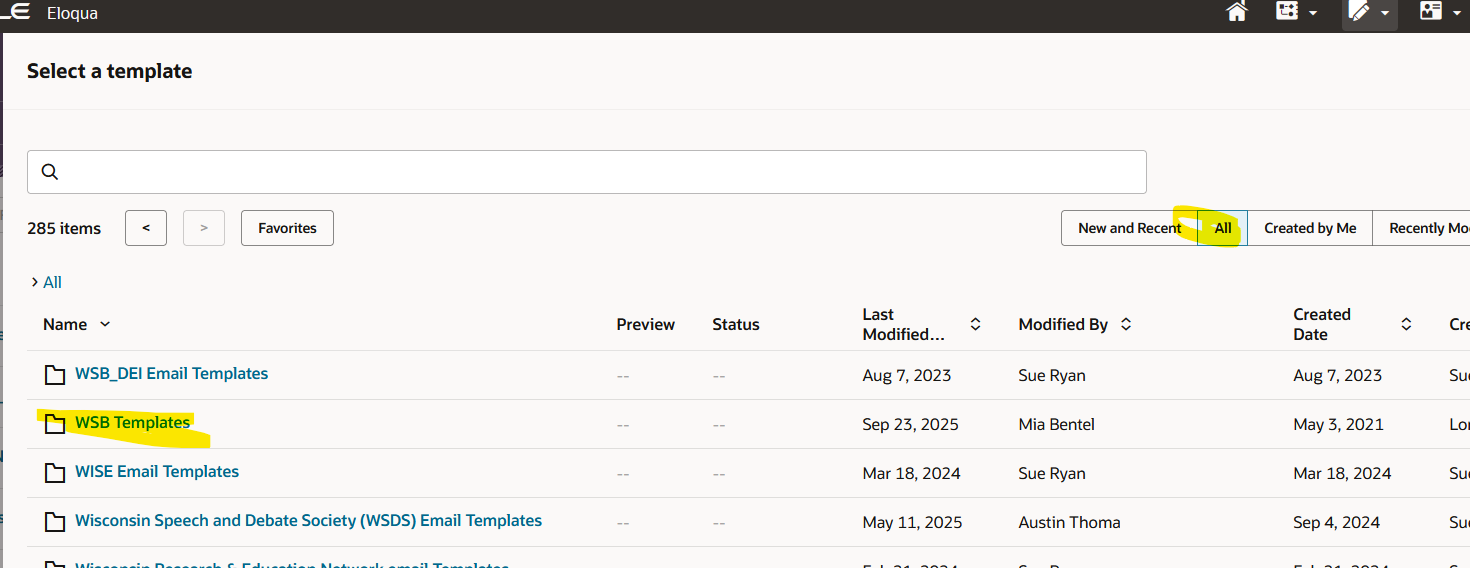
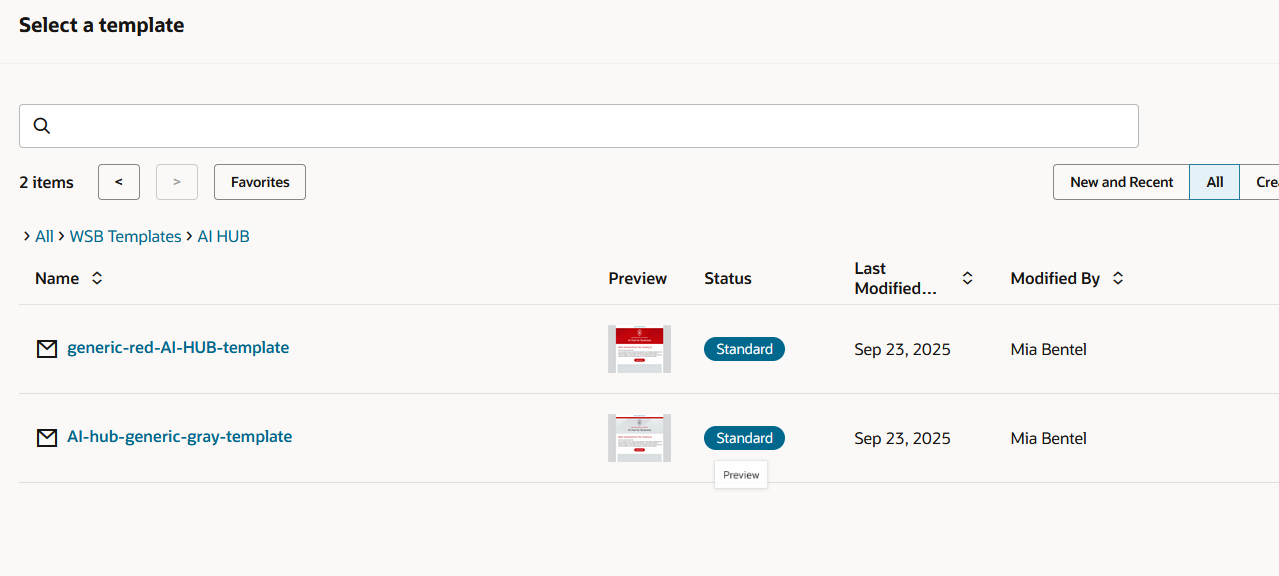
- We have custom WSB templates for you to use. Outside of the canvas course, you will not be making your own email Templates, nor will you need to use the built-in Eloqua templates.
- If you need a new custom template created, please contact the WSB web team!
- You can skim over the sections on Templates and Advanced Styling, as these are managed by the Web Team.
- When uploading contacts, your “Contact Label” should always be “WSB”
Your “email group” is usually just your department within WSB.
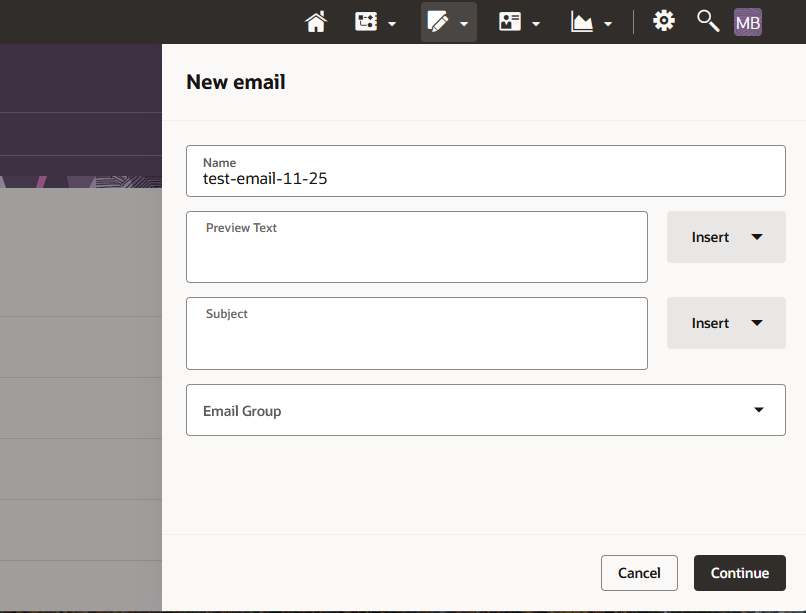
- Review our documentation for WSB specific rules and guidelines on email settings.
...
| Expand | ||
|---|---|---|
| ||
|
Editing Your Email
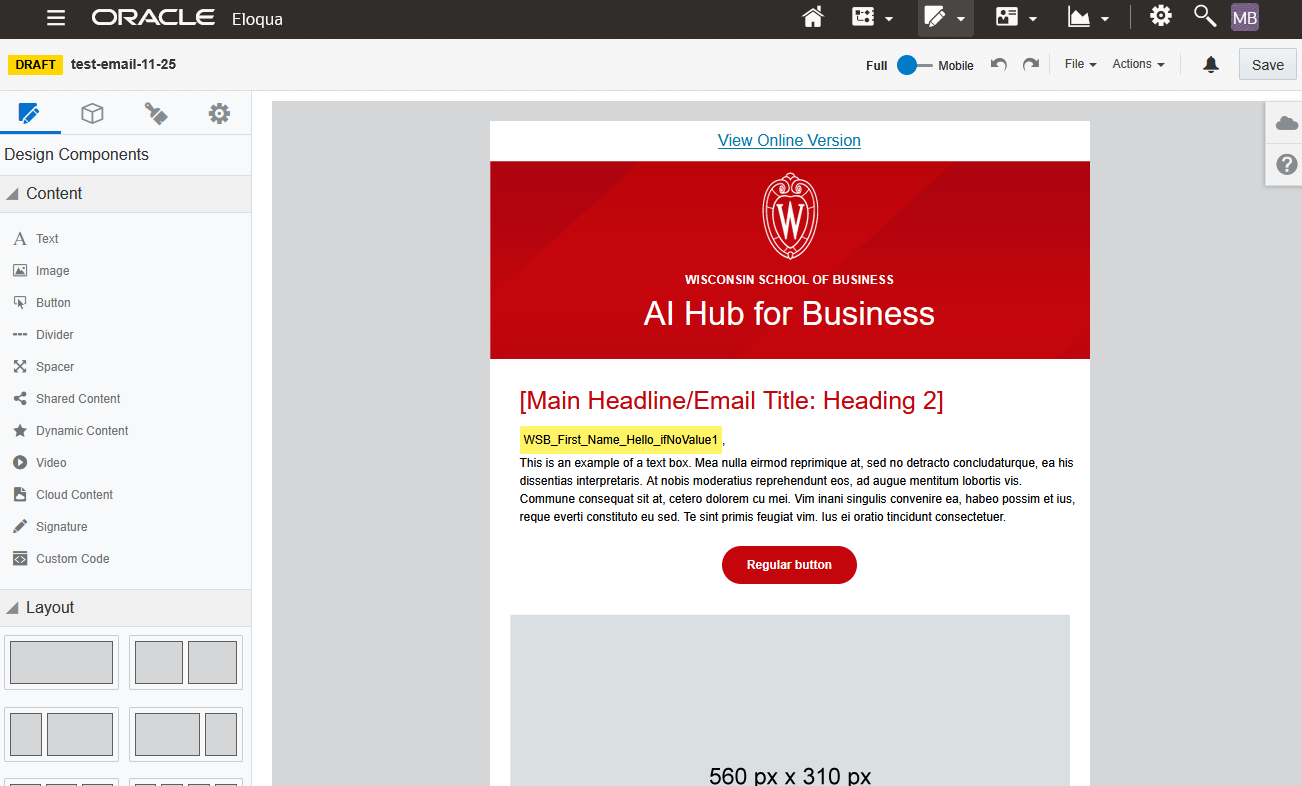
After you've opened the email editor, you can start making edits. If you have a simple email design in mind, the options in the base template are probably sufficient. But if you have a lot of content, such as for a newsletter, you may need some more components.
You can go to the Blocks tab in the left sidebar, type in "WSB" and click and drag blocks into your email. View the 5 minute video below for a demo and overview of our custom blocks:
| View file | ||||
|---|---|---|---|---|
|
Do not delete or edit the headers and footers of your email! These are all branded elements.
...