This page is a work in progress.
Note: You must complete WSB WordPress (WP) training before you will be granted access to the WP media library. |
On this page:

Upload an Image to the WP Media Library
- Save the file somewhere on your computer (desktop, documents, etc.)
- Login to WP at business.wisc.edu/wp-admin
- On the left side, select Media

- Select Add New (this button appears at the top of page next to "Media Library" and in the menu on the left side)
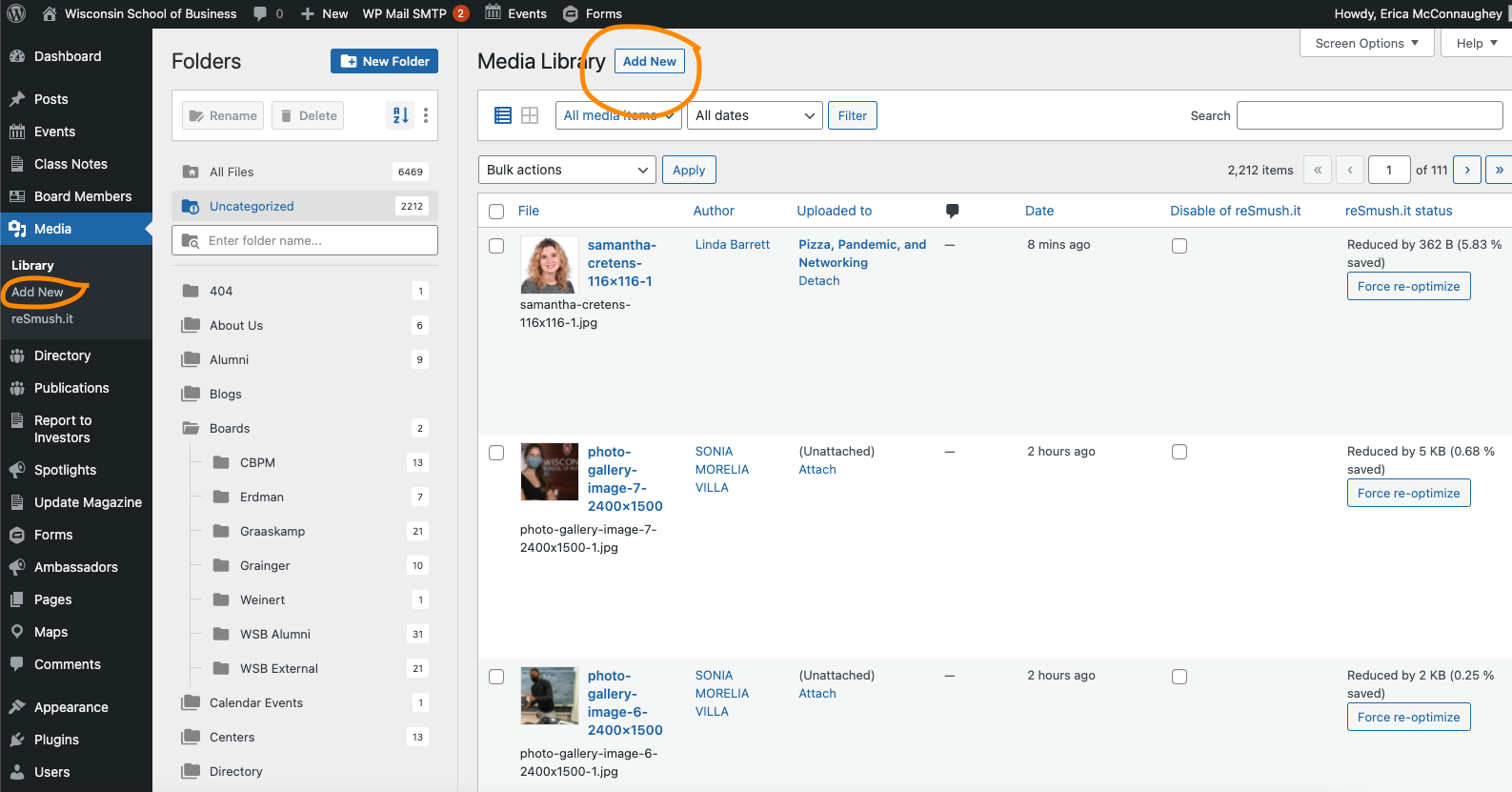
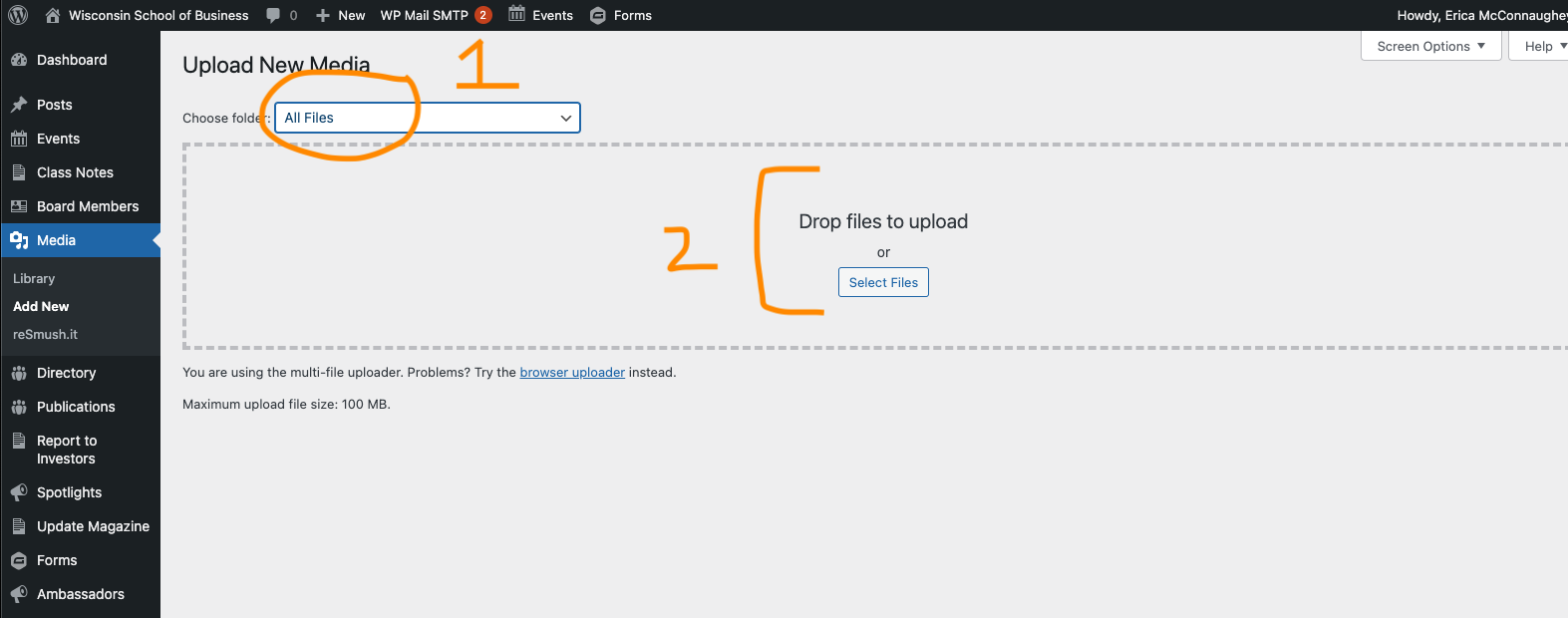
- (1) Select the media folder your image(s) should live in. (2) Drag your image(s) to the page or click the Select Files button and search for your image(s) on your computer.
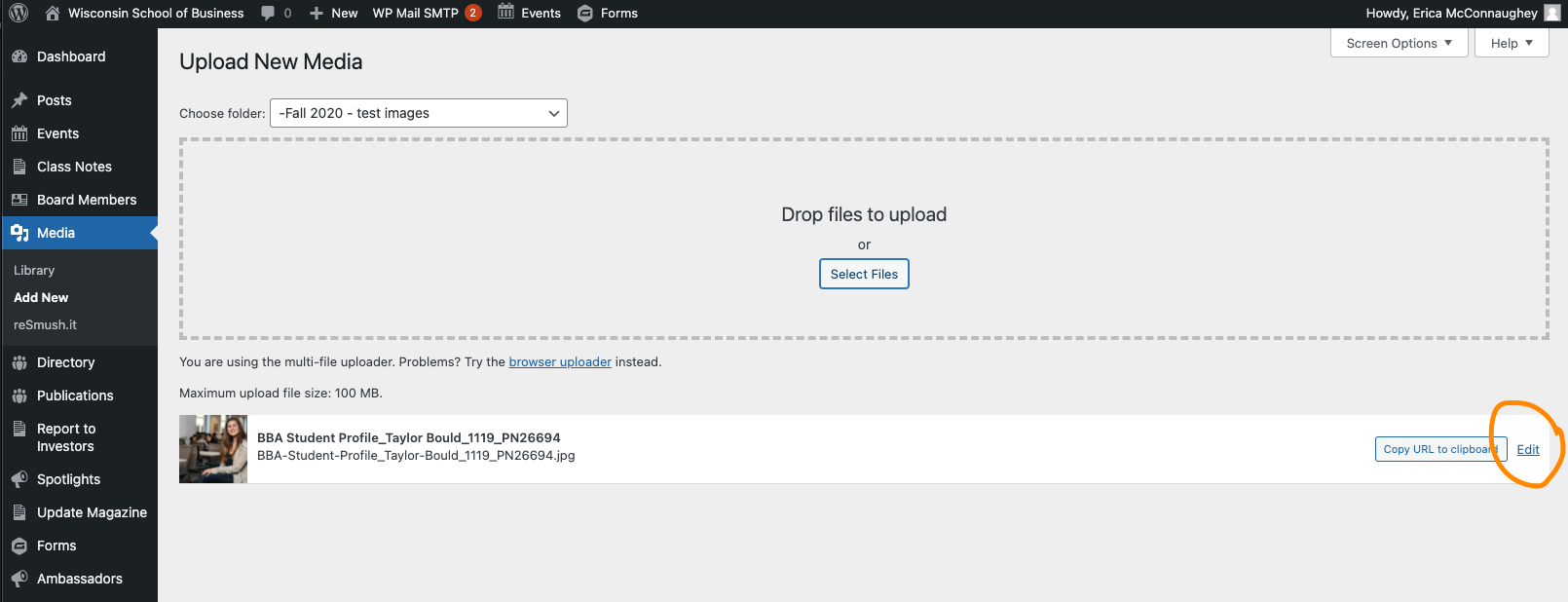
- Wait for your image(s) to upload, then click Edit next to each. (Tip: When uploading multiple images, right click on Edit and open the link in a new browser tab so you don't lose track of the images you need to edit.)
Find an Image in the Media Library
- Open the WP Media Library
- Use either (1) the folder structure on the left or (2) the search bar in the upper right to look for your image

Using the Media Folder Structure
- Click on the name of a folder to see media items within.
- Click on the folder icon next to the name of the folder to expand it and view any folders within it.
- If a folder is already expanded, clicking the icon will minimize/close it.
- Drill down to the applicable folder and look for your image in the displayed results.
- If you aren't seeing images that you know should be in the folder, make sure you delete any criteria you may have had in the search bar and click the search button to expand the results to everything in the folder.
Search
- The media search is useful if you know the exact name of your media file (or at least part of the name).
- If you don't get any results from your search, try making it shorter or less specific.
- You can try searching for a keyword or name, but if the search criteria is not part of the name of a media file, it will not show up in results.
- e.g. If you search "Samba" and the particular photo you are looking for is named "img-33690.jpg", that image will not show up in the search results, even if Dean Samba is in the photo.
 Alternative Text (or alt text)
Why is alt text important?
Alt text is an accessibility requirement for all images in our WordPress library.
Alt text allows visually-impaired individuals (or anyone who uses a screen reader) to understand what content is in an image. Without alt text, these users cannot access this information. We want all users to have access to all of the information on our website.
Alt text is good for all users, though! It will be displayed on the page if the images ever fail to load or are blocked.
What should my alt text include?
Do not include phrases like "an image of...", "a photo of...", or "an icon of..." in your alt text.
For headshots: first name last name
For images with text in them: all text in the image must be included in alt text
For photographs: a brief description of the important subjects and any actions taking place; if knowing who is in the image is important, then include those names
For icons/graphics: a brief description of the subject
Tip: Anytime you upload or go to use an image from the media library, check to see if the image has alternative text. If it doesn't have alt text you must add it, request that the person who uploaded the image add it, or request that the web team add it for you if you are not allowed to. |
How do I add alt text?
- After uploading the image to the Media Library, find and open the image to edit its information. (see instructions for this above)
- Beneath the image, add your brief description to the alternative text field.
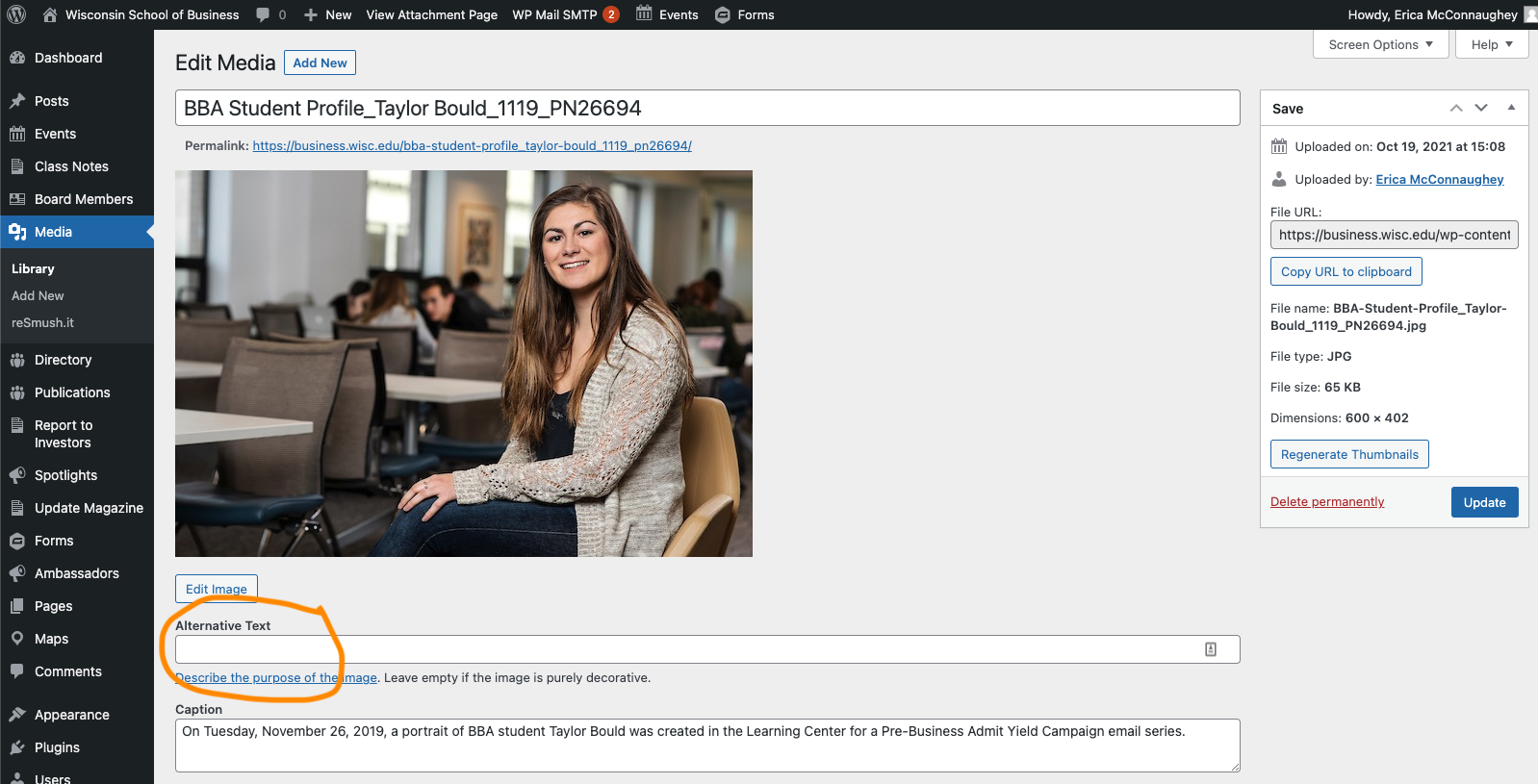
- Click "Update" button (blue button on right side).
Move Images to the Correct Folder
Since we have thousands of images on the website, and more are added everyday for events and blog posts, it is important to place your images in the correct folder.
If you upload images without placing them in a folder, they will be in "Uncategorized".
To move an image that you already uploaded:
Delete an Image from the Media Library
Add the steps involved:
- Insert your steps.
- You can also copy and paste or drag and drop images into your instructions.
Related articles
Related articles appear here based on the labels you select. Click to edit the macro and add or change labels.
