Common activities to add to a contact record include: Appointment, Phone Call, Email, Task, and Note.
Helpful hint: If you use consistent subject names for specific types of activities, you will be able to search and query on activities by subject name in the future.
- Open the person record.
- Scroll down to 'Communications and Notes', or use the navigation bar next to the person record's name to quickly jump to it.
- Under appointments, click on the ellipsis next to Add Task.
- Select the activity you would like to create.

Jump to:
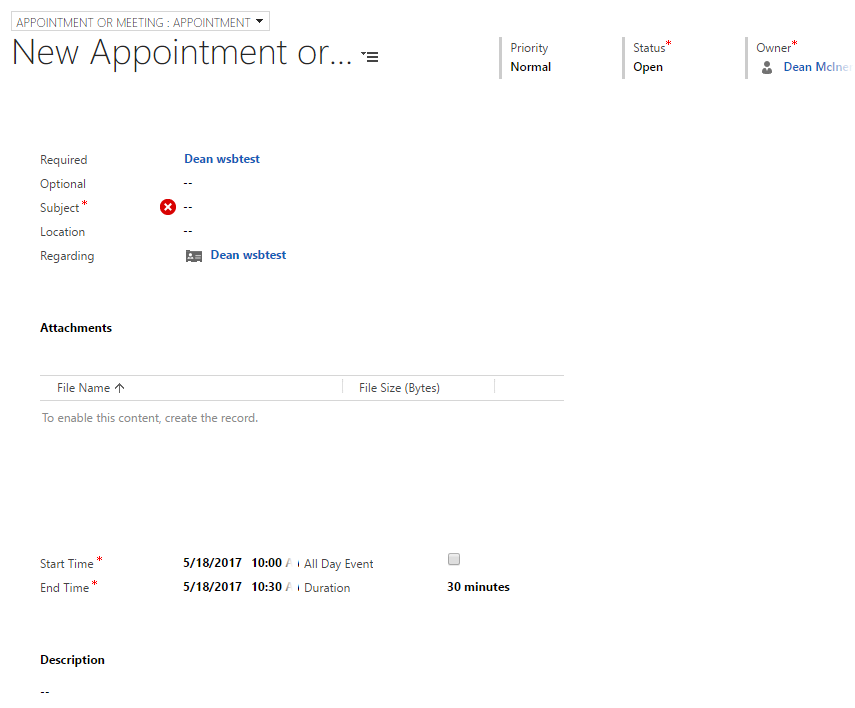
- Complete required information and add appointment details.
- Constituent Role = Lead or Applicant
- Subject = Admissions Interview, Prospective Student Visit, Class Visit
- Select "Save" or "Mark Complete"
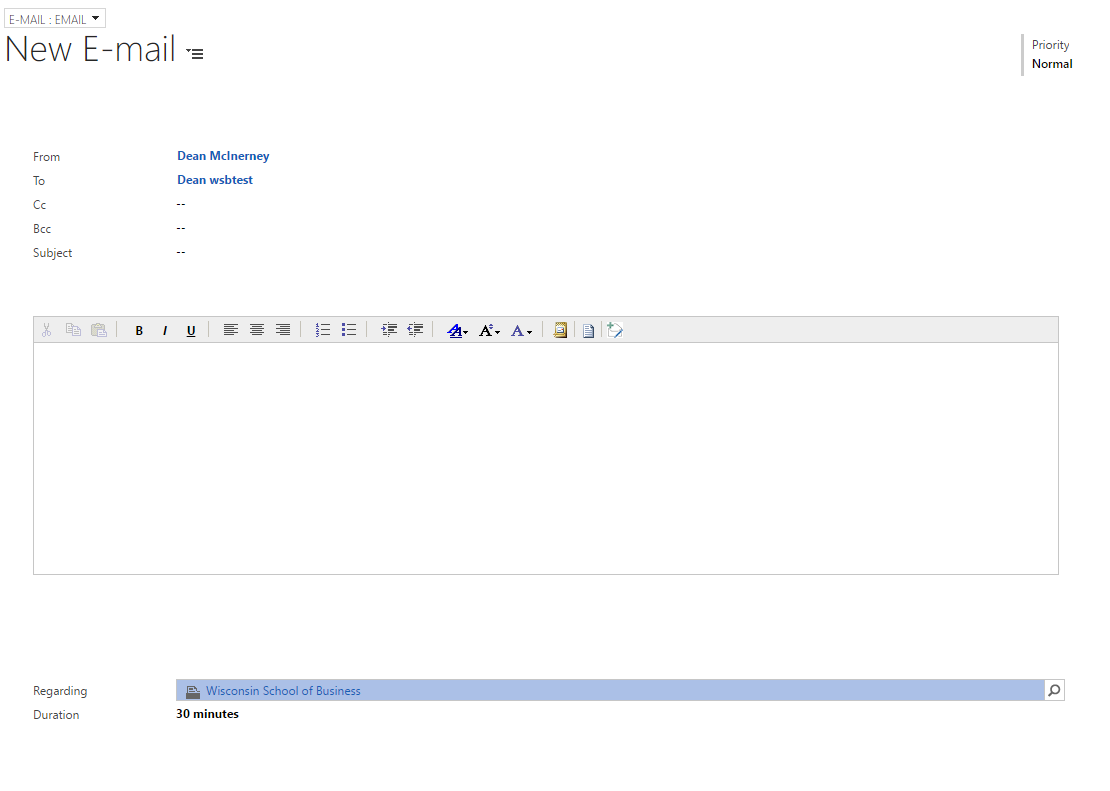
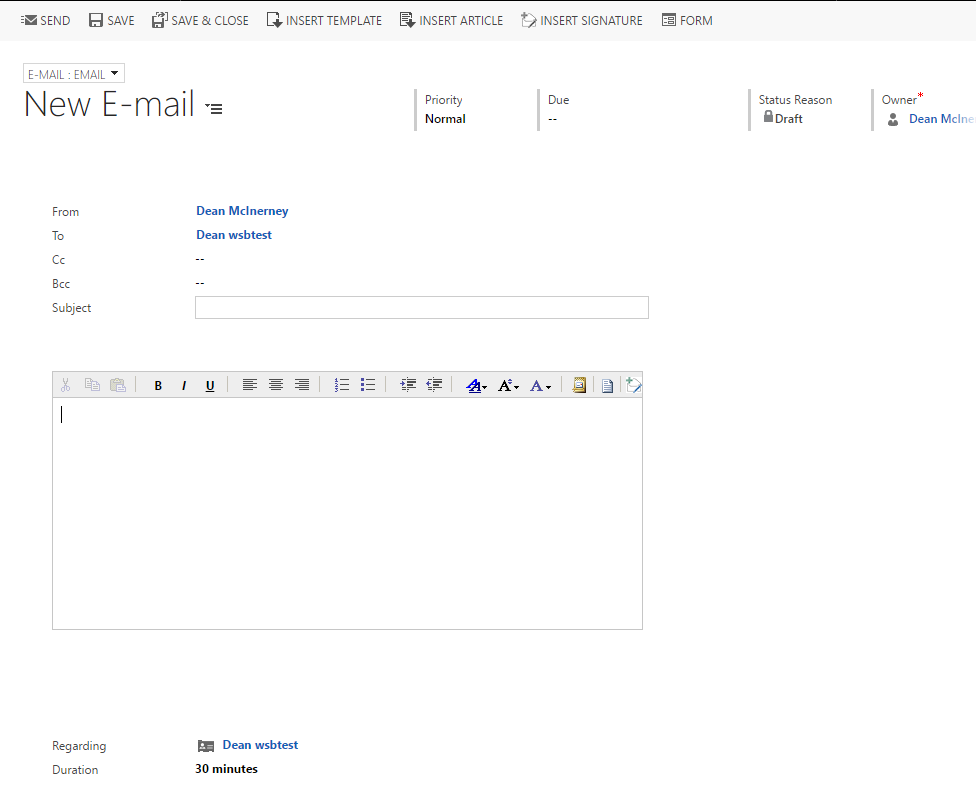
- Verify it is being sent to the correct person, and fill in the information for the email (CC, Subject, and the body of the email).
- To send the email, select "Send"
- If you have a Business Template saved, you may also use the "Insert Template" function.
Add a Task
- Open a person record.
- Navigate to 'Communications and Notes', as shown in the screenshots at the beginning of this article.
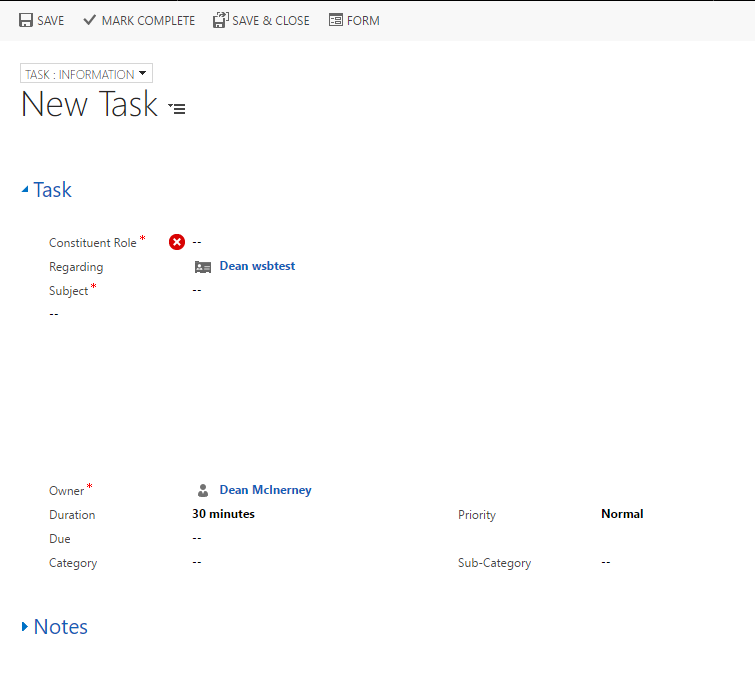
- Enter the constituent role, and then select the action which is occurring.
- Enter the subject.
- Enter in any relevant information about the task, such as what the agenda is, when it is due, etc.
- Once the task has been finished, make sure to select "Mark Complete" at the top left of the screen.