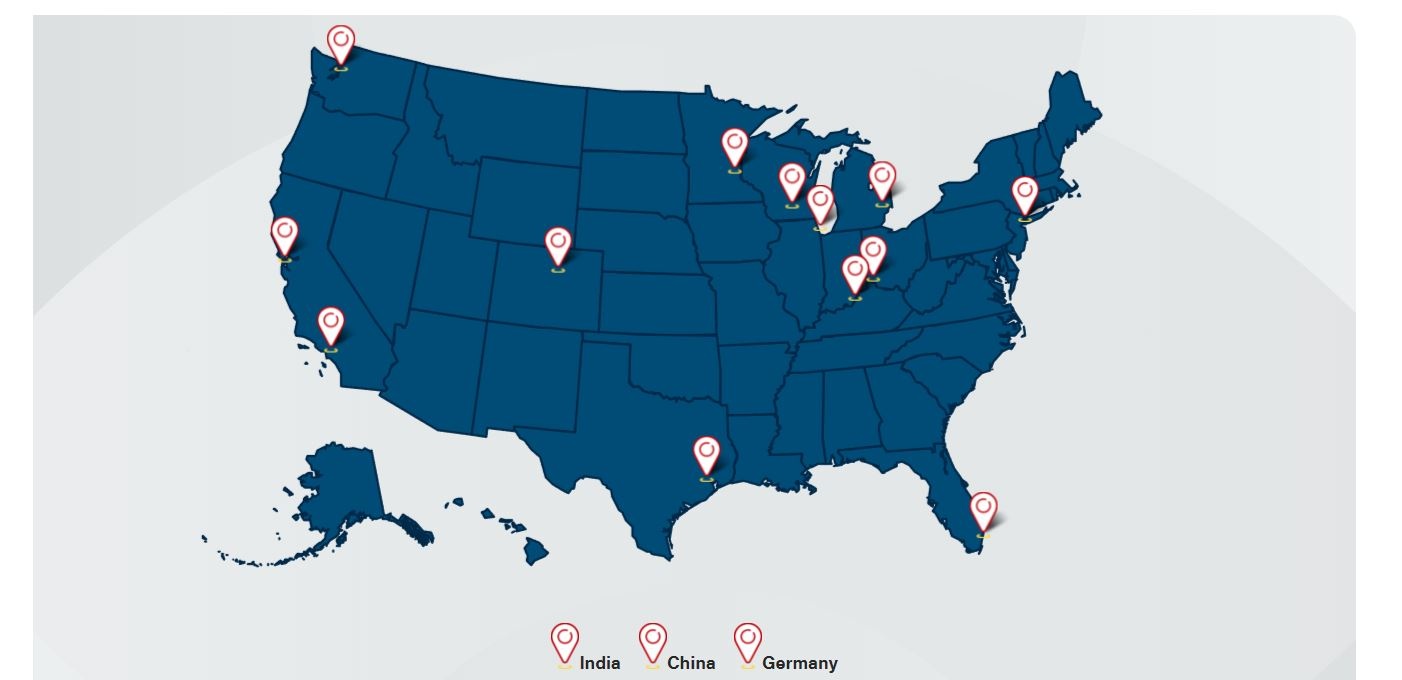
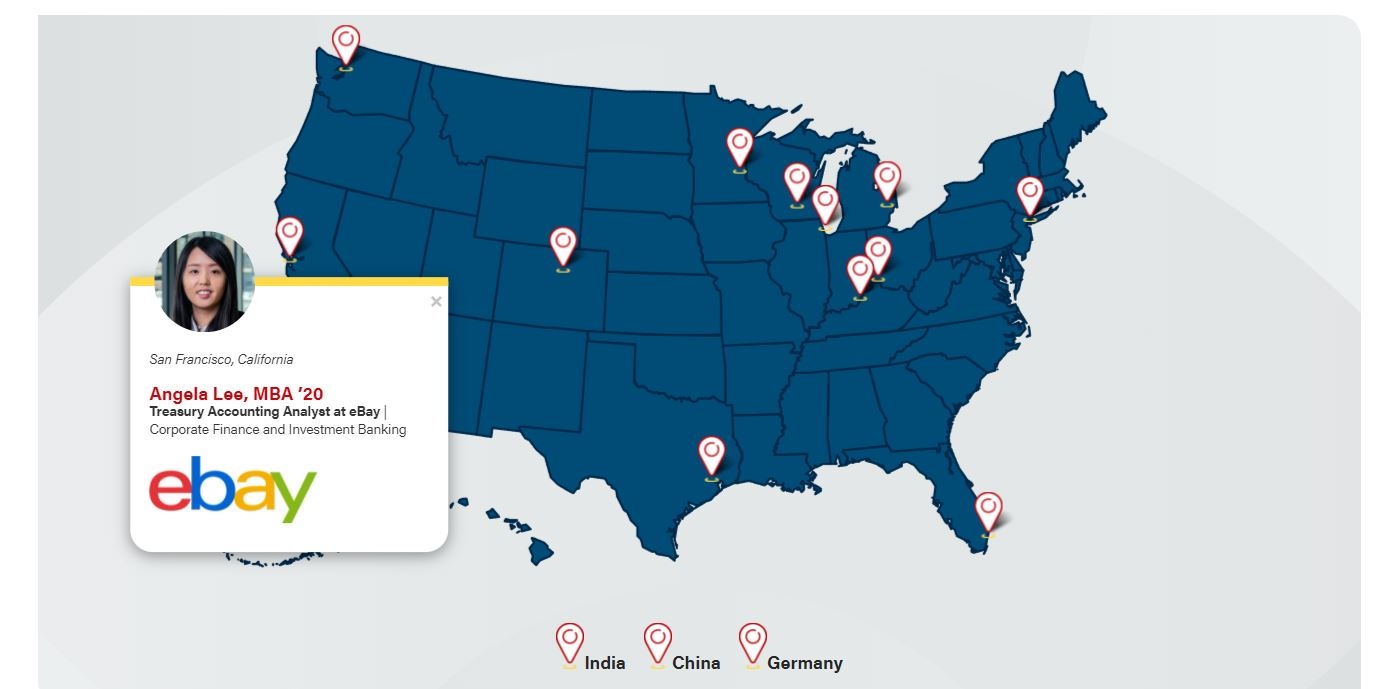
To add a pin, navigate to theMapspost typeon WordPress' left-side menu and select Add New.
Add details about the person in the following fields. An asterisk indicates a required field.
*Title:Enter the first and last name
Post body:leave empty; this field is not used
*Degree 'YY:enter degree and year of graduation (e.g. BBA '10)
*Company
*Job Title
*Location: Search for and select the city where the alumni works.
Company logo: find the logo in the media library or source the image and upload
First go tothe WP media libraryand search All Files for the company logo. (Logos should be in the Logos media folder)
If you can't find the logo in the media library, ask a designer (Chad Theel or Ali Wendt) for help sourcing a high quality logo.
Standard size: 512px wide, heights vary
File type: PNG
Make sure the image is added to the Logos folder in the media library and you add alt text for the image (example: Microsoft logo)
Categories:select an existing category (you may select more than one)
Featured image:Add the alum's headshot
First go tothe WP media libraryand search All Files for the headshot. (MBA headshots should be in Directory > Students > MBA media folder)
If you can't find the headshot in the media library, ask a designer (Chad Theel or Ali Wendt) for help sourcing one.
Standard size: 500x500px
File type: JPG
Headshots should be square (vertical orientation rectangle is fine if the face is in a good spot when cropped as a circle on the map - example: Ellen Chen - MBA alum in China)
Headshots need to be high resolution - so if the original is a tiny image (e.g. 116x116px) we need to source a larger headshot. Ask a designer to help source images.
Publish the map profile and go to the interactive map to check that the pin is displaying everything correctly on the website.