Research Seminar pages exist for each Wisconsin School of Business academic department. Links to these pages can be found from each academic department’s public facing website .
This guide will walk you through how to create and edit Research Seminar pages within the WSB C
<style>.wsb-toc{background-color: #f7f7f7; box-shadow: 2px 5px #bcbcbc;}</style> |
onfluence site. While anyone can view the Research Seminar pages, you will need editing permission in order to create new pages or update existing ones. You can request editing permission by emailing webteam@wsb.wisc.edu .
In this Guide:
To access your Research Seminar pages within Confluence:

You can also visit the main WSB Research Seminars homepage here, then click on your department's name on the left-hand side of the page. You may want to bookmark this page for easy reference. |
Now that you are at the correct page, you'll need to login (if you aren't already).
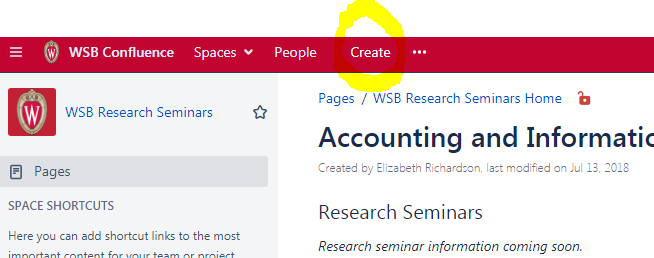
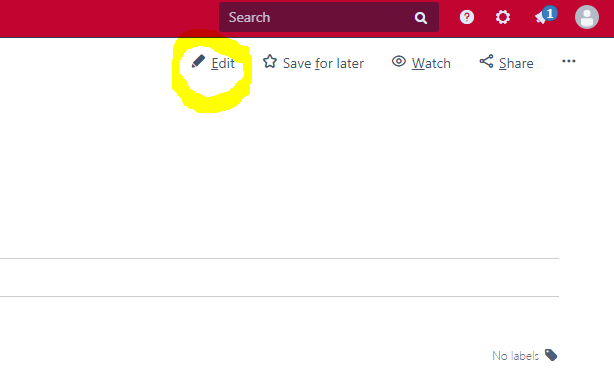
If you do not see the "create" or "edit" links as show below, that means your account does not have editing permission for this page. Double check to make sure you are on the right page specific to your department.
If you still don't have access, email webteam@wsb.wisc.edu with the link to the page you are trying to edit.
To edit an already existing page:
Each Semester or Academic Year, you'll likely need to create a new page. Follow the steps below.
Name the page by typing into the “Page title” section, the top line. The page should be named by Semester Year: Department Name.
You can now add paragraphs and tables to your new page.
Once the table is inserted, text can be entered in each cell.
You can add or remove columns and rows from the table using the editing toolbar's second row of buttons
To add a link:
If you’d like to add a link that jumps down to a section on the same page, follow the steps below. (These types links of links are called "Anchor links" and also sometimes referred to as"Jump Links", or "In-Page" links).
If you'd like to add photos and text, such as details of a speaker and their topic, you would do the following:
Related articles appear here based on the labels you select. Click to edit the macro and add or change labels.
|