Below is a Step-by-Step Guide for creating new podcasts.
Step-by-Step Guide
- Listen to the podcast audio and ensure it meets our Video Creation, Editing Guides and Best Practices
- Create a podcast slide image using the PowerPoint template provided and update copy as needed. Export as a jpeg in a 16x9 format.
- Ensure it is 1280 x 720 pixels .jpg.
- Using Camtasia (free licensing is available school-wide) create an MP4 video using the audio and the thumbnail as the background.
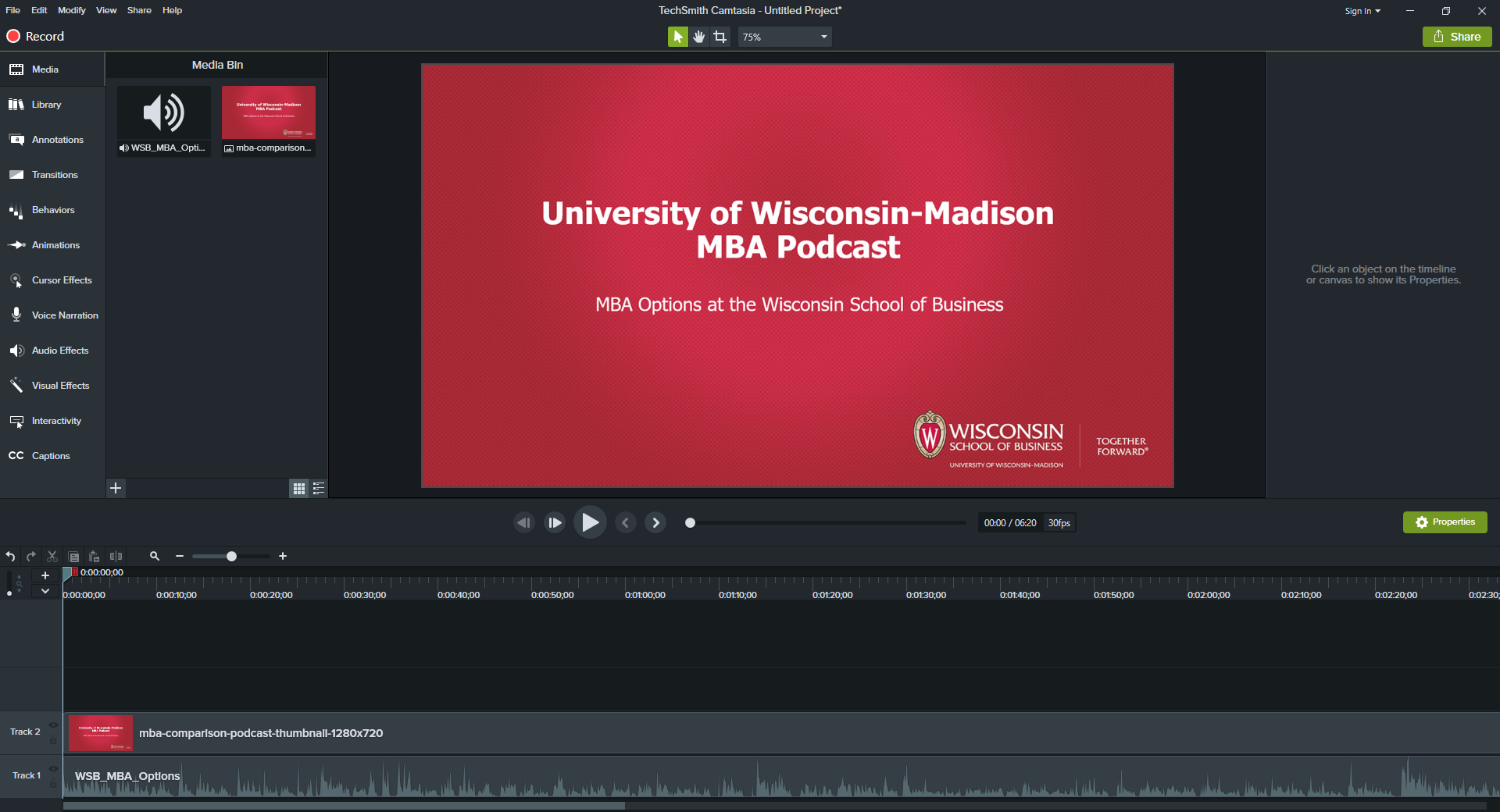
- Open Camtasia and click “File” in the top menu and then “New Project”.
- Drag and drop the audio file into Track 1 section at bottom. Ensure the audio is placed flush left and starts at 0.00.00.00.
- Drag and drop the slide image jpeg into Track 2 section at bottom. Ensure the image is placed flush left and starts at 0.00.00.00.
- Determine where audio stops by clicking and dragging right edge of audio slider box to the left. (You can preview the sound by hitting the play button in the middle.)
- If an audio fade out is desired, click “Audio Effects” in the left sidebar. Click “Fade out” and drag and drop into the audio file in Track 1. You will see a dot at the end of the audio sliderbox. Click and drag the dot to the left to induce the fade. You will see the audio scale begin to shrink as you drag to the left. Careful to only drag horizontally and not up or down. (Keep at 100%)
- Drag the right edge of the image slider box to the right to match the length of the audio slider box.
- You can preview the video by hitting the play button in the middle. Listen to it at least once to make sure there are no issues.
- Once you are satisfied with the video, export it as an MP4
- Click "Share" from the top menu bar and select "Local File"
- Select "Custom production settings" from the dropdown and click "Next"
- Select MP4 as the file format
- Size > Video Size 1280 x 720
- (Checked) Keep Aspect Ratio
- Upload the video to Youtube.com using Lastpass and the wsobmkt@gmail.com account
- Use YouTube as the Wisconsin School of Business at the University of Wisconsin-Madison
- Upload the MP4 Video File to YouTube
- Add the provided “Title” and “Description”
- Add the custom Video thumbnail
- Click “Next” and select “No, It’s not made for kids”
- Click “Next” and “Next Again
- Under Visibility > Publish Now set the video to be “Unlisted”
- Click “Done”
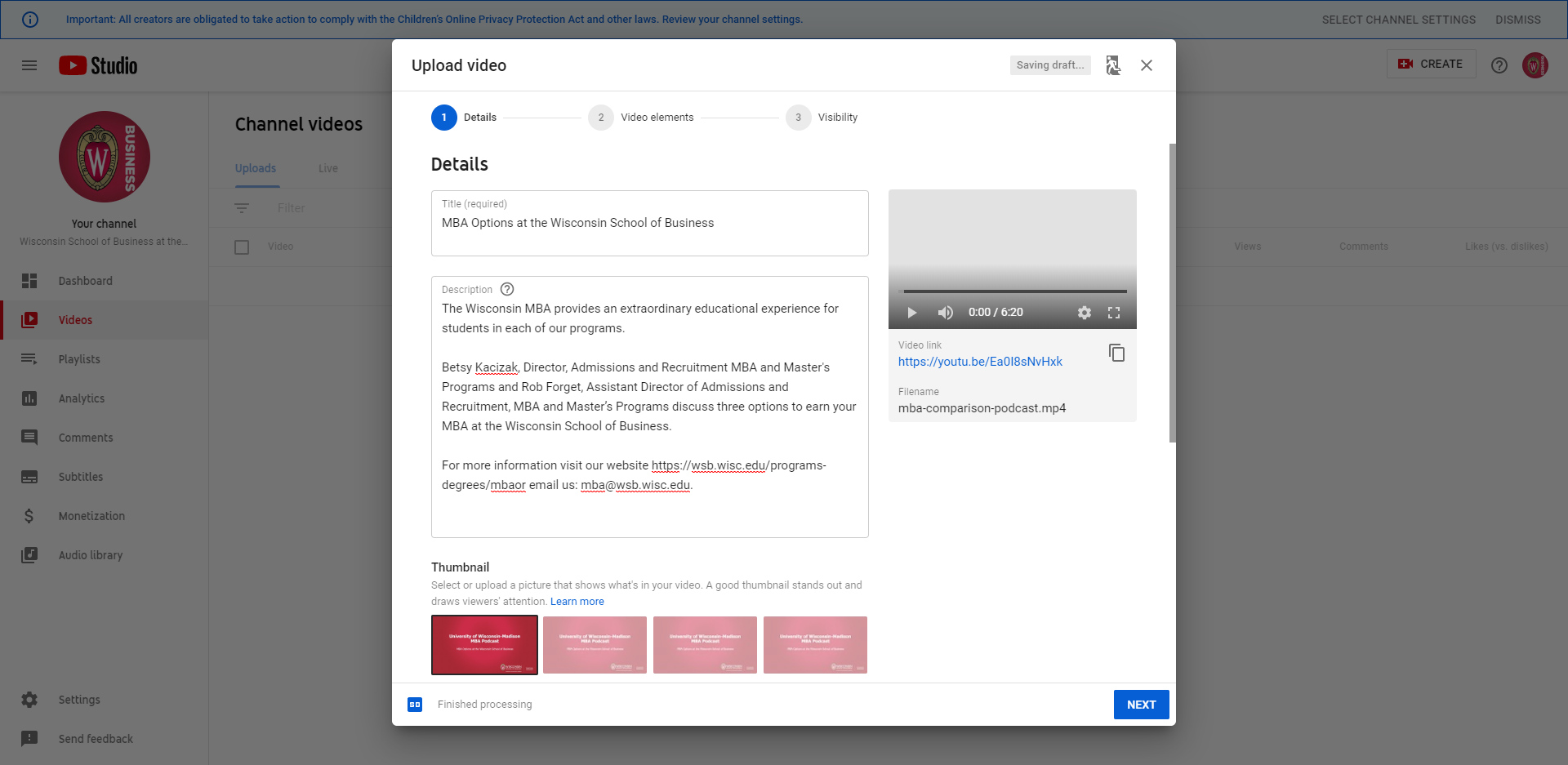
- Use the share link to add a link to the video to the website
Captions: For accessibility purposes, we should include captions in videos. Youtube automatically generates captions, but these are imperfect and must be reviewed and edited. Youtube may take some time to generate them(wait a few hours, usually no more than a day, after uploading the video). Once they are generated, make note of any edits you need to make, and do the following:
- Login into the WSB Youtube account (see above)
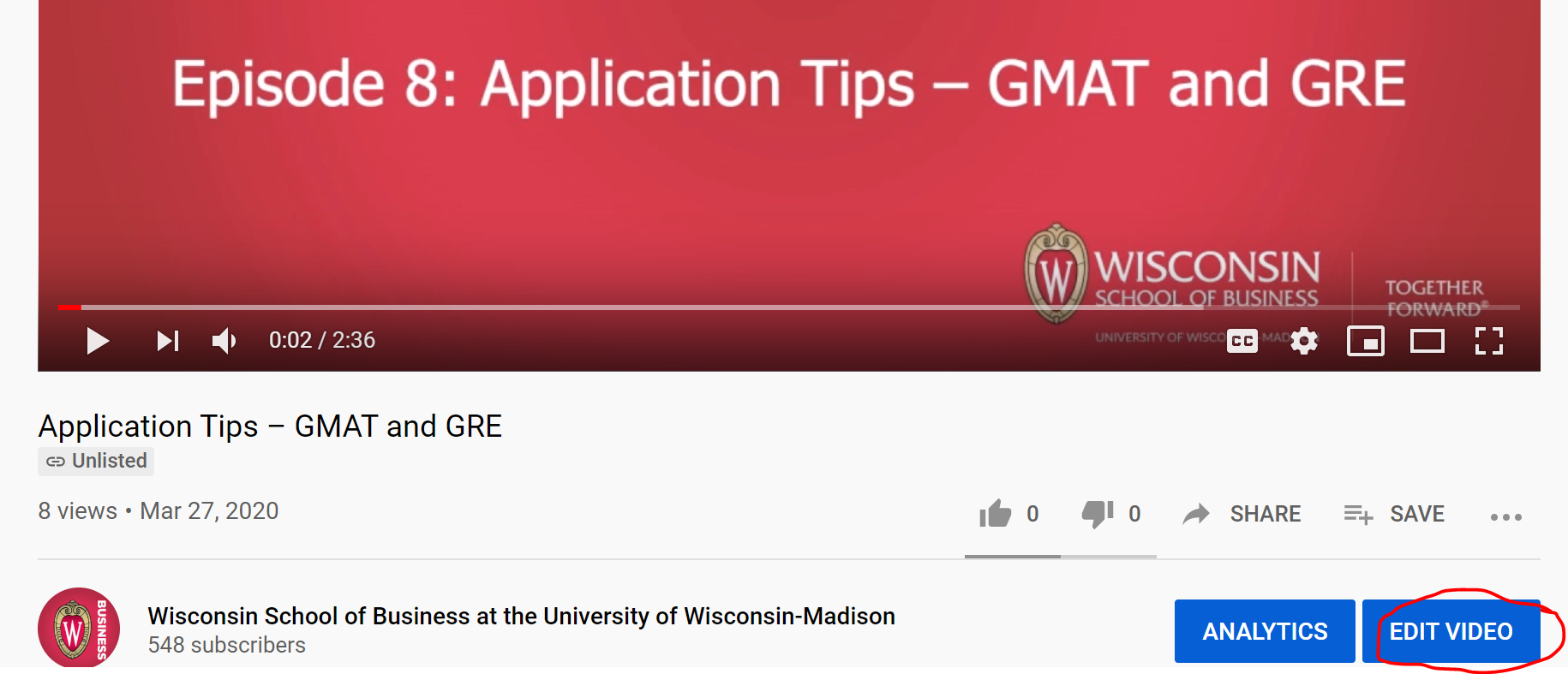
- Find the video you want to edit and select "Edit Video"
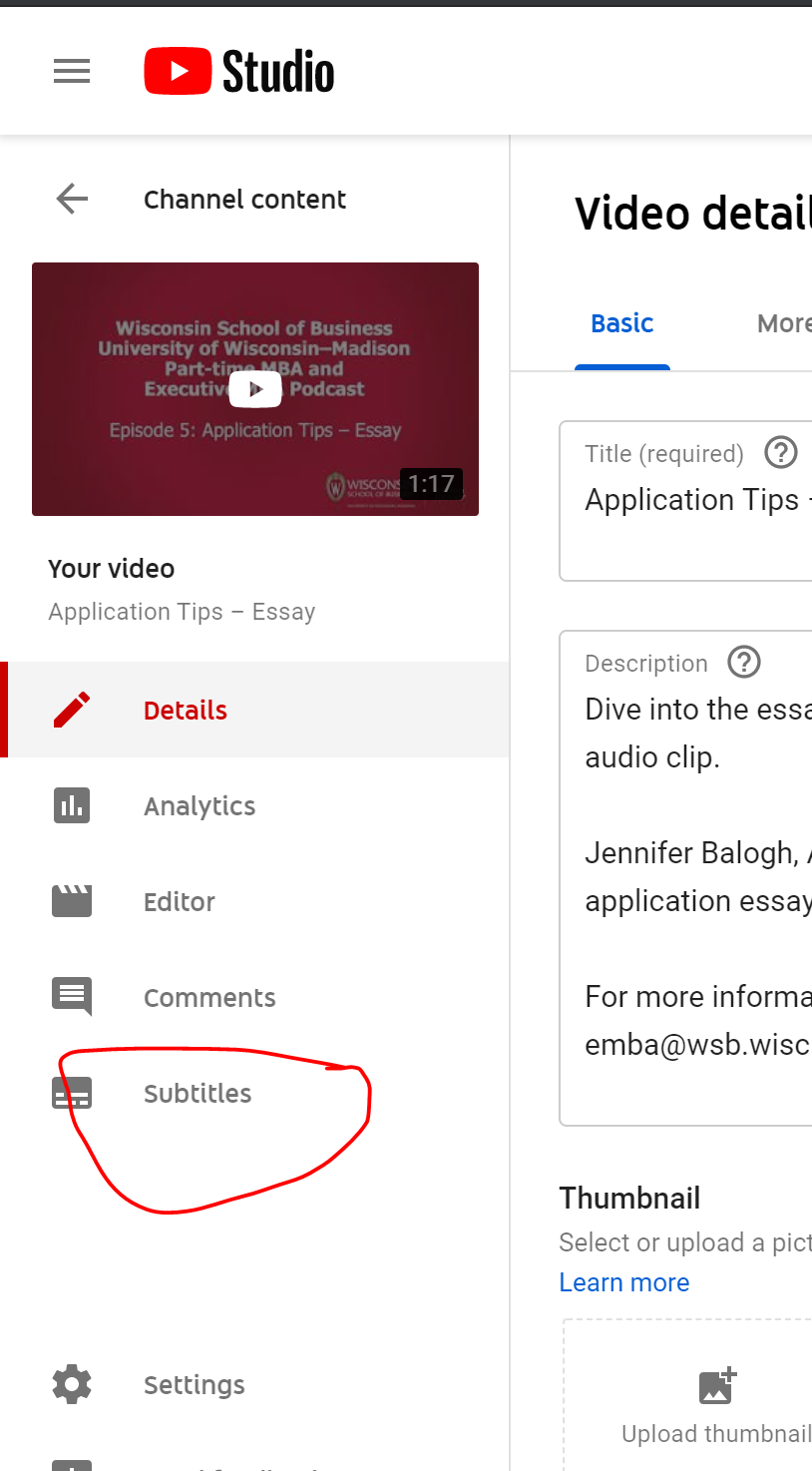
- Then select "Subtitles" from the left sidebar
- Hover over the automatic captions and select the three dots (options)
s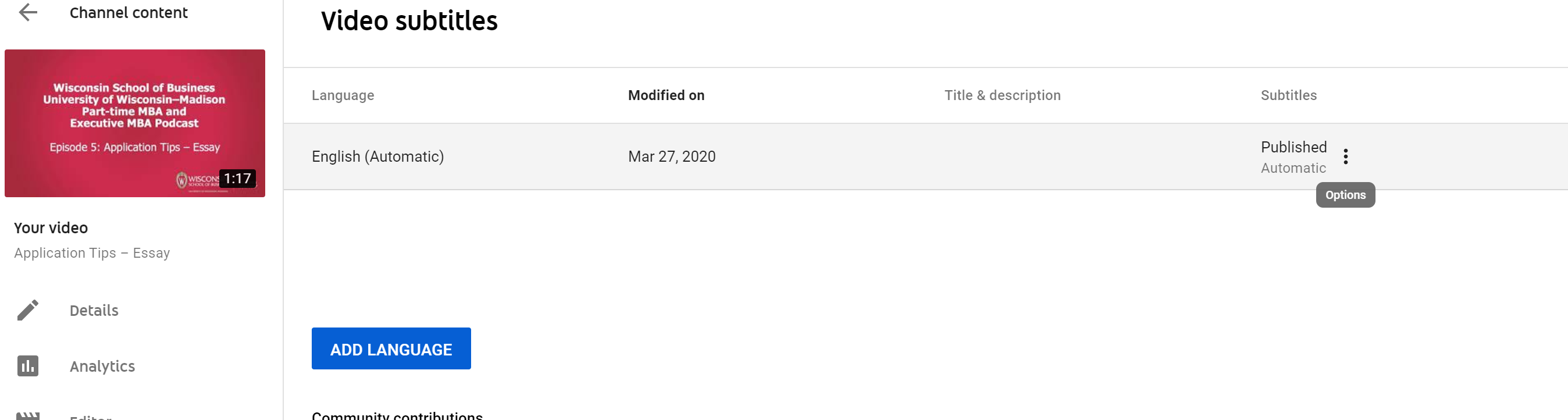
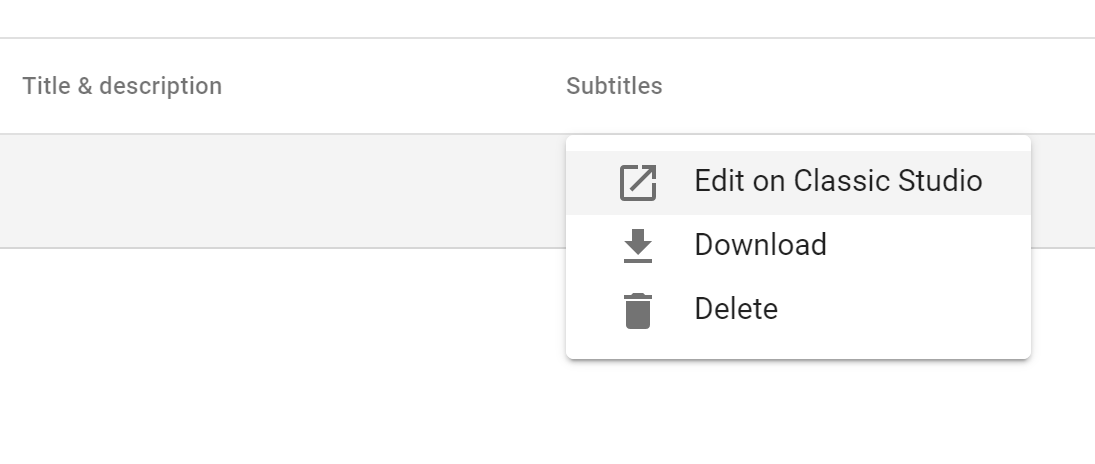
- Select "Edit on Classic Studio"
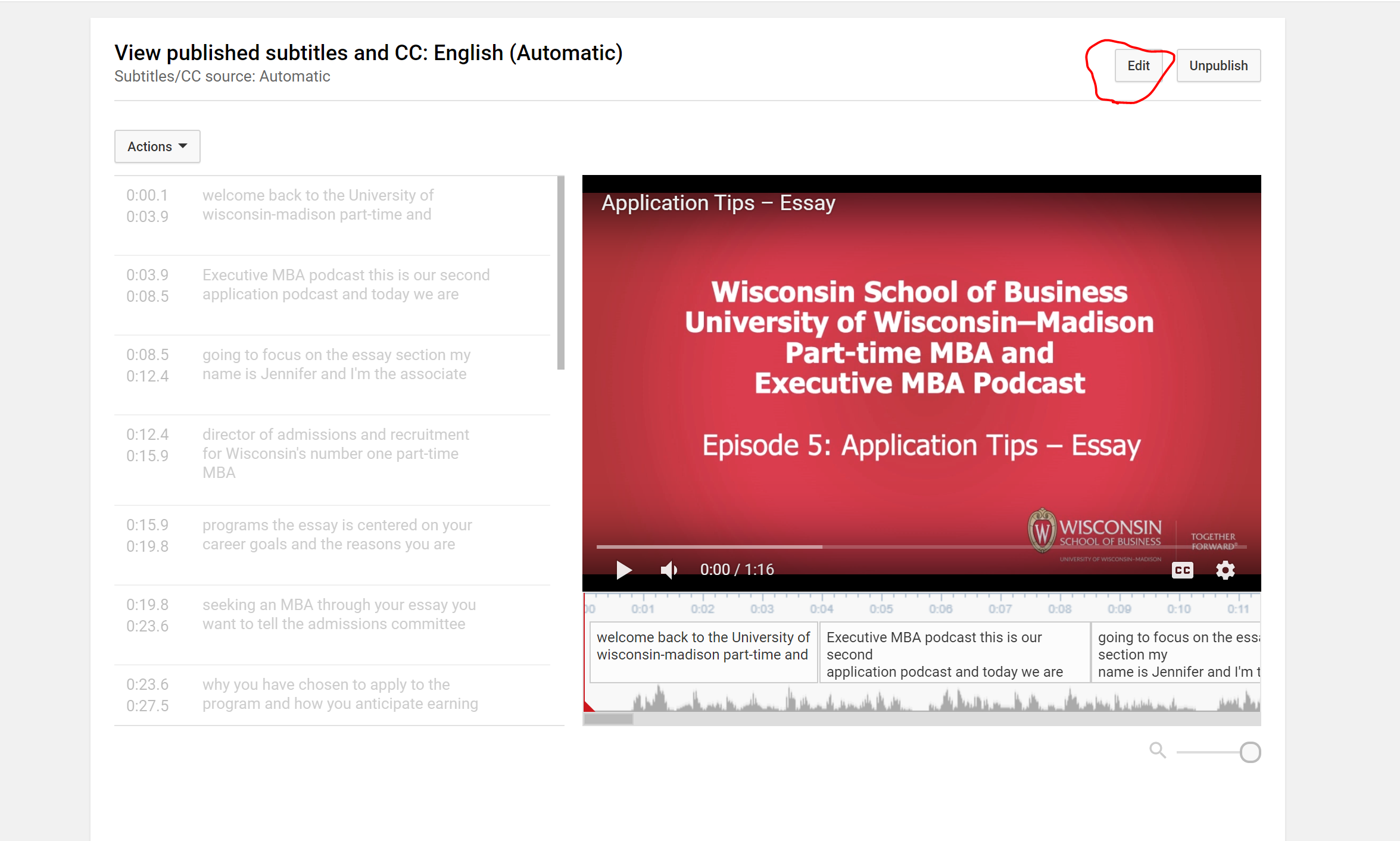
- Select "Edit". From here you will be able to make any changes to the captioning, click save when you're done and it will publish!
Related articles
Related articles appear here based on the labels you select. Click to edit the macro and add or change labels.
