
...
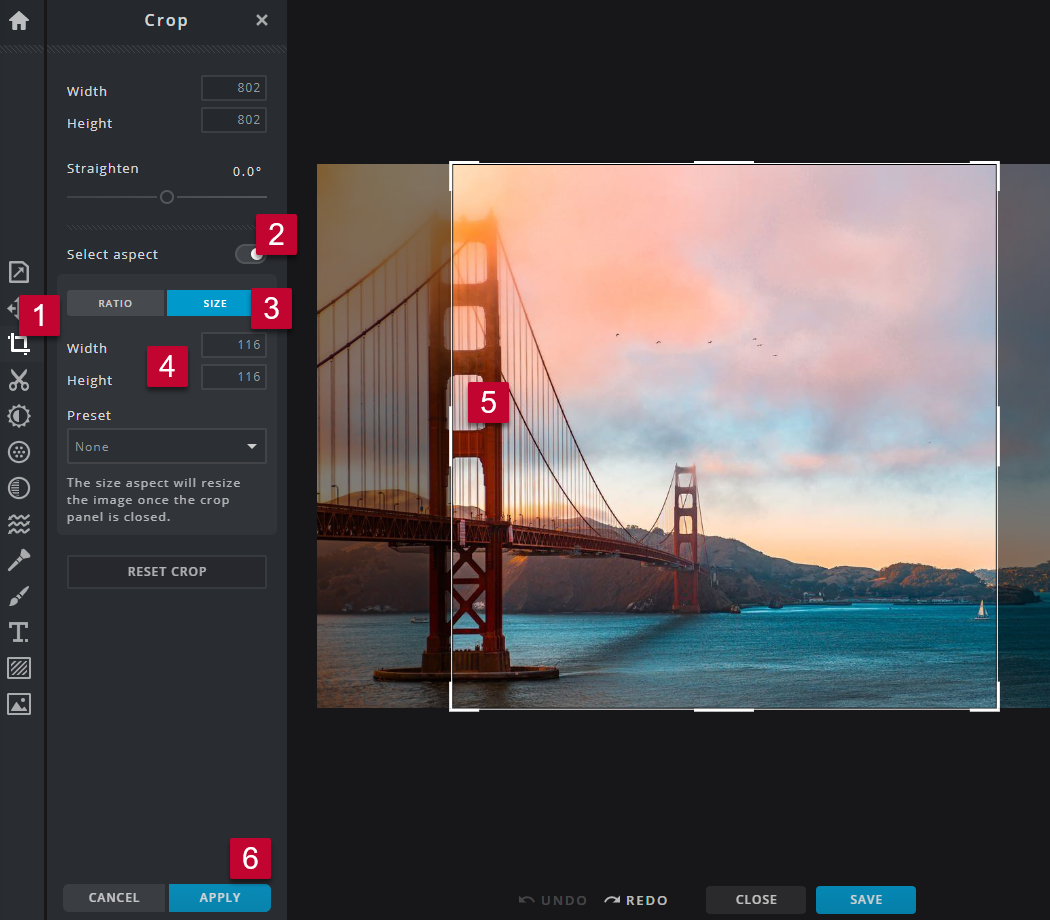
- Open an image in PIXLR X and click on the "Crop" tool.
- Turn on "Select aspect".
- Select "Size".
- Enter the "Width" and "Height" you would like the photo to be.
- Move and re-size the selection to include the desired portion of the photo.
- Click "Apply".
...
How-to Save and Upload an Image
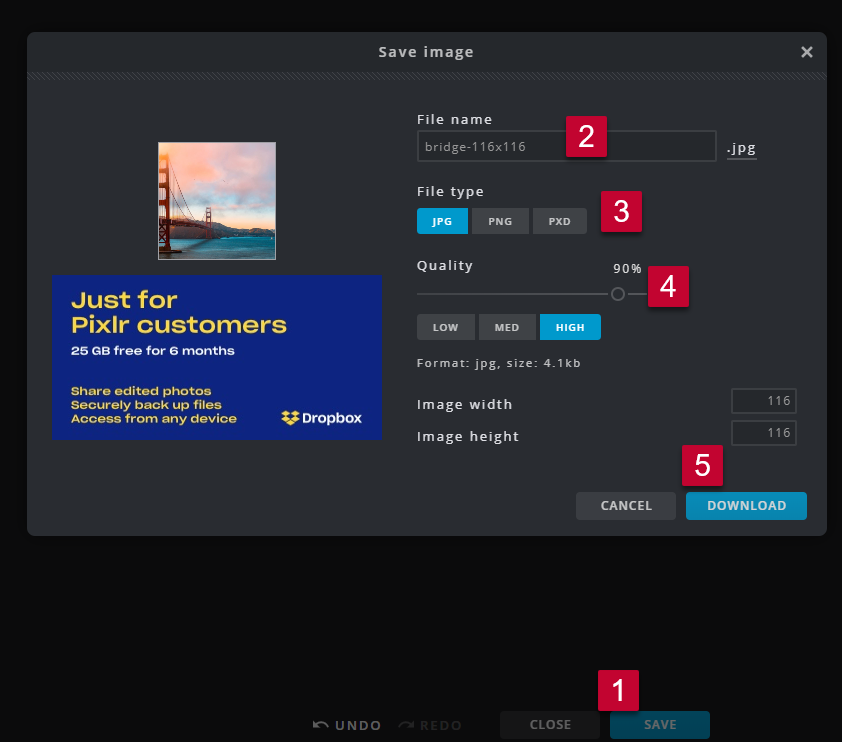
- Click "Save" .
- Update the file name to meet the File Naming Conventions and Best Practices (e.g. name-widthxheight).
- Select the File Type JPG. Unless there is a transparent background.
- Leave the Quality at 90% and High.
- Click "Download".
- Optimize the image using https://tinypng.com/ (Image Optimization/Compression Recommendations and Settings).
- Upload the photo into the media library and add it to your website page or email. (Media Library: How to Upload an Image or File).
...