
Why would you would need to resize an image?
Every now and then you will need to resize an image. For example: You may need to change its aspect ratio, so the image fits in a square area when it is a rectangle. Or, reduce the size of it so it is smaller and loads easier and faster. And sometimes you need to change the size of an image in order to improve, how it looks in a document, email, blog post, or webpage.
I don’t have Adobe Photoshop, what program should I use?
There is a free online tool called PIXLR X. It can be used to edit your images in many ways. In this guide we are going to cover specifically how to re-size and image to a specific aspect ratio and size.
Outline
- Go to https://pixlr.com/ and edit the photo using PIXLR X
- Check to make sure the image is larger than the size you need
- Use the photo editing software to re-size or crop the photo the the exact size(s) needed
- Save and download the photo using the File Naming Conventions and Best Practices
- Optimize the image using https://tinypng.com/
- Upload the photo into the media library and add it to your website page or email.
Step-by-Step Guide
How-to Open an Image and Confirm the Image Size
- Go to https://pixlr.com/ and open PIXLR X.
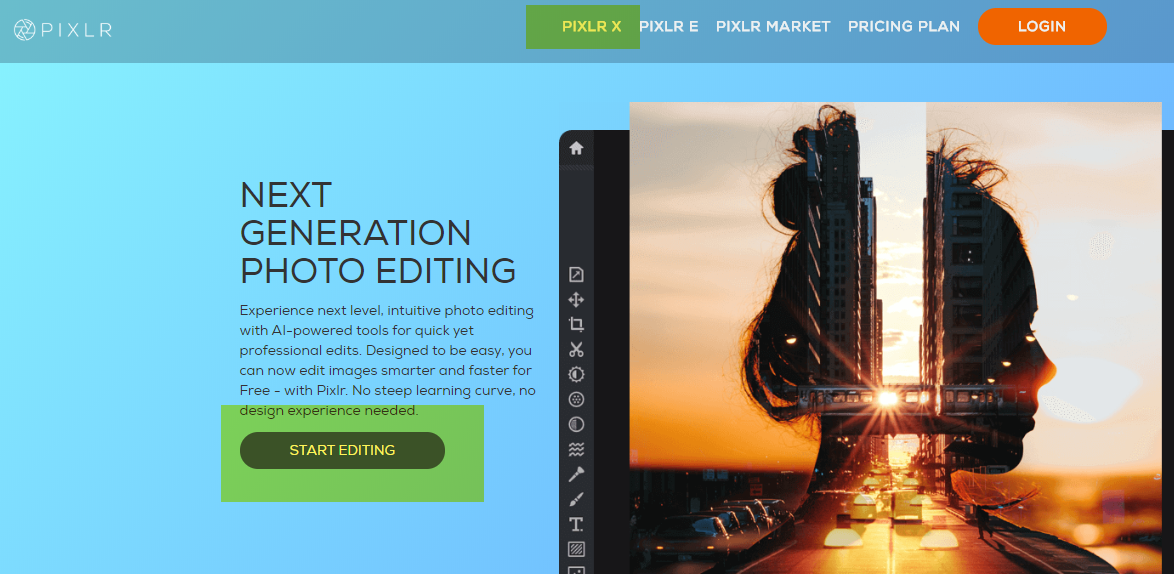
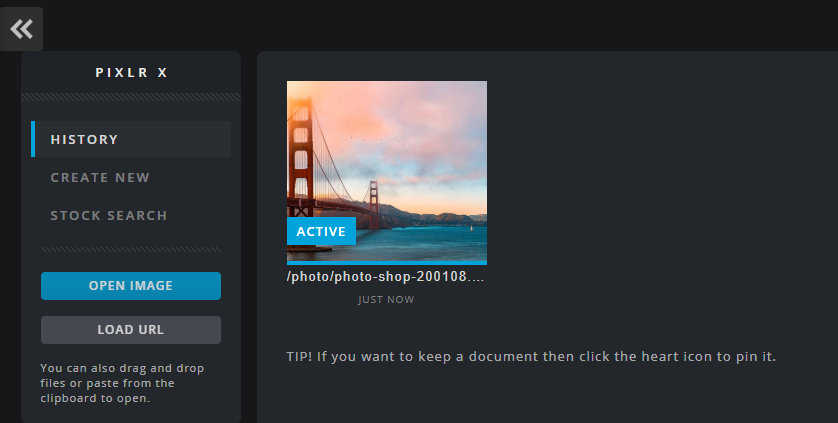
- Click Open Image and select a photo you want to re-size.
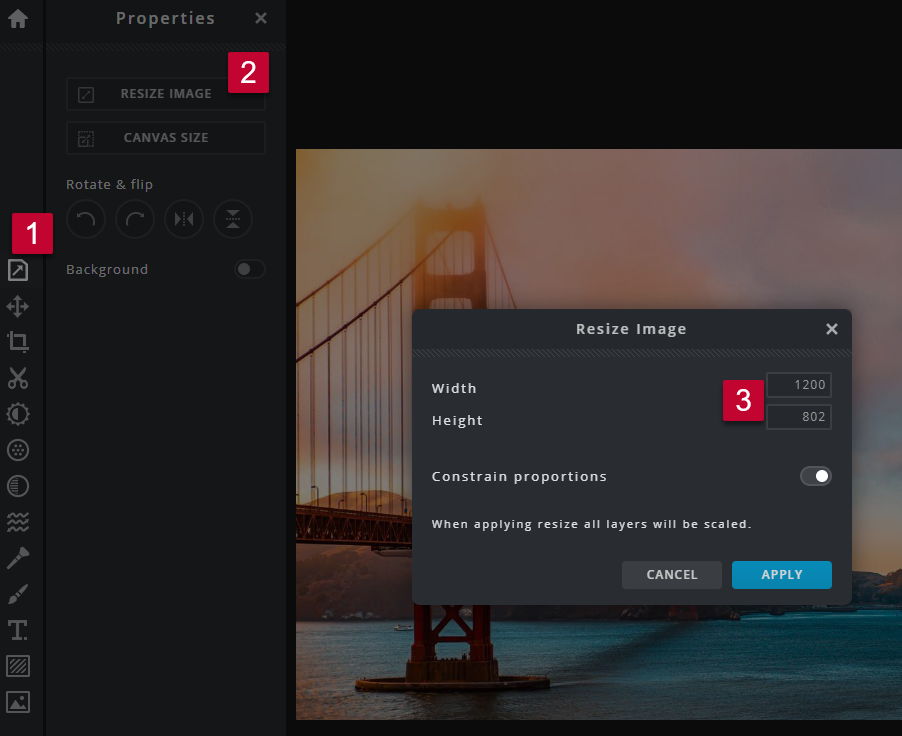
- Click on "Properties" and "Re-Size Image" to verify the image is larger than the final image size needed. Compare the current width and height to the needed size (e.g. if the iamge is 1200 x 802 pixels it can be cropped down to 580 x 300 pixels or 116 x 116 pixels).
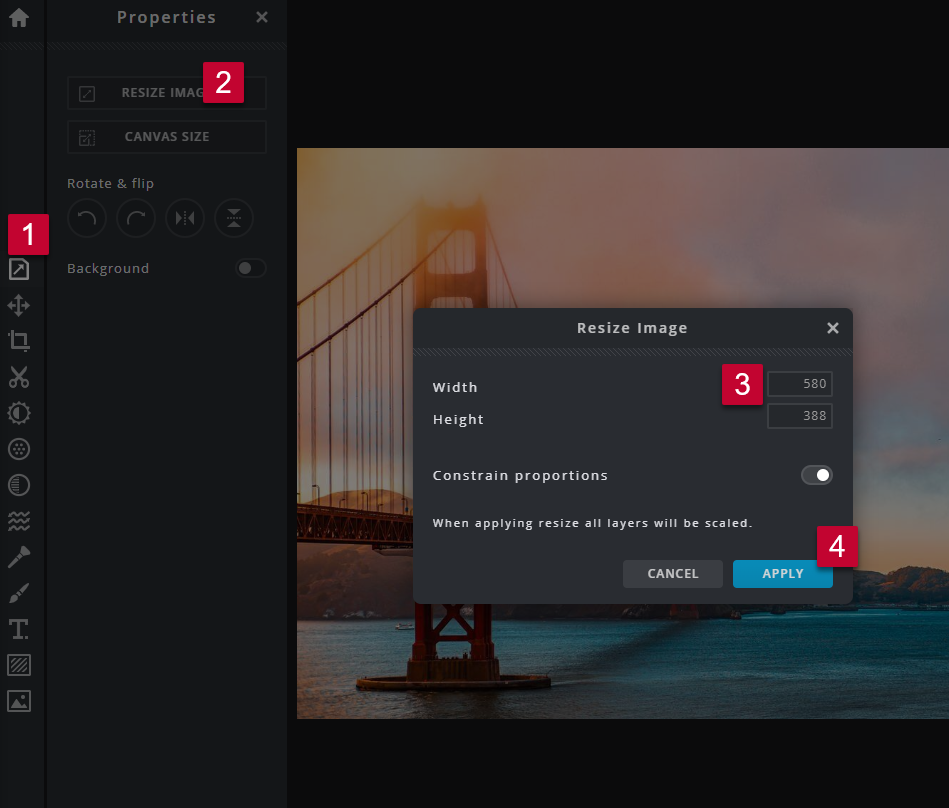
How-to Resize an Image
- Open an image in PIXLR X and click on "Properties".
- Click on "Resize Image".
- With "Constrain proportions" on change the width or height to the desired width.
- Click Apply.
How-to Crop Out a Section of an Image
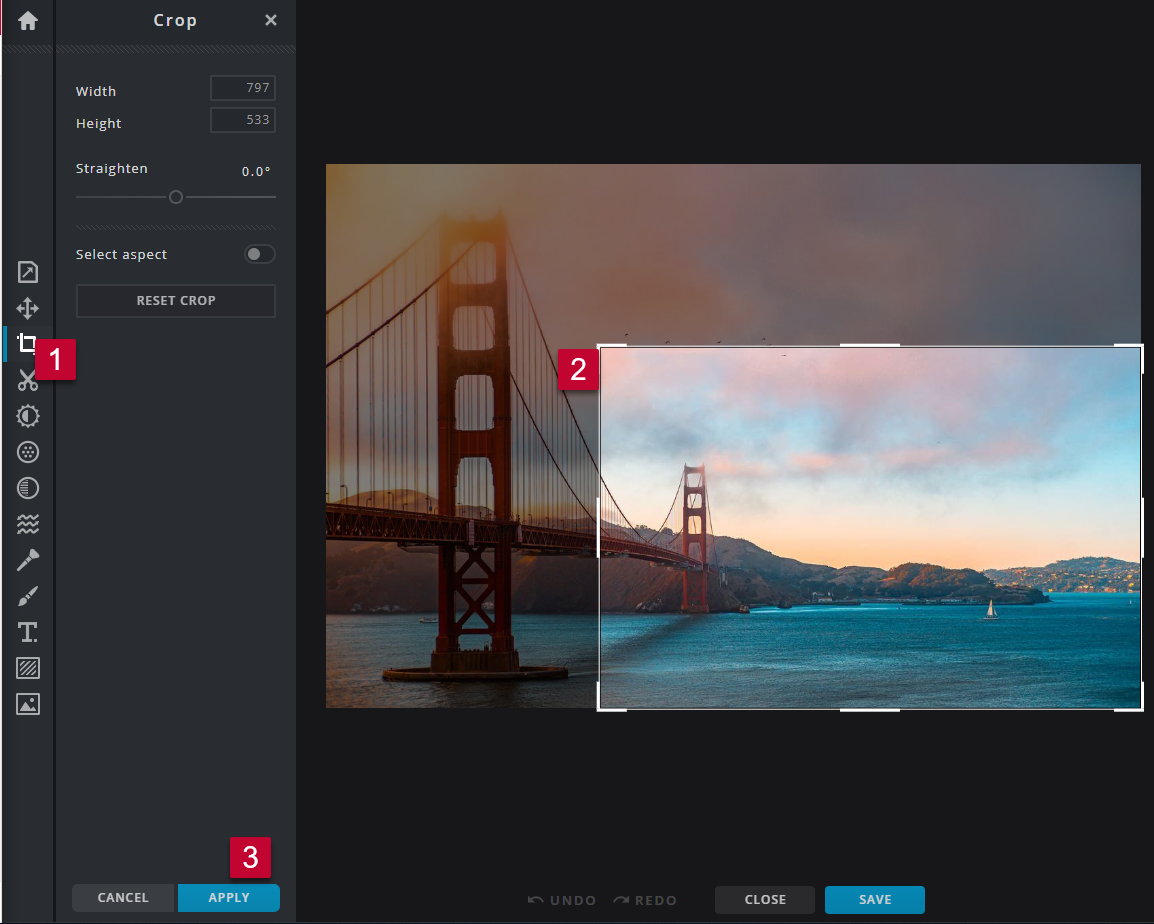
- Open an image in PIXLR X and click on the "Crop" tool.
- Re-size the selection to include the area of the photo you want to keep.
- Click "Apply".
How-to Crop an Image to a Specific Width and Height
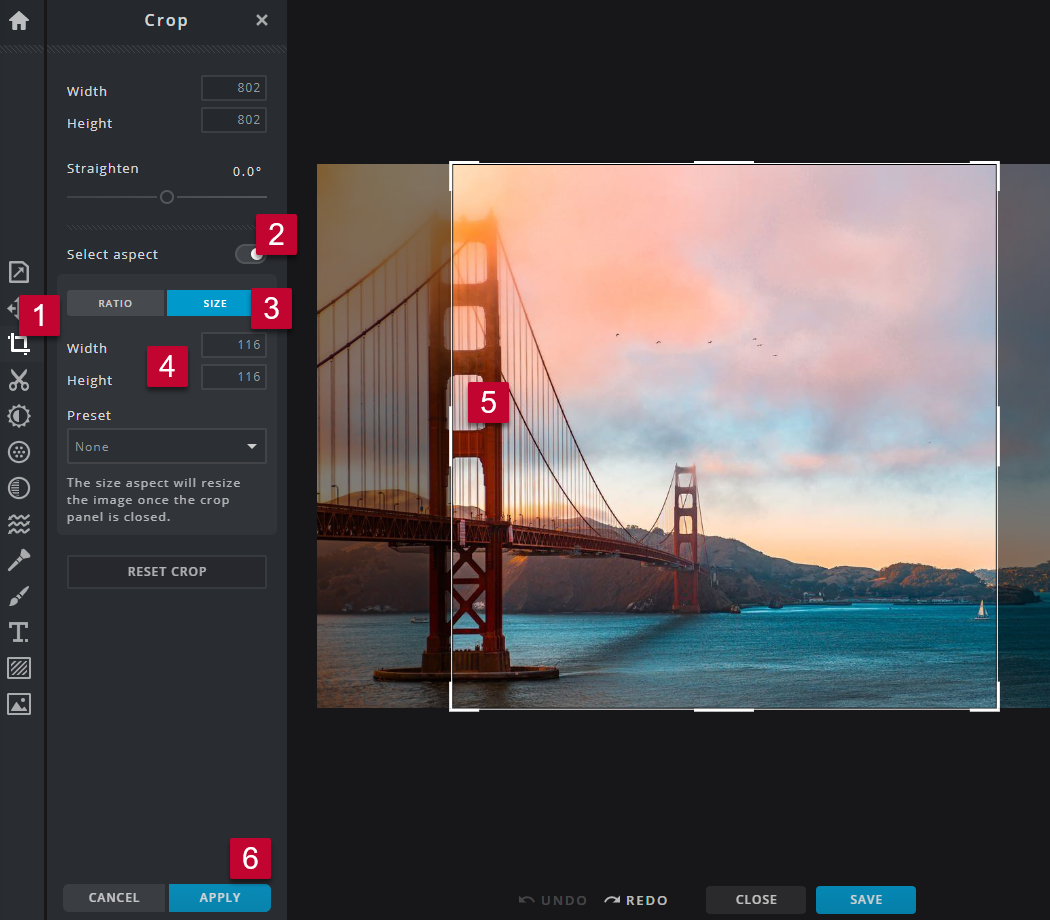
- Open an image in PIXLR X and click on the "Crop" tool.
- Turn on "Select aspect".
- Select "Size".
- Enter the "Width" and "Height" you would like the photo to be.
- Move and re-size the selection to include the desired portion of the photo.
- Click "Apply".
How-to Save and Upload an Image
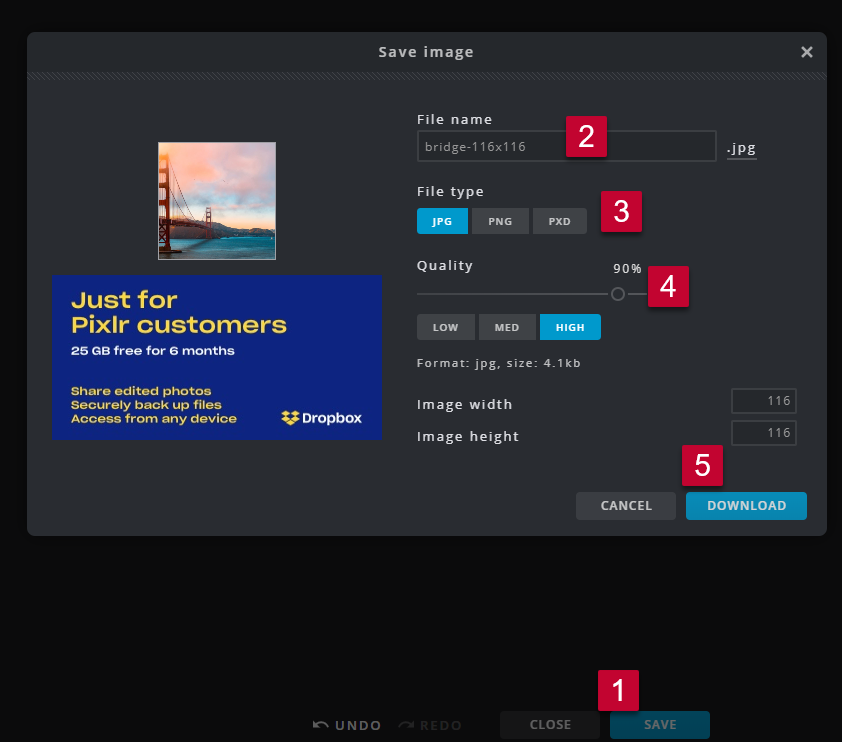
- Click "Save" .
- Update the file name to meet the File Naming Conventions and Best Practices (e.g. name-widthxheight).
- Select the File Type JPG. Unless there is a transparent background.
- Leave the Quality at 90% and High.
- Click "Download".
- Optimize the image using https://tinypng.com/ (Image Optimization/Compression Recommendations and Settings).
- Upload the photo into the media library and add it to your website page or email. (Media Library: How to Upload an Image or File).
Learn More
- PIXLR Support | Frequently Asked Questions
- Experience Editor - Standard Image Sizes
- Training: Sitecore Email Builder