
Example Post (must be logged into WordPress to view): https://business.wisc.edu/news/article-title/
Note: For detailed instructions on adding/editing Newsroom posts, please see this page.
Training and Access
You must receive training from the web team before you can access WordPress to edit WSB blogs.
To request blog training, please have the blog owner email webteam@wsb.wisc.edu with your request and the following:
- Your first and last name
- Your netID (this is not a number)
- Your status (student worker, staff, or faculty)
- Which dept/center blog(s) you need access to edit
Login to WordPress
- Go to business.wisc.edu/wp-admin (bookmark this page for easy access).
- Click "Sign in with your Net ID" button. Login using Duo.
Add New Blog Post
- Navigate to your specific blog in the lower part of the left menu. If you don't see the blog, you will need to request access from the web team.
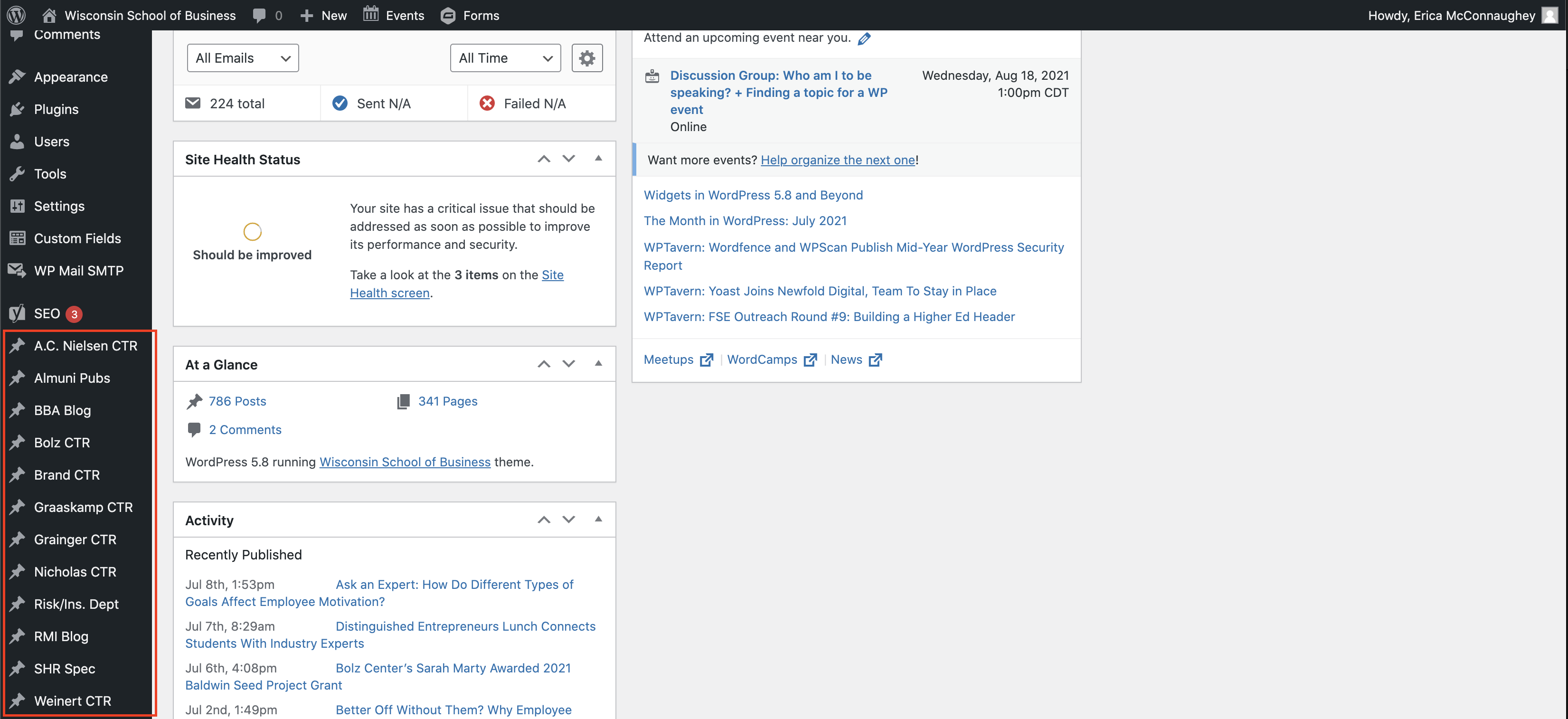
- Click Add New at the top of the page.
Adding your content
Title
- Add the title of the article in the first field. Make sure this is spelled correctly because it will become part of the URL for your blog post.
Meta - Center's Post
These are all optional fields.
- Subtitle
- Author override
- Author defaults to your name (the person making the post). If you want it to be someone else, say your department or center, put that name here.
- Photography credit
- Add photographer's name here if you want to provide a photography credit for all images in your post.
- Hide featured image
- Check if you want to hide the featured image on the actual blog post.
- If unchecked, the featured image will appear at the top of your blog post and in the listing of blog posts.
- If checked, the featured image will only be displayed in the listing of blog posts.
- Check if you want to hide the featured image on the actual blog post.
Body Content
Text/Copy
- You can start typing in the large text box. Or you can copy and paste your text from another document. For pasting text, you should right click and paste as plaintext (Windows) or paste and match styles (Mac) to remove unnecessary formatting code.
- Make sure you are on the visual editor tab. You can add text formatting using the toolbars at the top of the text box.
- Headings are great for scanning and accessibility. Click on the paragraph dropdown to choose a heading size.
- For accessibility best practices, do not use the Heading 1 size (the title of the blog post will be the only H1 on the page) and make sure to nest your headings in an organized way, like you would for an outline:
- Heading 1 (blog post title)
- First Heading 2
- Heading 3 (subsection of First Heading 2)
- Heading 3 (another subsection of First Heading 2)
- Second Heading 2
- Heading 3 (subsection of Second Heading 2)
- Heading 4 (subsection of Heading 3)
- Heading 3 (subsection of Second Heading 2)
- First Heading 2
- Heading 1 (blog post title)
- Headings are styled to match our website.
- For accessibility best practices, do not use the Heading 1 size (the title of the blog post will be the only H1 on the page) and make sure to nest your headings in an organized way, like you would for an outline:
- You can choose any other text formatting options that make sense for your content, except text color. You should not change the text color because it won't match our brand colors.
- Headings are great for scanning and accessibility. Click on the paragraph dropdown to choose a heading size.
Media (images and videos)
- Right above the text box, click Add Media
- Follow these instructions for adding media on WP
Yoast SEO
You can ignore this section.
Right-hand menu options
- Categories (optional)
- Be sure Uncategorized is unchecked and pick the category your post falls under.
- Category options vary for each blog. Make sure to follow our blog category and tag standards.
- Be sure Uncategorized is unchecked and pick the category your post falls under.
- Post Tags (optional)
- Add your tags. Make sure to follow our blog category and tag standards.
- Featured Image (recommended)
- Featured images must be high resolution, jpg or png files, and 2400 pixels (px) wide, and between 1500 and 1700px tall.
- Click Set Featured Image.
- Follow these instructions for adding media on WP
Publishing
- On upper right side, click Publish to make your post public.
- Other options:
- If you need to leave the page and come back before you publish the post, click Save Draft.
- To see what your post will look like, click Preview.
- If you want to set a later time for the post to publish, click Edit next to publish immediately and set the day and time.
Edit an Existing Blog Post
- Navigate to your blog in the left menu.
- Find the post you want to edit in the list of posts or search for it. Click on the name of the post to edit.
- Be sure to publish your changes.