
For all Spotlight types
- Navigate to Spotlights in left menu.
- Click Add new to add a new spotlight.
- Click the name of a Spotlight to edit it.
Alumni Spotlights
Example Alumni Spotlight https://business.wisc.edu/spotlight/alumni-spotlight-example-2/ (this is not published... only WSB folks who are logged in can see it)
- Title field = put person’s name here
If you are copying and pasting the title, you will need to use plain text. The following are shortcuts for plain text pasting:
- For Windows - Ctrl+Shift+V
- For Macs - Cmd+Shift+V
- Textbox = put body copy here
- Yoast SEO = you only need to add a meta-description
- Type = Alumni
- Name = name
- Position = position/job title
- Organization = organization/company
- Industry = Check which industries ***need final list still?
- Degree = degree
- Year of Graduation = year of graduation (put in ’21 format)
- Region = select region from dropdown
- Location = city, state of where they are now
- Other details = leave blank (meant for Student Spotlights)
- Quote or Short description = a sentence that gets put in the big red text on the page
- Excerpt = leave blank
- Author = leave as is
- Tags = Option to add tags (should keep a consistent list though)
- Categories = Choose Alumni
- Order = leave as is
- Was imported = do not check
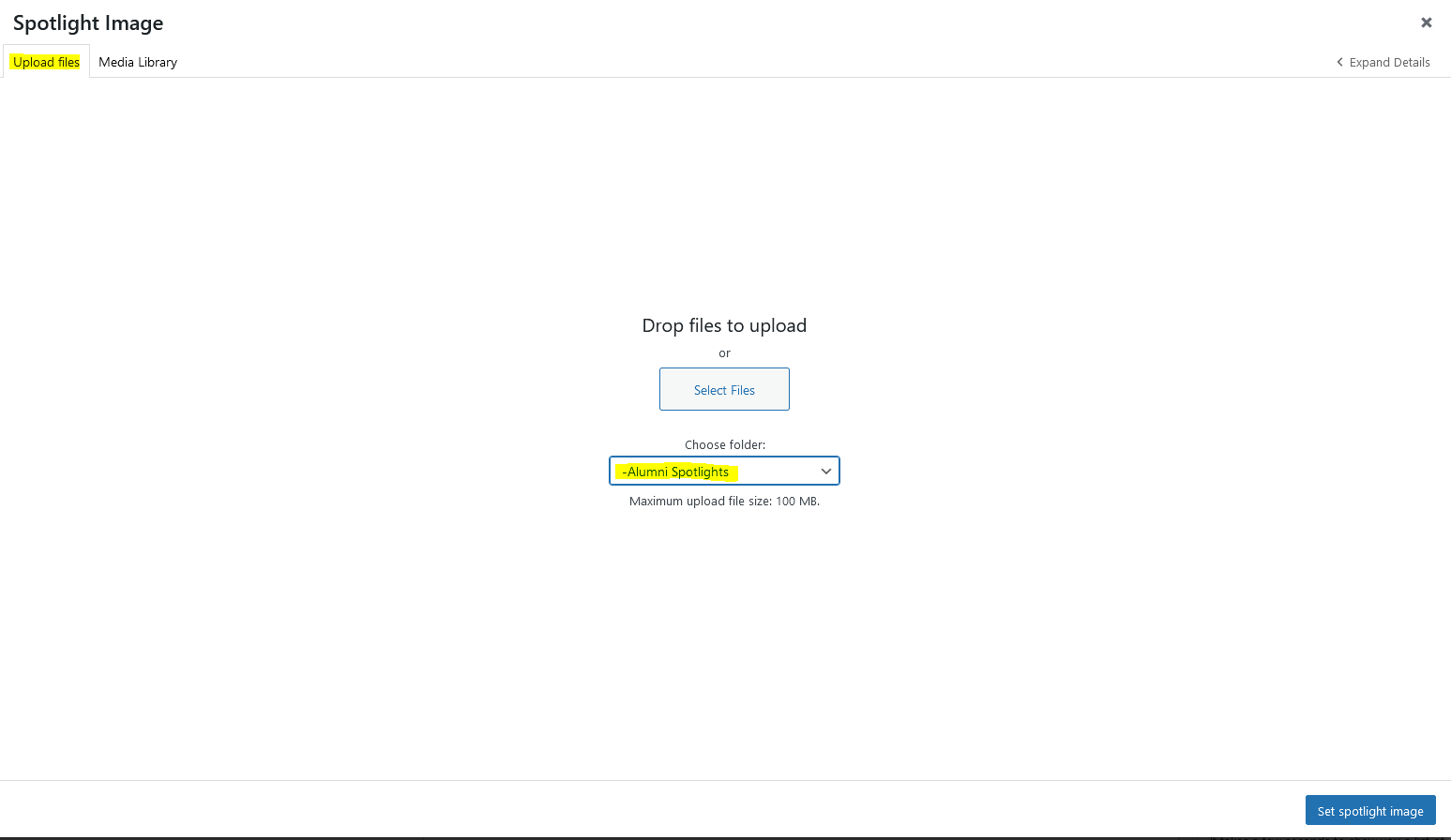
- Spotlight image = Add image, must be ~2400px width by 1600px height. Upload new images to the Alumni Spotlights folder
 \
\
Student Spotlights
Stay Tuned
Faculty Spotlights
Stay Tuned