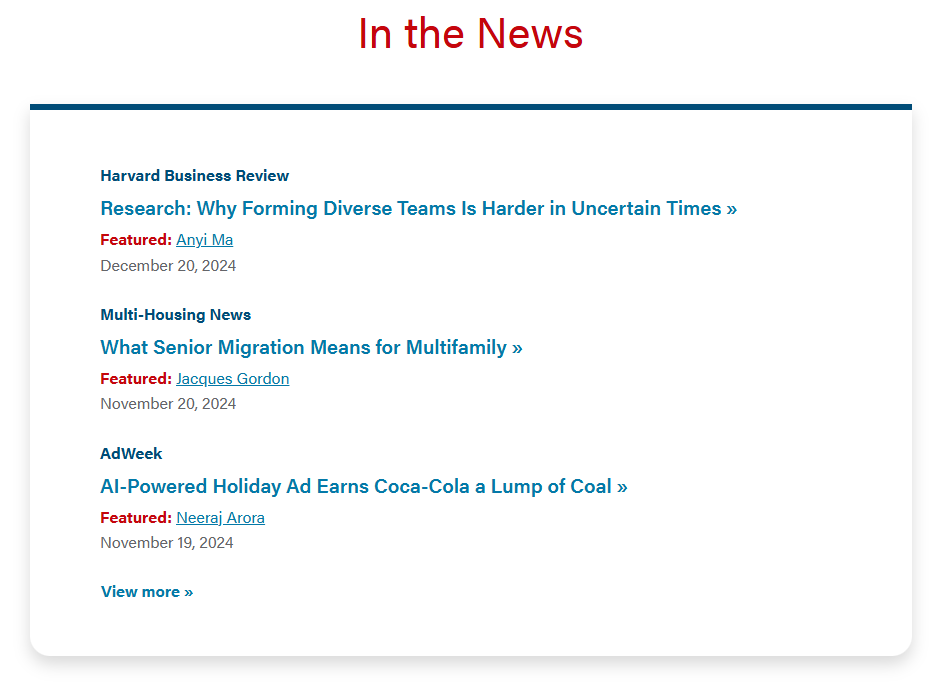
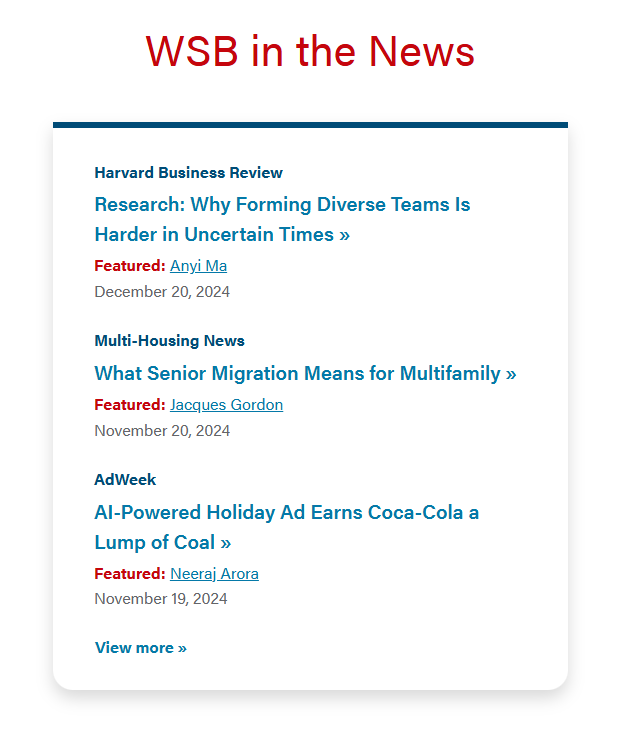
Currently, media mentions are displayed on three pages: Newsroom, Faculty & Research page, and Media Mentions page. Only the recent three media mentions are displayed in the “In the News” card and all the media mentions will display on the Media Mentions page.
| Faculty & Research | Newsroom |
|---|---|
|
|
How to add Media Mentions
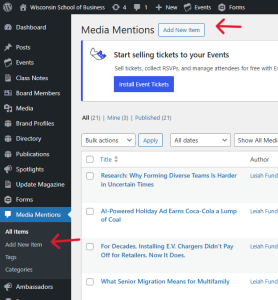
1. Click the "Add New Item". There are two locations: at the top of the Media Mentions page and on the left sidebar under Media Mentions.
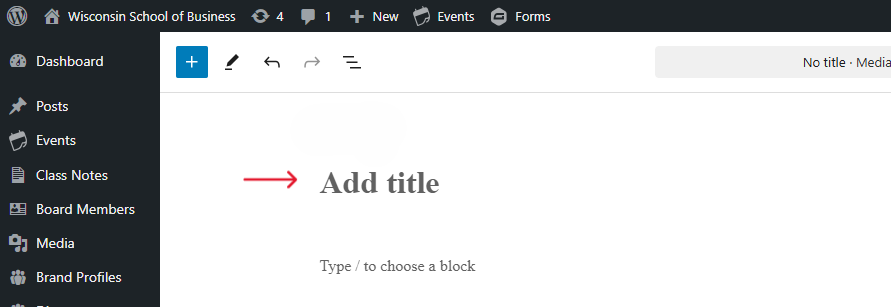
2. Click on the “Add title” on the page to add the article title.
If you're copying the title, you will need to paste as "Paste as plain text" option. The following are shortcuts for plain texting pasting:
- Windows: Ctrl + Shift + v
- Mac: Option + Shift + Command + V )
Please don’t add any information where it says “Type/to choose a block”.
3. The rest of the media mentions information will be added in the Meta - Media Mention section at the bottom of the page. This information includes the following:
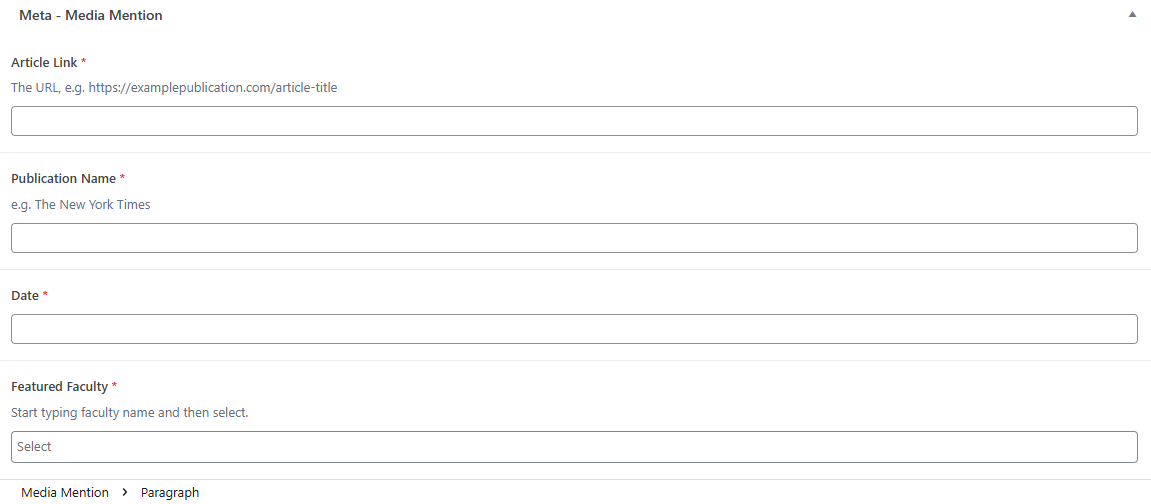
- Article Link – the link of the article
- Publication Name – the name of the publication, e.g. The New York Times
- Date – the date is in calendar form. If you don’t know the exact date, then you can use the first day of the month, e.g. Jan 1, 2024
- Featured Faculty – all the WSB faculty that are in the article can be added here. You can start typing the name, and the selection will filter names so you don’t need to search through all the faculty
3. Add categories and tags (optional)
Categories and tags helps users filter the media mentions. Please view Blog Category and Tag Standards and follow your team’s standards. Your team should have a standard set of categories and/or tags.

4. Once you're done, click on the blue Publish at the top right.